AirPlay vs. Sonos on Mac: Which Approach Actually Works Better?
When you have Sonos speakers and a Mac, you have two fundamentally different ways to make them work together, and they behave nothing alike. This article explains how AirPlay and Sonos's own protocol each work, what tradeoffs come with each, and when one is the right tool and when the other is.
8 min read
When a Mac user sets up Sonos for the first time, AirPlay usually seems like the obvious path. It’s built into macOS, it requires no extra apps, and Sonos speakers show up directly in the menu bar’s volume picker. But AirPlay and Sonos’s native control model are architecturally different in ways that matter in daily use, particularly around latency, volume behavior, multi-room audio, and reliability. Both approaches have real uses. Understanding the difference helps you use each where it actually fits.
How to AirPlay from a Mac to Sonos
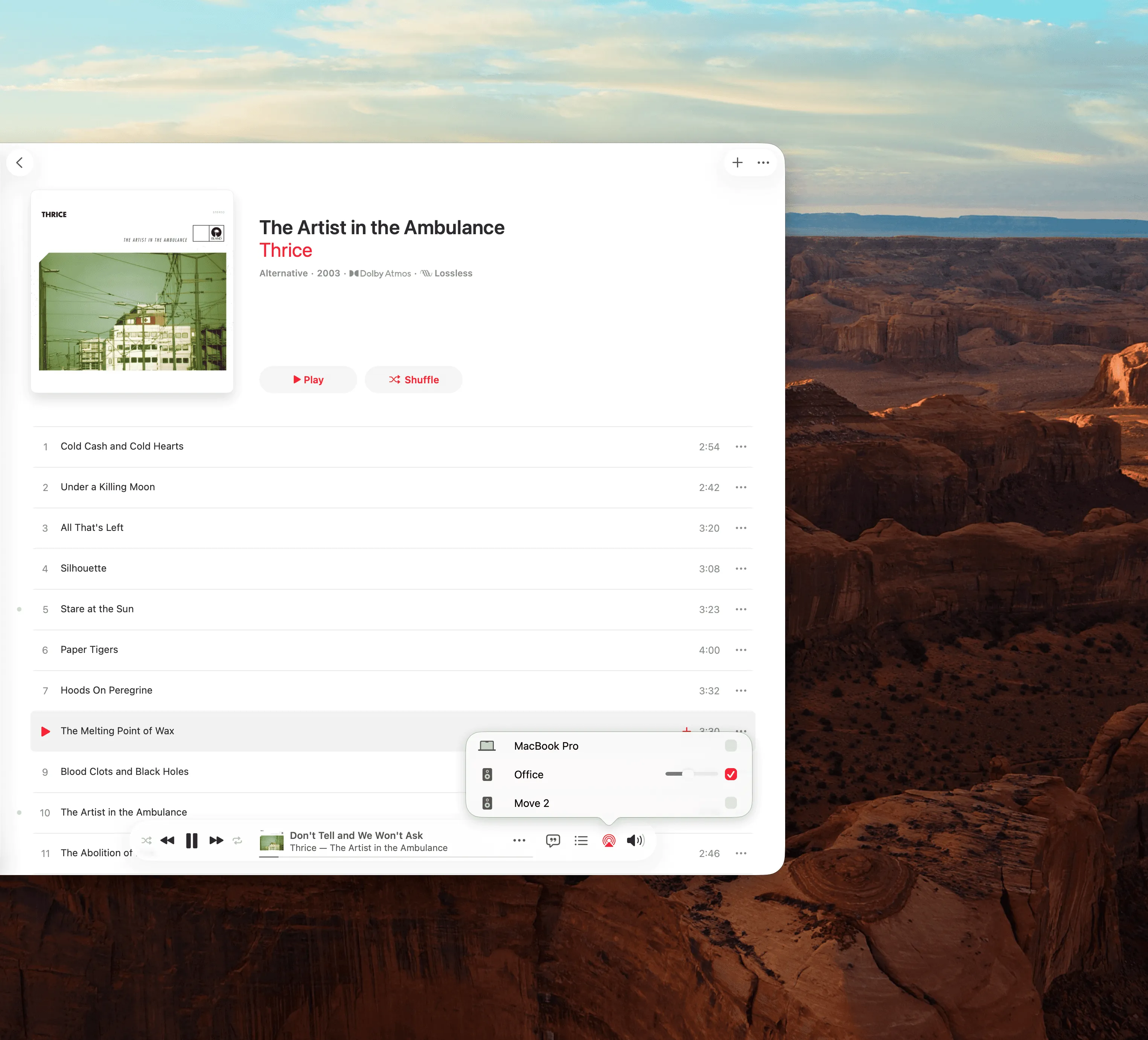
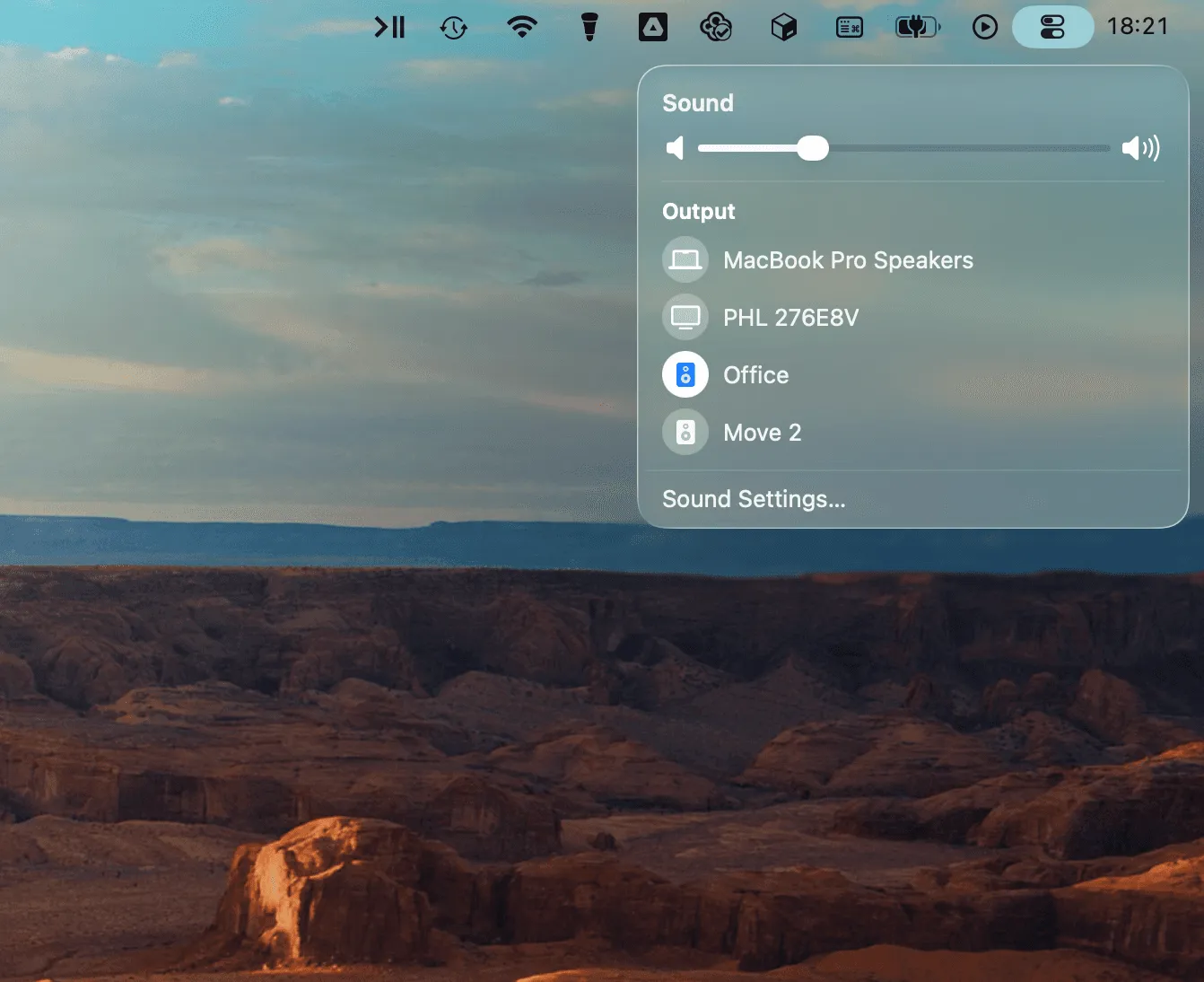
When you stream audio from your Mac via AirPlay, your Mac becomes the audio source. It captures your system audio, encodes it, and sends it across your local network to the Sonos speaker, which then decodes and plays it. The speaker is essentially acting as a networked output device for whatever audio your Mac is producing.
The most immediately noticeable consequence of this is latency. AirPlay introduces a buffer that Apple bakes into the protocol at the OS level; it cannot be changed by third parties. In practice, this means a delay of roughly 2 seconds from when audio is generated on your Mac to when it plays through the speaker. Users on Sonos Community and Apple Support forums consistently report this baseline delay, with some setups experiencing significantly longer delays of 8–13 seconds depending on network conditions and speaker configuration. This is not a fixable misconfiguration; it is how AirPlay works.
For music listening this usually isn’t noticeable. For video, it’s a problem: your audio will be out of sync with your screen unless the app compensates for the AirPlay delay, which most do not. Native Mac apps like VLC and QuickTime are particularly prone to this.
Volume behavior under AirPlay is another point of friction. When your Mac is the audio source, the Mac’s system volume is directly tied to the AirPlay output level. Your keyboard’s volume keys control that stream. This can create confusing interactions: turning your Mac volume down also quiets your speakers, notifications and system sounds play through your Sonos, and switching away from the AirPlay source sometimes drops or resets the volume in unpredictable ways. Multiple users have reported that after pausing content, switching tabs, or waking their Mac from sleep, the AirPlay connection either silently drops or plays back at an unexpected volume level.
Multi-room behavior under AirPlay is also constrained. You can AirPlay to a Sonos room or group, but you’re working with whatever grouping existed at the time of connection. Adjusting which rooms are included requires going back to the Sonos app to manage groups. You cannot independently manage multiple rooms from the AirPlay interface itself.
That said, AirPlay has genuine uses. If you’re watching content in a browser or non-Sonos-aware app and just want the audio to come out of your speakers, it’s the easiest path. There’s nothing to install, and for casual listening where a bit of latency doesn’t matter, it works.
Sonos AirPlay Not Working? The Usual Causes
Most AirPlay complaints come down to three things, and only one of them is a fault.
The speaker doesn’t support AirPlay 2. This is by far the most common answer to “my room isn’t in the list.” AirPlay is not a Sonos-wide feature: Sonos reports it per speaker, and the older generations simply don’t carry it. A room that never appears as an AirPlay target almost certainly can’t be one. The workaround people miss is that you can group a non-AirPlay speaker with an AirPlay-capable one in the Sonos app and stream to the group.
Your Mac and the speaker aren’t on the same network. AirPlay finds speakers by looking around the local network, exactly like every Sonos controller does, so it fails in exactly the same situations: a guest or IoT Wi-Fi that isolates devices, a VPN that routes everything through a tunnel, a router that drops multicast. If your speakers are missing from AirPlay and from your Sonos app, the problem isn’t AirPlay. Work through the causes here.
It connected, then went strange. Dropouts after waking from sleep, volume jumping when you switch apps, audio lagging behind video: those are the protocol, not your setup. AirPlay makes your Mac the source, ties the stream to your Mac’s system volume, and adds a buffer no app can shorten. The section above explains why. If that behavior is what’s bothering you, the fix isn’t a better AirPlay setup; it’s not using AirPlay for that job.
How Sonos’s Own Protocol Works on Mac
Sonos’s native approach is architecturally different in a way that changes everything. When you control Sonos via its own protocol, your Mac is not the audio source; it’s a remote control. The Mac sends playback commands over the network to the Sonos system, and the speakers go and fetch the audio themselves, directly from Spotify, Apple Music, Tidal, or whichever service you’re using. Once you press play, the Mac’s role is largely done.
The result is that there is no latency introduced by the Mac. Your Mac’s CPU, network stack, and audio pipeline are not in the signal path. The speakers handle synchronization internally, which is why Sonos’s own multi-room sync is so reliable: every speaker in a group is fetching from the same source and synchronizing directly with each other, without a laptop in the middle.
Volume control is also decoupled from the Mac entirely. Adjusting the volume of a Sonos room via the native protocol changes only that room’s output; it has no effect on your Mac’s system volume. No notification sounds accidentally blast through your speakers. No keyboard shortcut accidentally mutes the room while you’re doing something else.
This also means you can fully manage multi-room playback from one place: play different tracks in different rooms, group and ungroup rooms on the fly, and adjust individual room volumes independently, all without touching the content-playing device.
The trade-off is that this approach only works for audio that Sonos can play natively. If you’re streaming from a browser tab, playing system audio, or using an app that doesn’t support Sonos’s protocol directly, the native approach doesn’t apply. You can’t use it to send arbitrary Mac audio to your speakers.
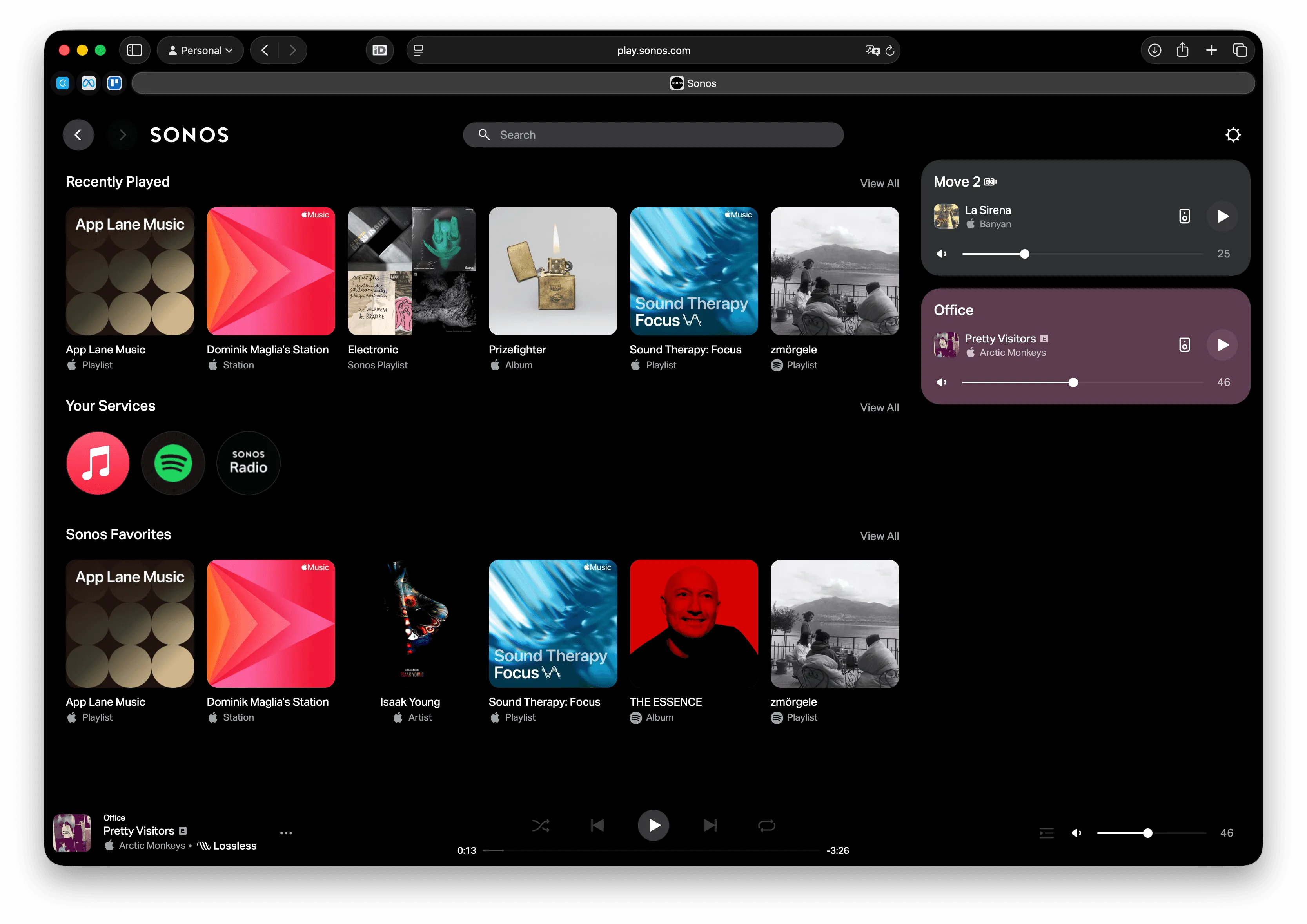
The first-party option for Sonos control on Mac is the web app at play.sonos.com, plus a legacy desktop app available as a direct download from Sonos’s website (it is not in the Mac App Store and is not actively promoted). Both provide basic playback control and room management. What they don’t provide is any macOS integration: no menu bar access, no keyboard shortcuts, no Siri support, no widgets, and no way to control your speakers without switching to a full browser or app window. For a more thorough look at the state of first-party Sonos options on Mac, see this article that covers both of them specifically.
Which Should You Use?
The decision comes down to what you’re actually trying to do.
If you’re streaming audio from your Mac (a browser, a video app, a podcast player, system audio), AirPlay is the right tool. It’s the only way to get that audio to your Sonos speakers. Just be aware of the latency limitation if video sync matters, and accept that macOS has had reliability issues with AirPlay to Sonos that have persisted through recent OS updates.
If you’re controlling what Sonos plays independently of your Mac (telling Spotify or Apple Music to play on your speakers, managing rooms, adjusting volume), the native Sonos protocol is the better choice. The Mac is a remote, not a source, and the audio path is cleaner: no delay, no linked volume, no Mac power state affecting playback.
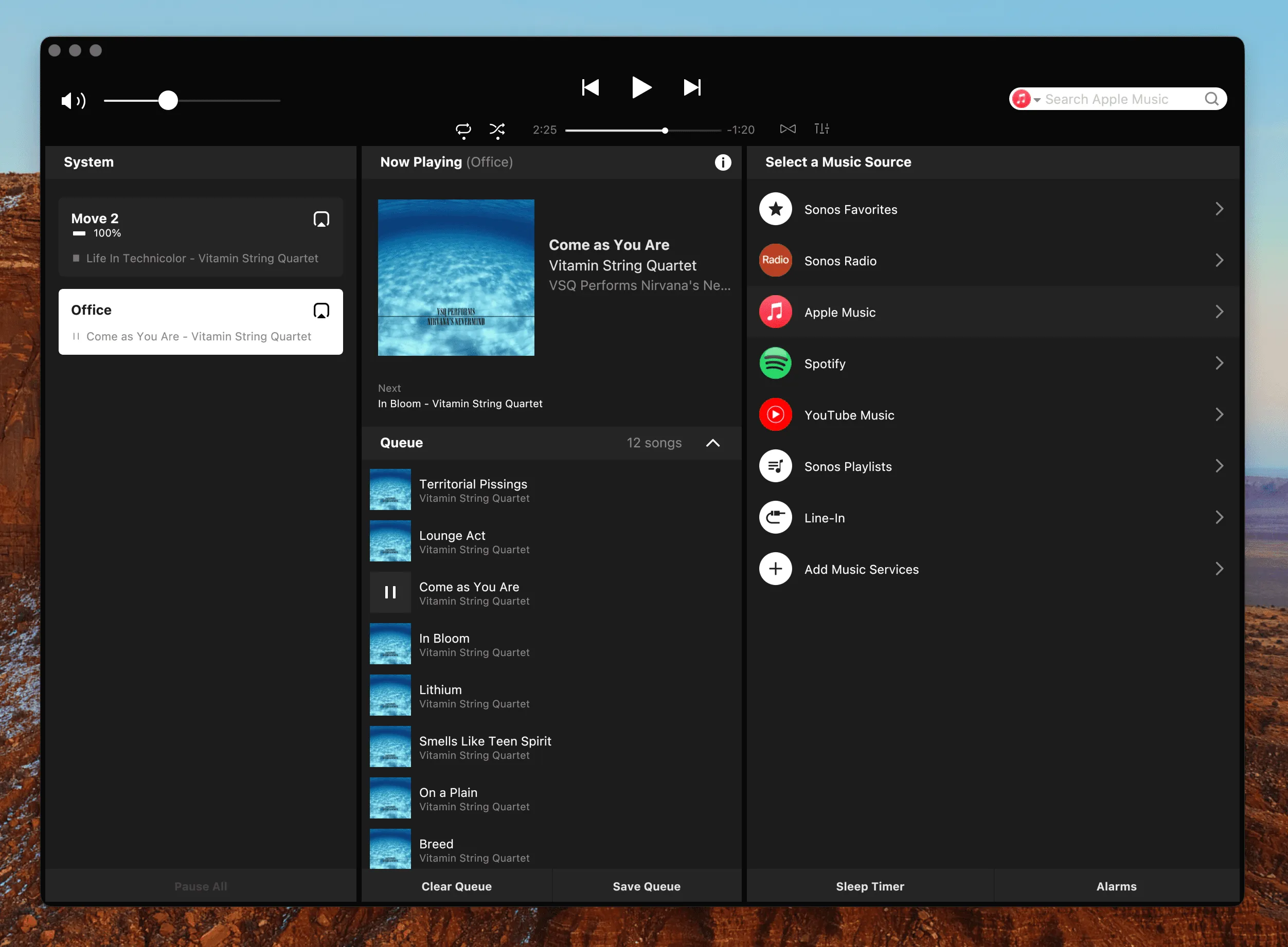
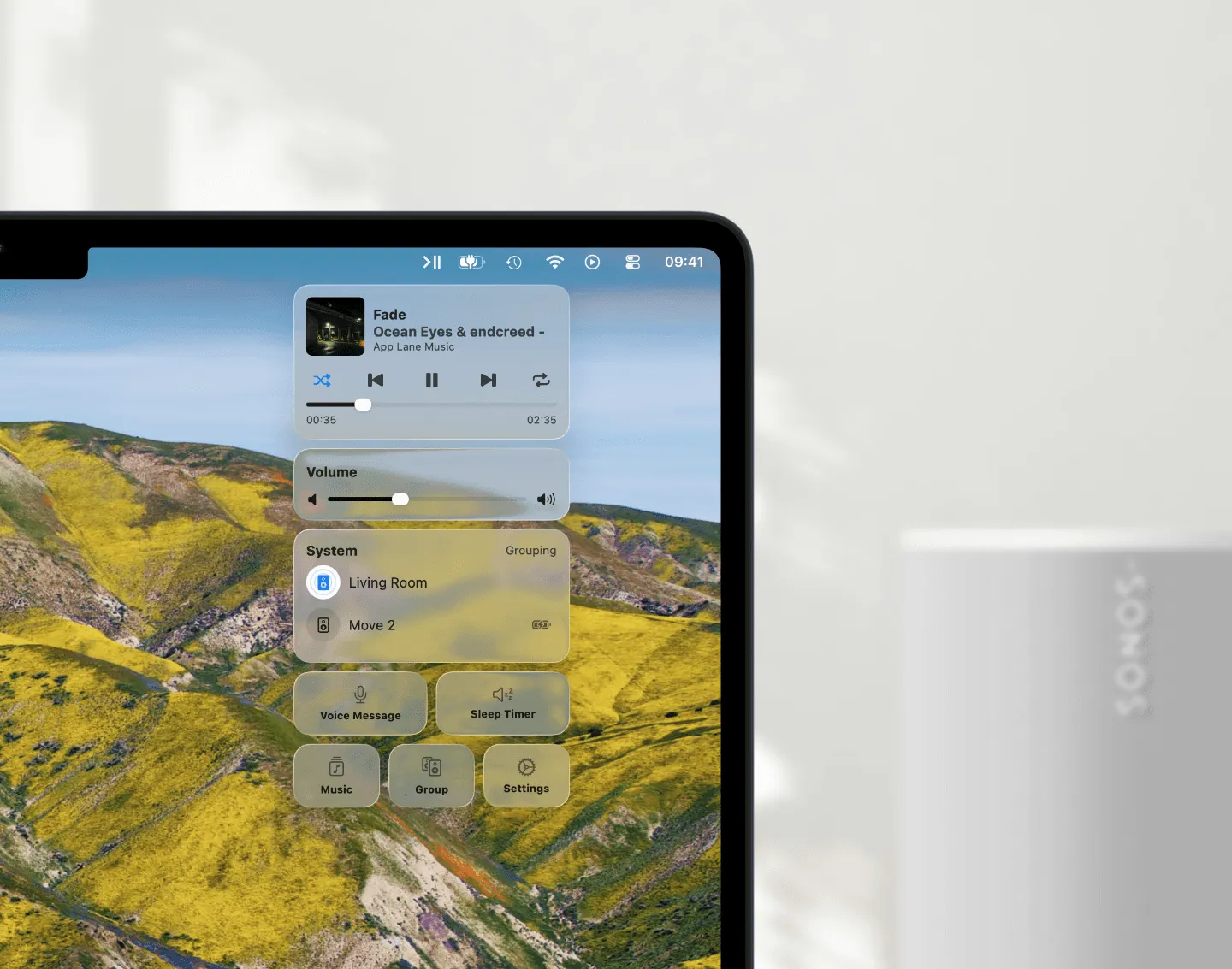
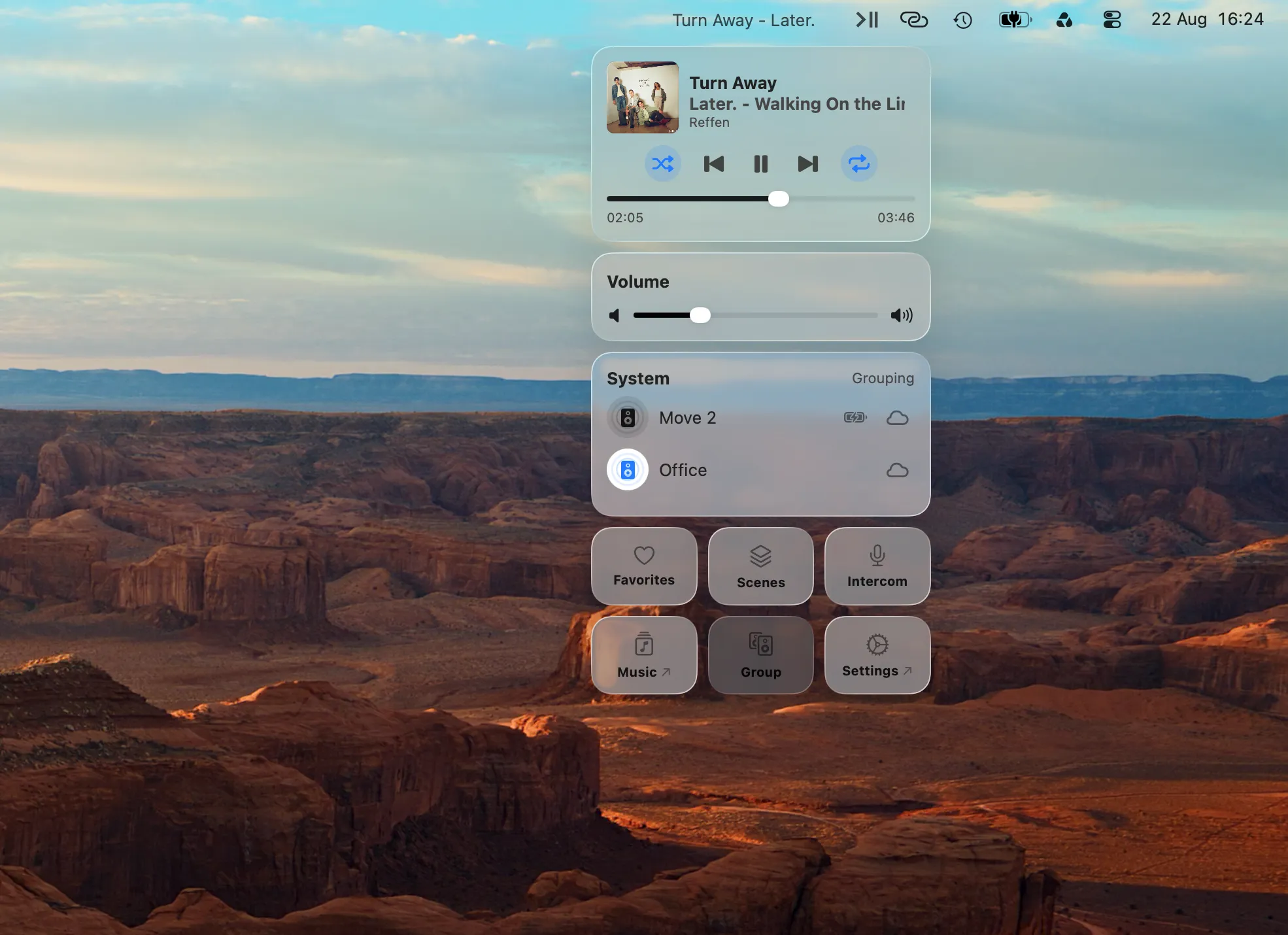
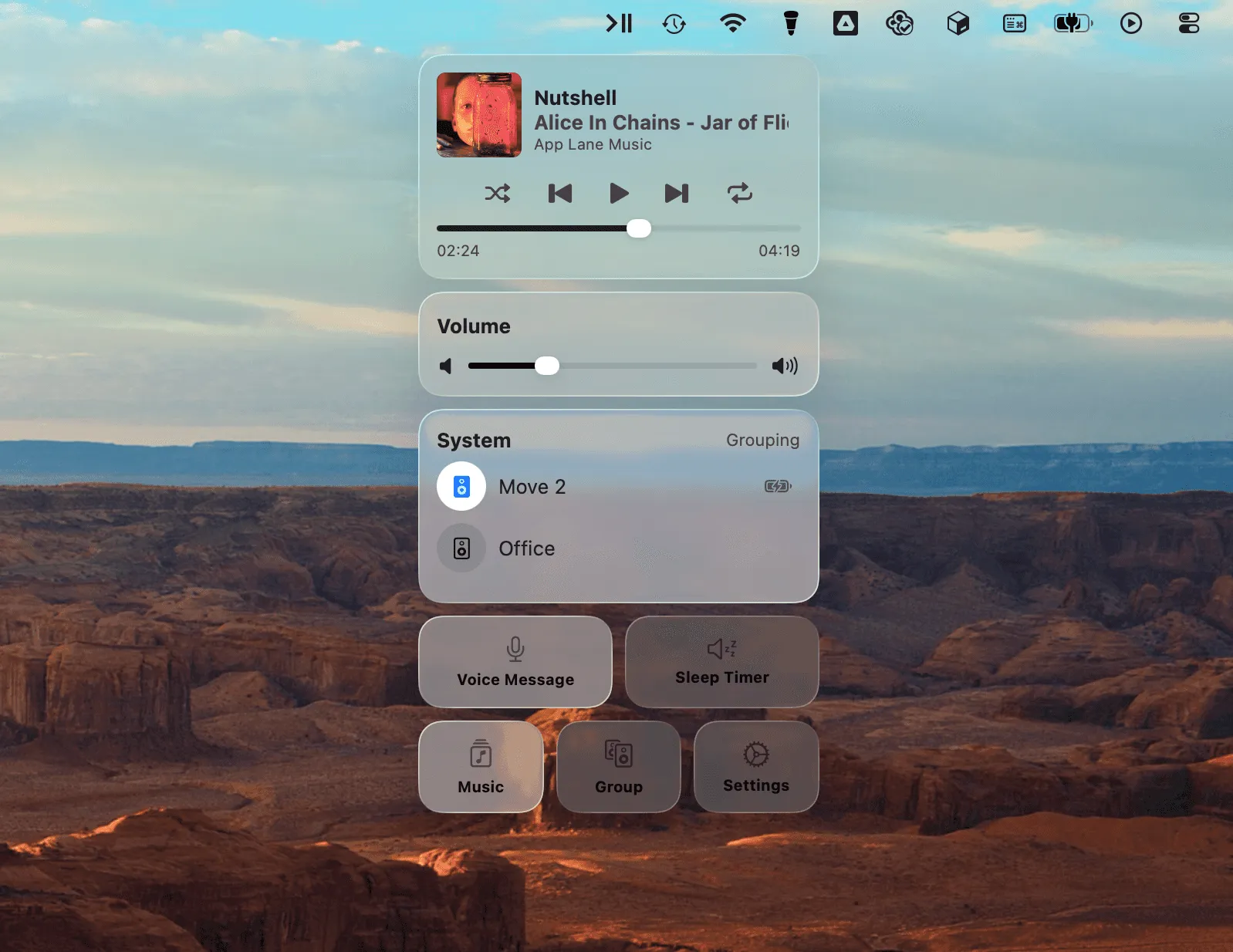
If you want keyboard control, menu bar access, or macOS integrations (the ability to hit a function key to adjust speaker volume without switching windows, see what’s playing from the menu bar, use Siri to pause a room, or trigger playback from Apple Shortcuts), neither AirPlay nor the first-party Sonos options cover this. This is where Menu Bar Controller for Sonos (MBC) fills the gap. It uses the native Sonos protocol and wraps it in a proper Mac app: menu bar access, full keyboard shortcut support, a floating mini player, Siri integration, and widget support. It doesn’t add latency or link your system volume to your speakers, because your Mac is still just a remote.
Getting Started with MBC
- Download MBC from the Mac App Store
- Open the app. It will appear as an icon in your Mac menu bar.
- On first launch, login to your Sonos account
- Click the menu bar icon to open the controller. From here you can start playback, adjust volume, and switch rooms.
- Keyboard Shortcuts are already enabled by default; review or change them right in the MBC’s settings
For a full overview of MBC’s features, including the floating Mini Player, Siri commands, and Apple Shortcuts support, visit its product page.
Conclusion
AirPlay is the right choice when your Mac is the audio source and you need speakers to output whatever is playing on your screen. Sonos’s native protocol is better for everything else: controlling streaming services, managing rooms, and adjusting volume without touching your Mac’s audio system. For Mac users who want both approaches available without switching apps, plus keyboard shortcuts and menu bar access, the Menu Bar Controller for Sonos (MBC) provides a native Mac layer on top of the native Sonos protocol.
Try the Menu Bar Controller for Sonos for free for 14 days. Available on the Mac App Store.