Features
Everything Menu Bar Controller for Sonos (MBC) does to make Sonos feel native on your Mac. Click any feature below to jump directly to it.
Watch the Overview
Two and a half minutes: the menu bar, the Music Library, Scenes, and Keyboard Shortcuts in motion.
Always in reach
Menu Bar Controls
Full Sonos control one click away, without switching apps or opening a window.
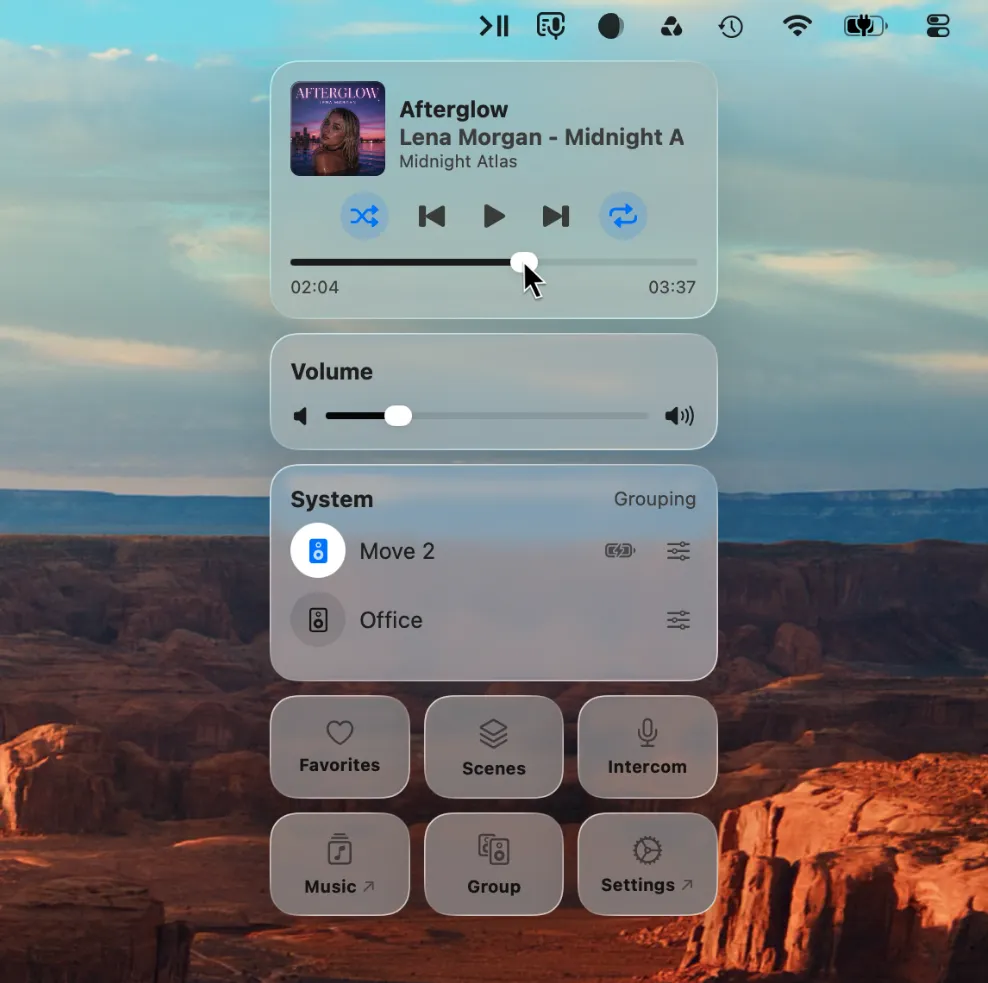
Click the menu bar icon to open the Menu Bar Controller's main window. Play, pause, skip, change rooms, adjust volume, and browse music, all without leaving what you were doing.
The icon itself can show what's playing at a glance if you choose an Icon Style with song title. You can change the Icon Style in Settings → Menu Bar Icon.
All your music
Music Library
A full music window for your Sonos system: browse your Favorites and Playlists, search every streaming service, and play the collection you own.
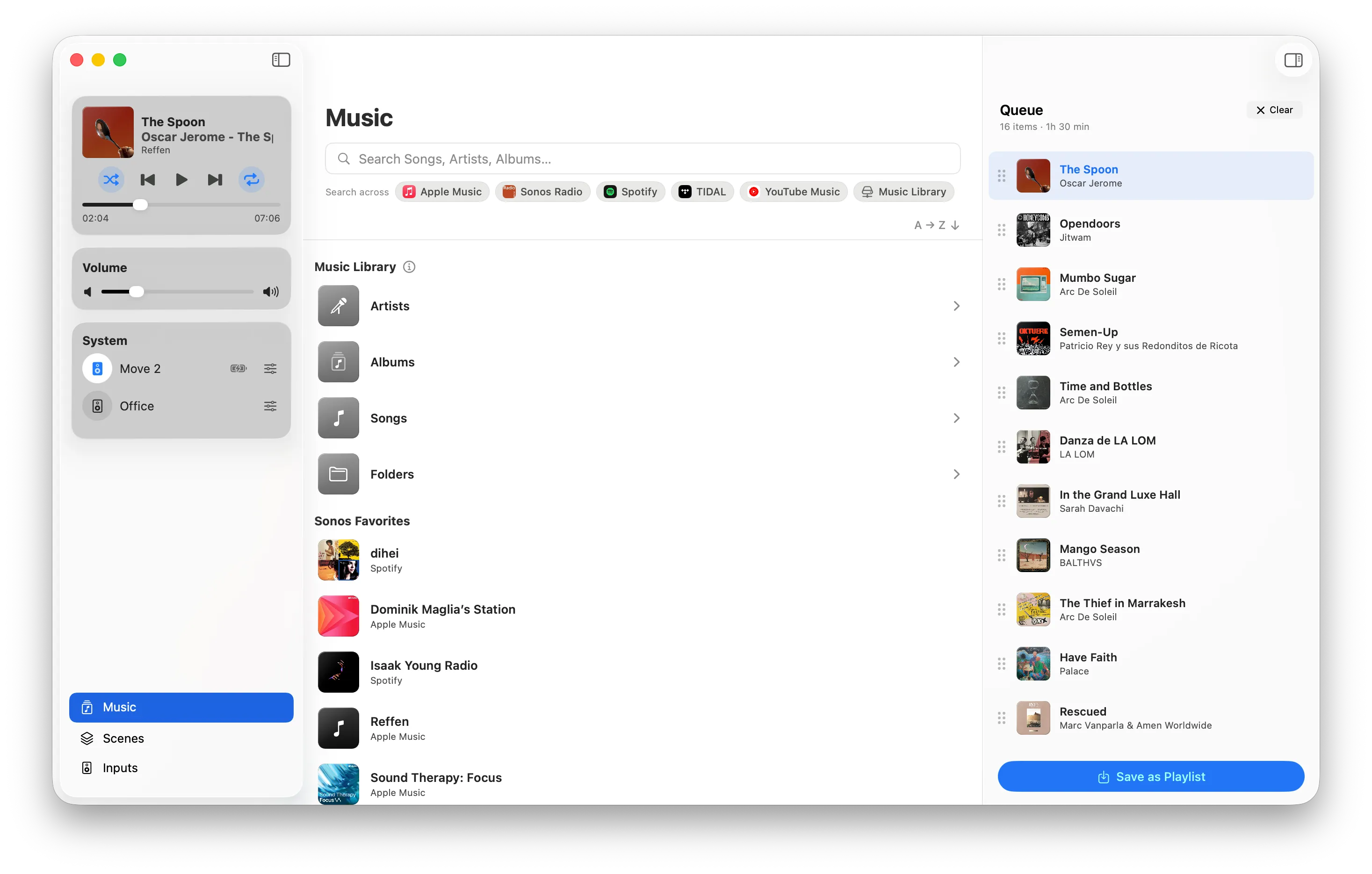
The Music Library window puts everything playable in one place. Browse your Sonos Favorites and Sonos Playlists, or search across every streaming service connected to your system: songs, albums, artists, playlists, stations, and podcasts. Every result plays instantly with Play Now, or lines up with Next and Later.
It also covers the music you own: if Sonos indexes a library on your NAS or a shared folder, MBC browses it by artist, album, genre, composer, or folder, and the Manage Music Library sheet shows your shared folders and refreshes the index on demand.
Speaker Inputs like TV and Line-In sit in the same sidebar, one click away.
You decide what plays next
Queue Editor
See what's coming, change your mind, and keep the queues worth keeping.
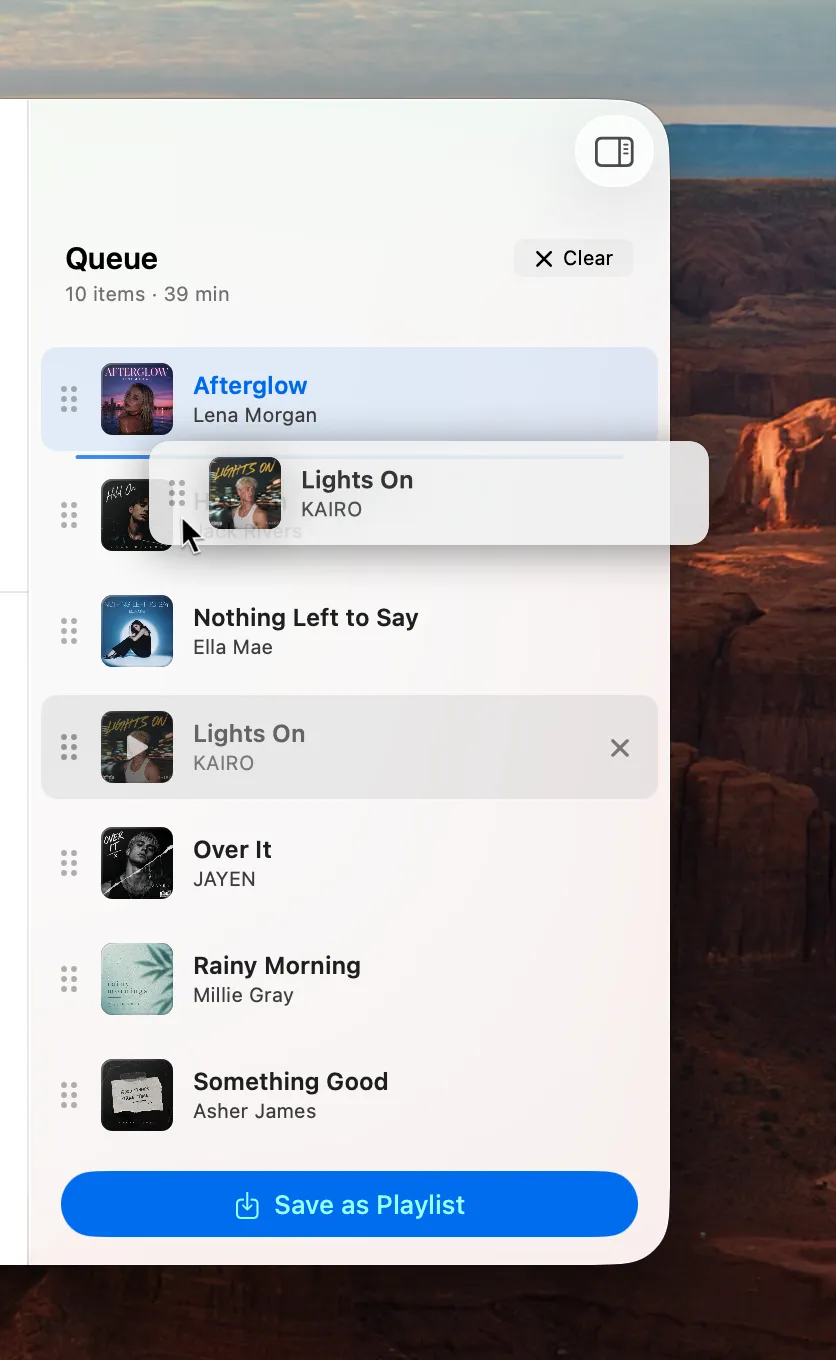
The Queue panel shows exactly what plays next. Drag tracks to reorder, remove single titles, or clear the whole thing. Every change goes straight to the speaker. Click any track to jump right to it.
Built a queue you like? Save it as a Sonos Playlist and it appears everywhere Sonos does, including the official app.
Set the scene
Scenes
Save your whole Sonos setup (speakers, grouping, volumes, EQ, source) and bring it back with one click.
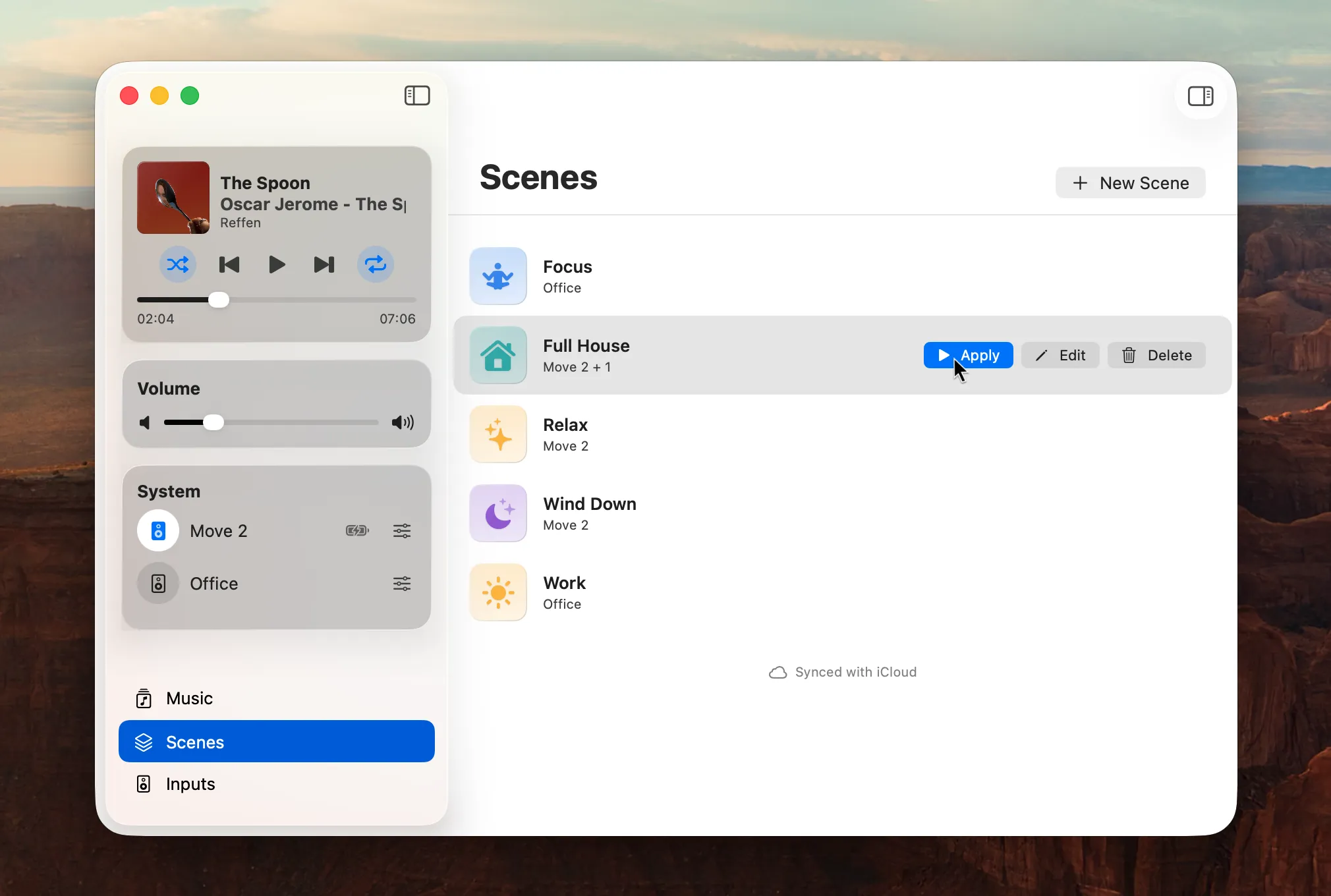
A Scene captures a complete moment: which speakers play, how they're grouped, each speaker's volume, EQ and Home Theater settings like Night Sound and Speech Enhancement, and what plays: a favorite, a playlist, TV, or Line-In.
Scenes do more than restore. Give one its own Sleep Timer, or let it stop every speaker that isn't part of it. One click, and the whole house switches to movie night. Apply them from the window, or from anywhere in macOS with the "Apply Scene" action in Apple Shortcuts.
Your Scenes sync through your own private iCloud database, so every Mac, and Lyd on iPhone and Apple Watch, sees the same set. The sync can be switched off in Settings.
How to create a Scene
- Open the Music Library window and choose Scenes in the sidebar
- Create a new Scene; it starts as a snapshot of what's playing right now
- Adjust speakers, volumes, EQ, and the source
- Apply it with one click, or from an Apple Shortcut
At a glance
macOS Widgets
See what's playing right on your desktop or in Notification Center, and control it without opening the app.
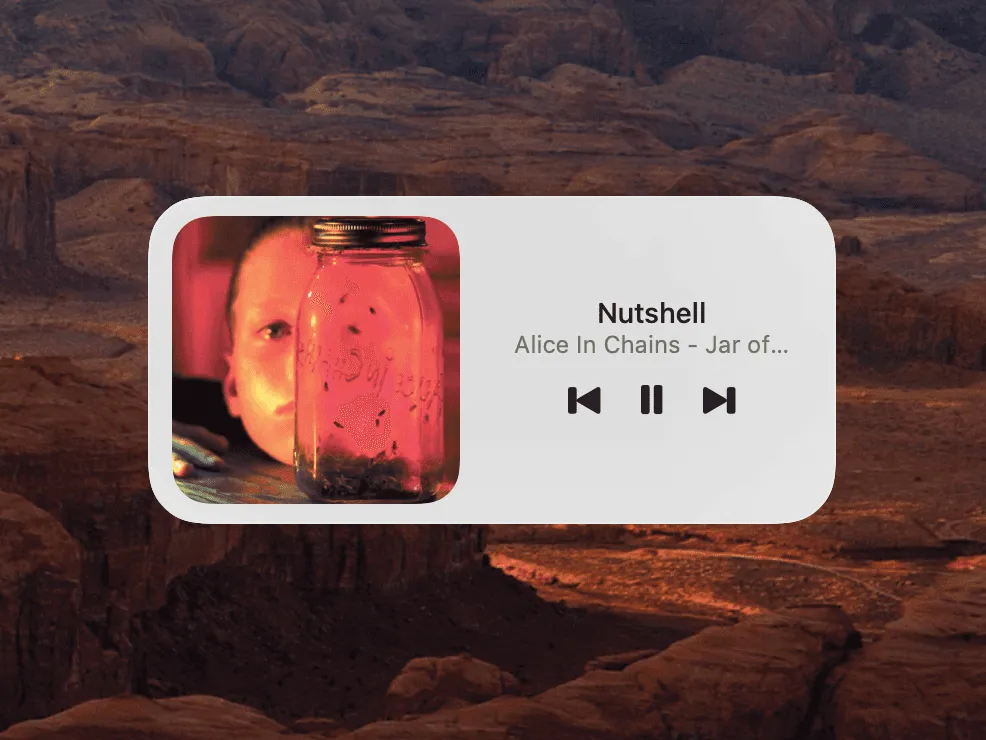
MBC Widgets show album art, track info, and transport controls. Available in multiple sizes to fit your layout. Works in the Notification Center widget gallery and directly on the macOS desktop.
How to add the Notification Center widget
- Click the date and time in the menu bar to open Notification Center
- Scroll to the bottom and click "Edit Widgets"
- Search for "Menu Bar Controller"
- Drag your preferred size onto the widget panel
- Click "Done"
No mouse required
Keyboard Shortcuts
Control volume, playback, and track selection from anywhere, even when MBC is not focused.
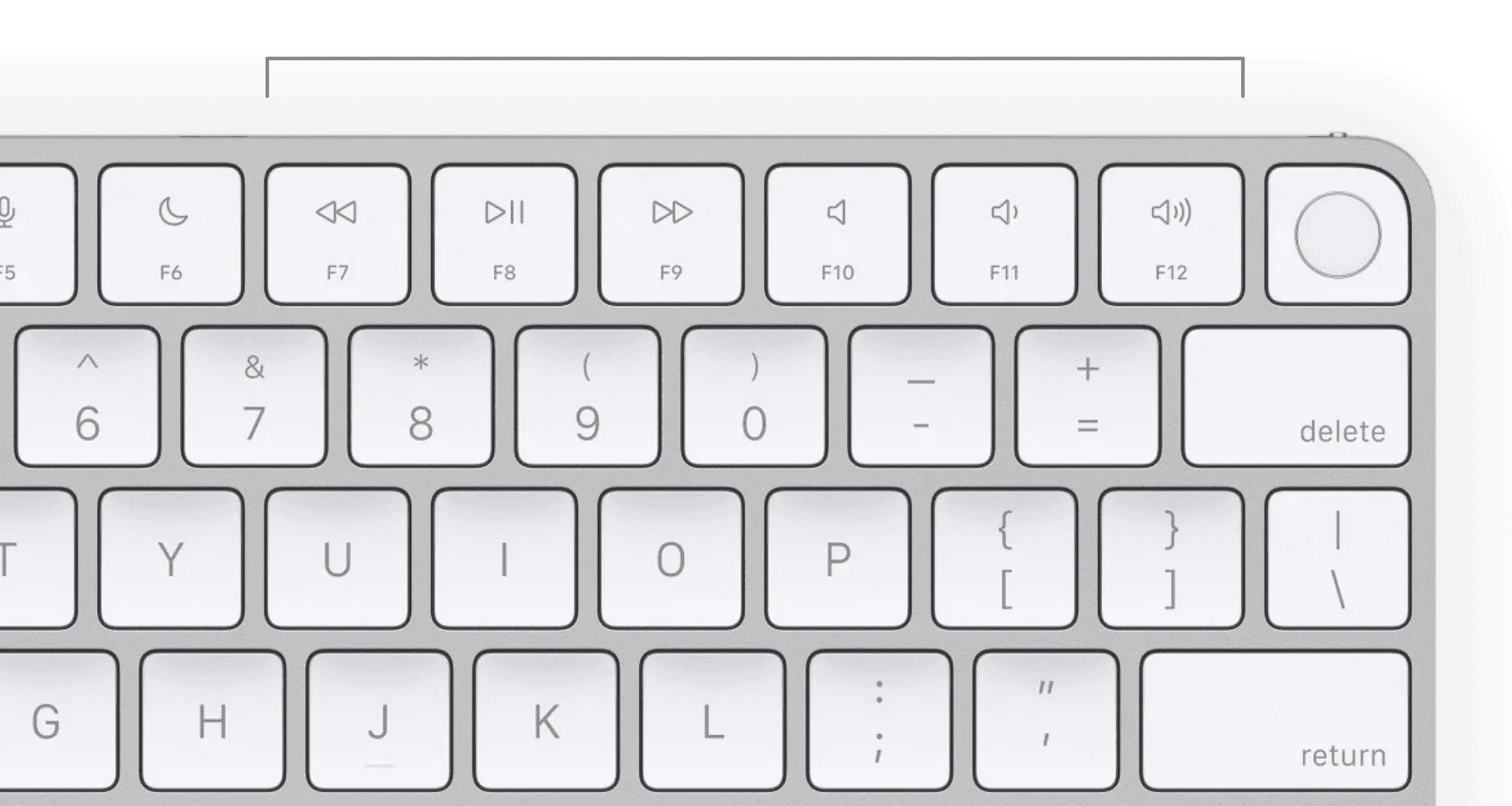
MBC supports fully customizable global hotkeys. Assign any key combination to show the app, play/pause, skip, seek forward or back, raise/lower volume, or mute. The shortcuts work system-wide: in any app, in full-screen games, even with the MBC window closed.
How to change keyboard shortcuts
- Open MBC and go to Settings → Keyboard Shortcuts
- Click the field next to the action you want to assign
- Press the key combination you want to use
- Done. The shortcut works immediately, system-wide
Your desktop, your way
Floating Mini Player
A compact now-playing window that sits on your desktop when you want it and disappears when you don't.
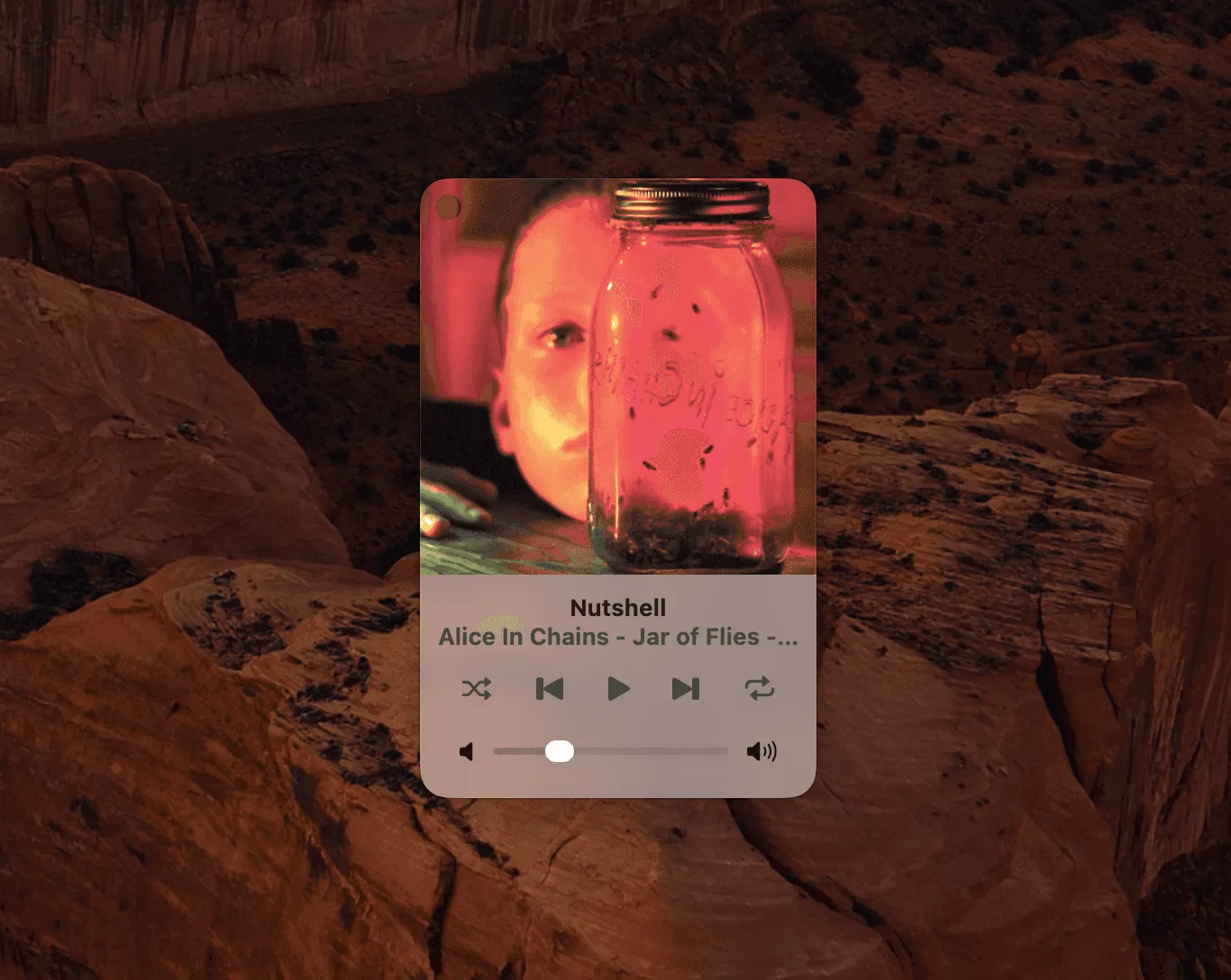
The Mini Player gives you persistent at-a-glance visibility: album art, track name, artist, and transport controls in a compact window. Position it anywhere on screen. Configure whether it floats above other windows or stays in the background.
For falling asleep
Sonos Sleep Timer
Set your music to stop automatically after a set amount of time.
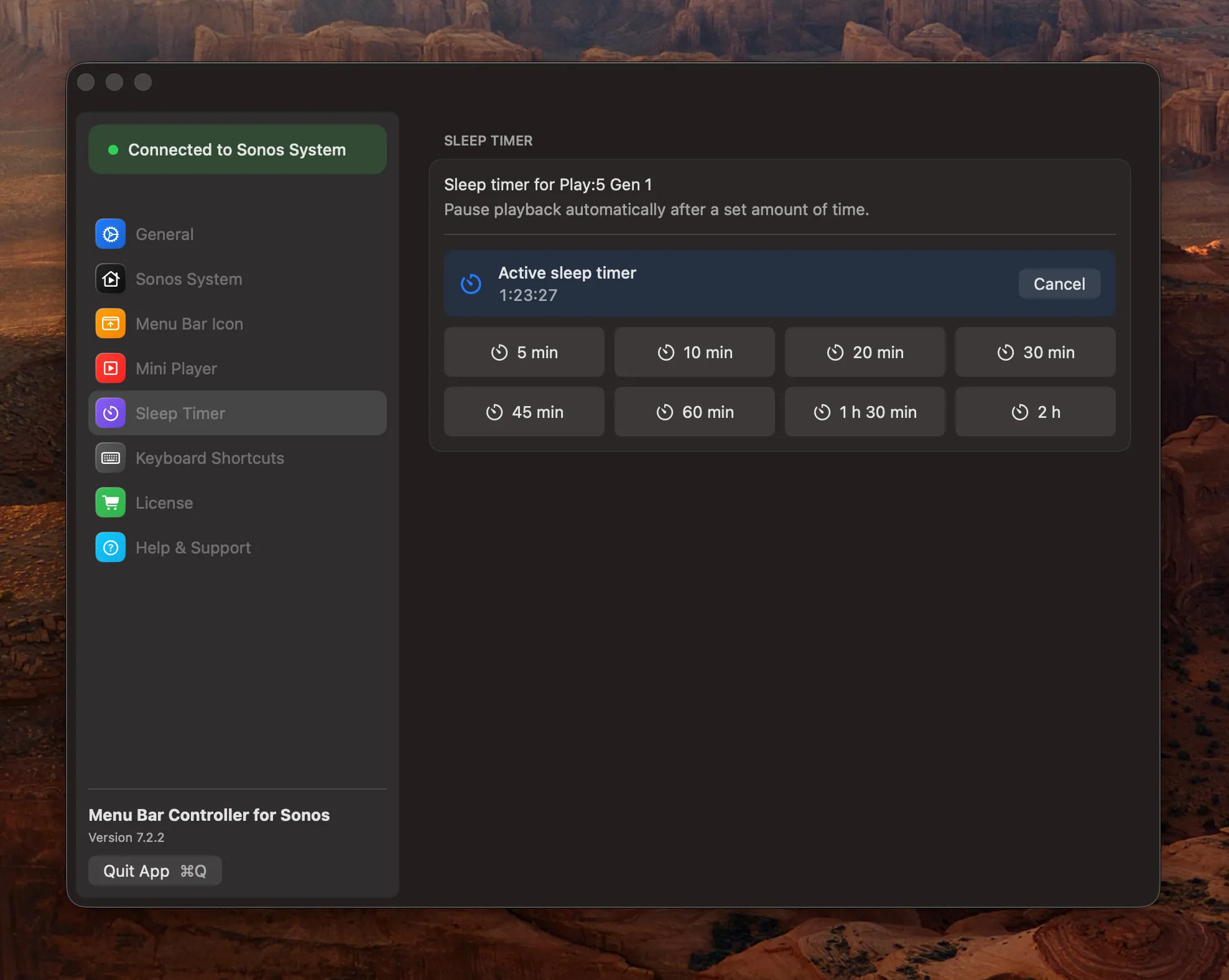
Pick a duration and MBC handles the rest, no need to remember to pause before falling asleep or leaving the room. Active timers are visible and cancellable from the same controls.
Talk to the whole house
Intercom
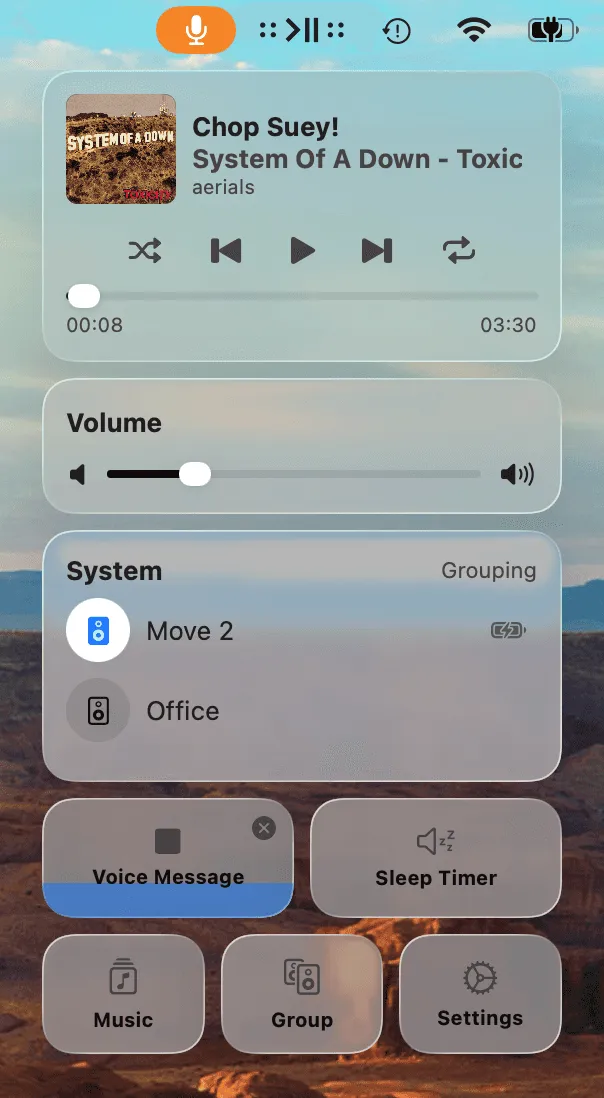
Record an Intercom message and broadcast it to any Sonos speaker in your system.
Like the Apple HomePod's intercom feature, for your whole Sonos system. Record up to 30 seconds of audio and play it on any room or group. The message automatically pauses current playback, plays the announcement, then resumes where it left off.
How to send an Intercom message
- Select the room or group you want to reach
- Click the Intercom tile to start recording
- Speak your message
- Click again when finished; it plays immediately on the selected speakers
Automate everything
Apple Shortcuts & Siri
Build automations that control Sonos based on time, network, messages, Focus mode, or any other trigger macOS supports.
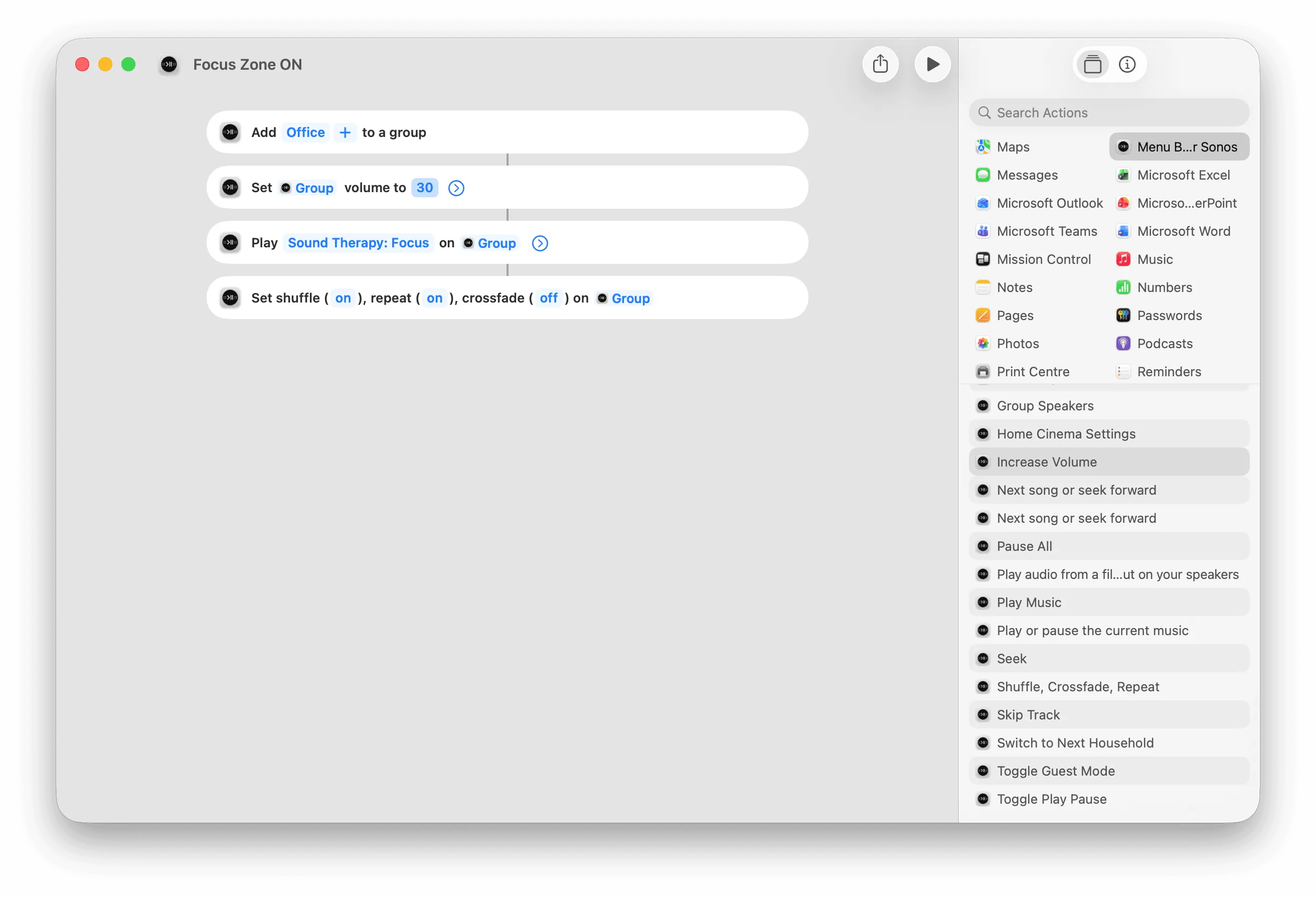
MBC exposes a full set of actions to the Shortcuts app: playback control, volume, grouping, Guest Mode, Intercom, and more. Chain them with any other Shortcuts action to create powerful routines. Run them manually, via Siri, or as automatic triggers.
How to create a shortcut
- Open the Shortcuts app on your Mac
- Create a new shortcut with the + button
- Search for "Menu Bar Controller" in the action library
- Add MBC actions and configure group, volume, or playback options
- Run manually, add to menu bar, or set an automation trigger
Example automations
When Work Focus starts
Pause Sonos in the Living Room
Menu bar button
One-tap "dinner music" shortcut
Every weekday at 7:30 AM
Play Morning Jazz in the kitchen
AppleScript
Script-based control for advanced Mac workflows: integrate Sonos with any tool that supports AppleScript.
MBC is scriptable via AppleScript: play/pause, next and previous track, volume up and down, and reading or setting the current group. Use it with Script Editor, Automator, BetterTouchTool, Keyboard Maestro, Alfred, or any tool that can run a script. Grouping, sources and Scenes live in Apple Shortcuts instead.
AppleScript examples
-- Play/Pause the currently active group
tell application "Menu Bar Controller for Sonos"
    playPause currentGroup
end tell

-- Skip to the next track in the currently active group
nextSong currentGroup

-- Set volume of the currently active group to 35%
set currentVolume of currentGroup to 35
Works with your setup
Sonos S1 and S2 Support
Full compatibility with both the modern S2 platform and the legacy S1 platform, including seamless switching between the two.
In 2020, Sonos split their platform in two. The oldest hardware (the ZonePlayers, the Bridge, the CR200 controller, the first-generation Connect and Connect:Amp, and the original Play:5) could not support the new S2 software. Those stayed on S1; everything released after them runs S2. The two systems are completely separate: they cannot share rooms, groups, or be controlled from the same session.
Sonos hands you two apps for this: the S1 Controller for the old system, the current app or the web app for the new one, and in the web app you pick the system explicitly. In MBC both systems appear side by side, and you switch between them in Settings → Sonos System.
Both systems must use the same Sonos account. Sonos S1 and Sonos S2 remain separate platforms (Sonos requires this), but as long as they're registered to the same account, MBC can access and switch between both.
No account needed
Guest Mode
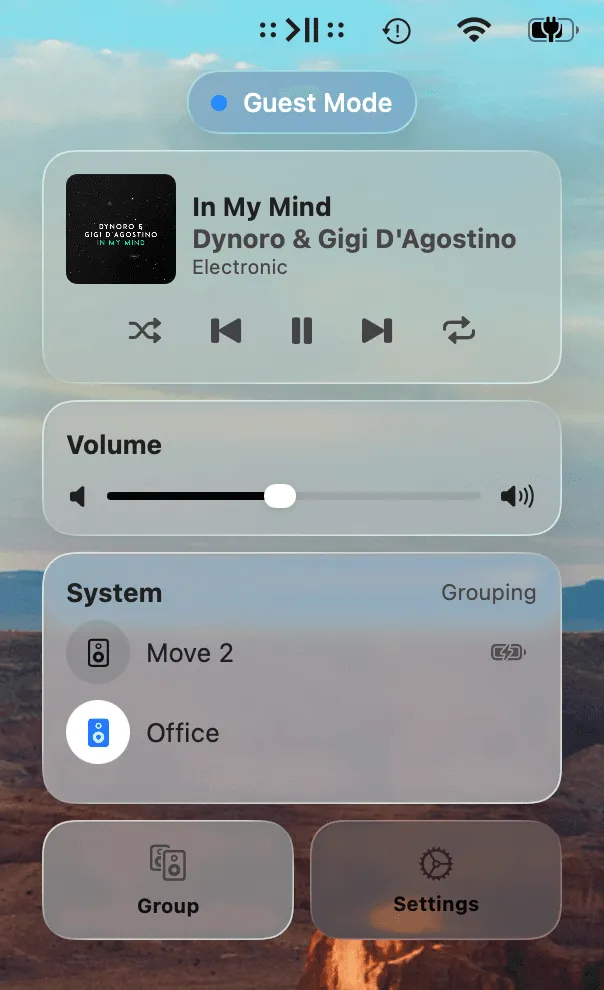
Control any Sonos system on your current Wi-Fi, without logging in.
Connect to a friend's speakers, a vacation rental, or an office system without signing into their Sonos account. Guest Mode uses local network discovery to find speakers and lets you control them directly. No credentials needed, nothing saved after you leave.
Note that Sonos Favorites and music browsing aren't available in Guest Mode; those require a full account login.
How to enable Guest Mode
- Open the MBC's Settings → Sonos System
- Enable the Guest Mode toggle
- Done. MBC discovers speakers on your local Wi-Fi
Family Sharing & License Sync
One purchase covers your whole family, and follows you to any new Mac.
MBC offers a Single license for one Apple Account and a Family license that supports Apple's Family Sharing. When any member of your Family Sharing group purchases the Family license, everyone gets access automatically, no extra purchase needed on each Mac. Your license also syncs across your own machines via your Apple Account, so migration to a new Mac is seamless.
How to set up Family Sharing
- Enable Family Sharing and Purchase Sharing in System Settings → [Your name] → Family Sharing
- Each family member installs MBC from the Mac App Store using their own Apple Account
- The purchase syncs automatically, no code or extra steps needed
Even More to Explore
Additional features that make MBC the most liked Sonos controller on macOS
VoiceOver Support
Full accessibility support for blind and low-vision users with complete VoiceOver integration.
macOS Media Key Integration
Optionally route your Mac's media keys to Sonos instead of other apps.
Podcast & Audiobook Seeking
Jump forward or back 30 seconds with a single tap.
Automatic Speaker Detection
No manual configuration required.
Touch Bar Support
Playback and volume controls in the Touch Bar on compatible MacBook Pro models.
Home Theater Settings
Optimize your Sonos soundbar for movies and TV using Night Sound and Speech Enhancement.
Action Click
Let one click on the menu bar icon control Sonos directly (play/pause or mute) while the other opens the window.
Playback Modes
Customize how your music plays with shuffle, repeat, and crossfade settings.
Individual Speaker Volume
Fine-tune the volume of each speaker in a group.
Multiple Music Services
All streaming services connected to your Sonos system including Spotify, Apple Music, and more.
Full Sonos Control From the Menu Bar
Experience the fastest way to control Sonos on a Mac. Download now and see why users call it a must-have app.