How to Control Sonos with the Keyboard on Mac: Play, Pause, Volume & More

If you've ever reached for the volume key while Sonos is playing and watched your Mac's system volume move instead, you already understand the problem. The options run from Sonos's own solutions to a purpose-built Mac app that handles it properly.
6 min read
Keyboard control of Sonos on Mac is one of those things that should work intuitively and mostly doesn’t. Spotify, Apple Music, and even browser tabs register themselves with macOS as audio sources, so the media keys (play/pause, skip, volume) respond naturally. Sonos works differently. Your Mac isn’t the audio output; it’s a remote control sending instructions over the network to a separate device. macOS has no framework for that, which means media key presses either do nothing, get picked up by whatever local app last played audio, or, most commonly, move the Mac’s system volume while the Sonos volume sits unchanged.
This isn’t a bug so much as a gap in how the two platforms were designed. Understanding it makes the available solutions easier to evaluate.
What Sonos Offers on Mac
The Sonos Desktop App
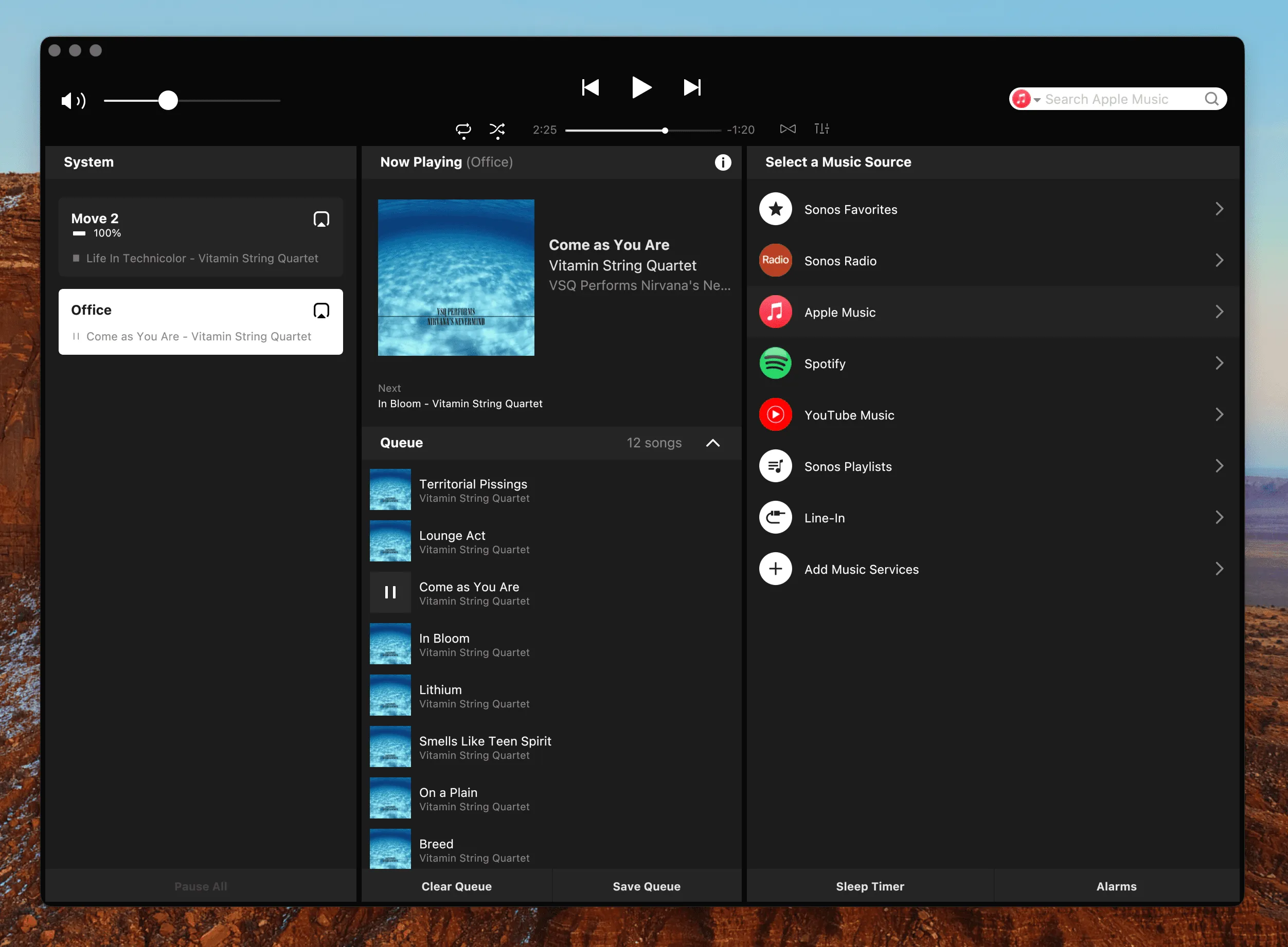
For many years, Sonos shipped a native Mac desktop controller. It had a full shortcut system (⌘P for play/pause, ⌘← and ⌘→ for previous and next track, and so on), but these only functioned when the app was actively in focus, the same limitation that frustrated users for over a decade on the community forums.
In May 2024, Sonos ended developing the native Mac app entirely and replaced it with a web app. The Mac App Store listing now redirects to the iOS version, meaning the desktop controller as it existed is no longer available for new installations. If you still have a copy running, its remaining lifespan is set by Apple’s Rosetta deadline rather than by Sonos, which The Sonos Mac App Is Going Away covers in full.
The Sonos Web App Controller
Sonos’s current Mac solution is a browser-based web app. It provides playback control, queue management, and system settings from any modern browser, and requires no installation.
For keyboard control, the web app offers nothing at all. There are no shortcuts: not for playback, not for volume, not for track navigation. Every interaction requires a mouse or trackpad, and there is no media key integration with macOS whatsoever. The volume controls illustrate this well: each speaker is represented by a slider that can only be adjusted by dragging with a pointer.
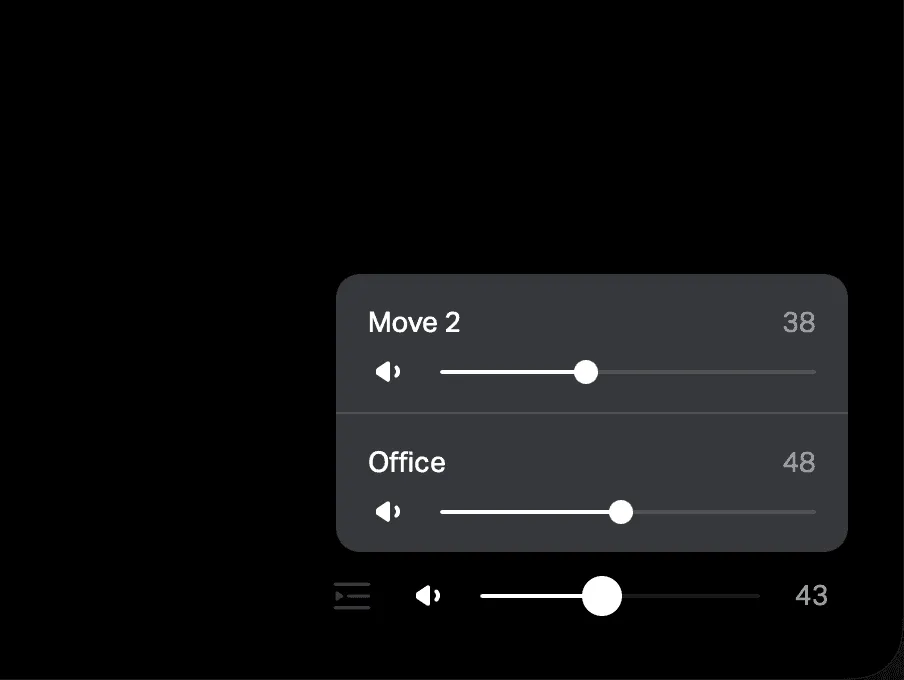
The web app is capable enough for occasional use or for configuring playlists and speaker groups. As a day-to-day control surface for someone working across multiple apps, it asks for context-switching that undermines the point of having the music playing in the background.
A Dedicated Solution: Menu Bar Controller for Sonos
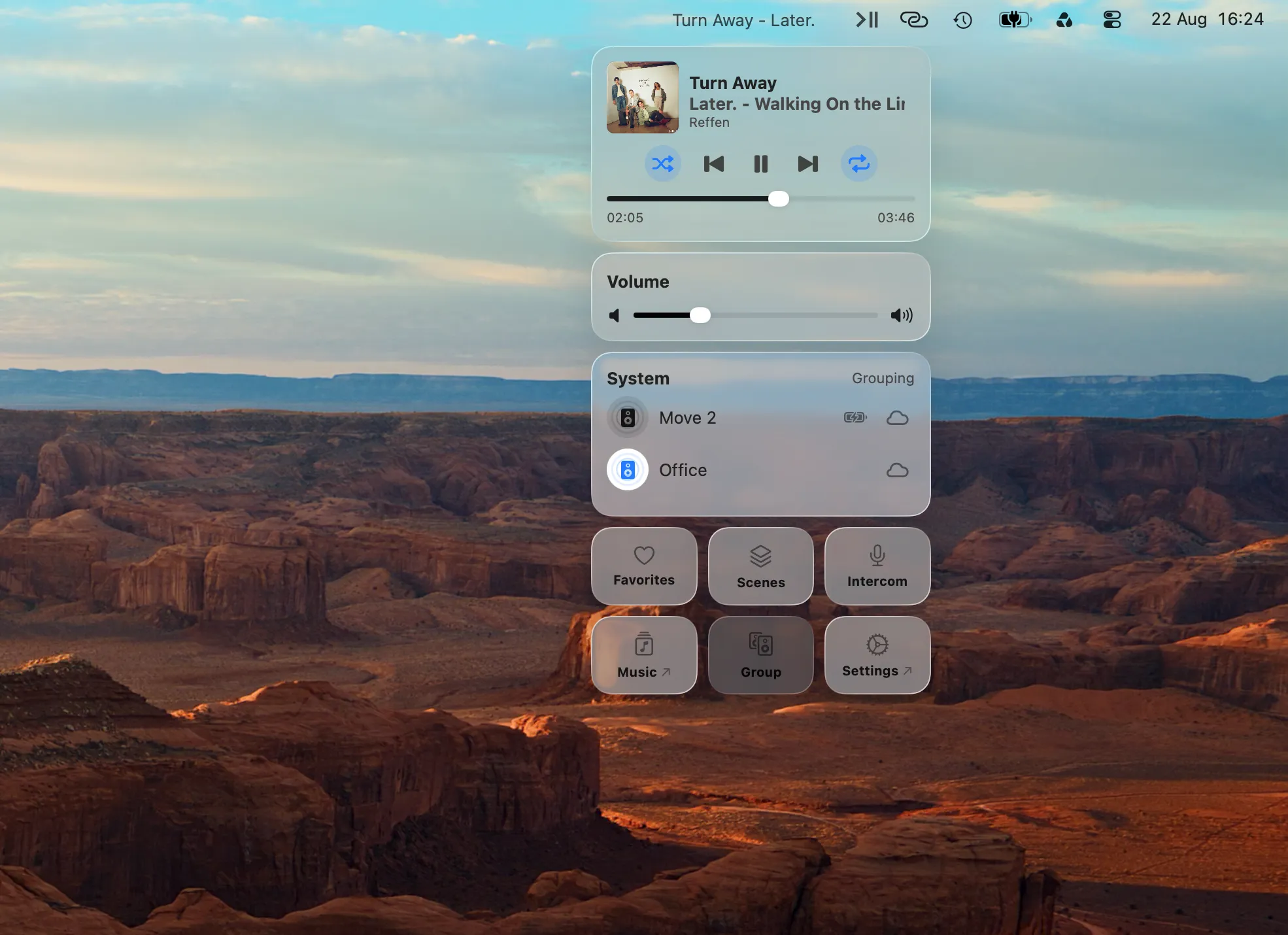
Menu Bar Controller for Sonos (MBC) approaches the problem from a different angle entirely. Rather than attempting to work within macOS’s media key routing, it runs as a persistent background process in the menu bar and registers its own global keyboard shortcuts, shortcuts that fire from any app, in any Space, regardless of what else is running on your Mac, and without requiring the Sonos app to be open.
Setting Up Keyboard Shortcuts
- Download MBC from the Mac App Store (14-day free trial, one-time purchase, no subscription)
- Log in with your Sonos account at first launch
- Open Settings → Keyboard Shortcuts
- Review or adjust the default shortcut assignments
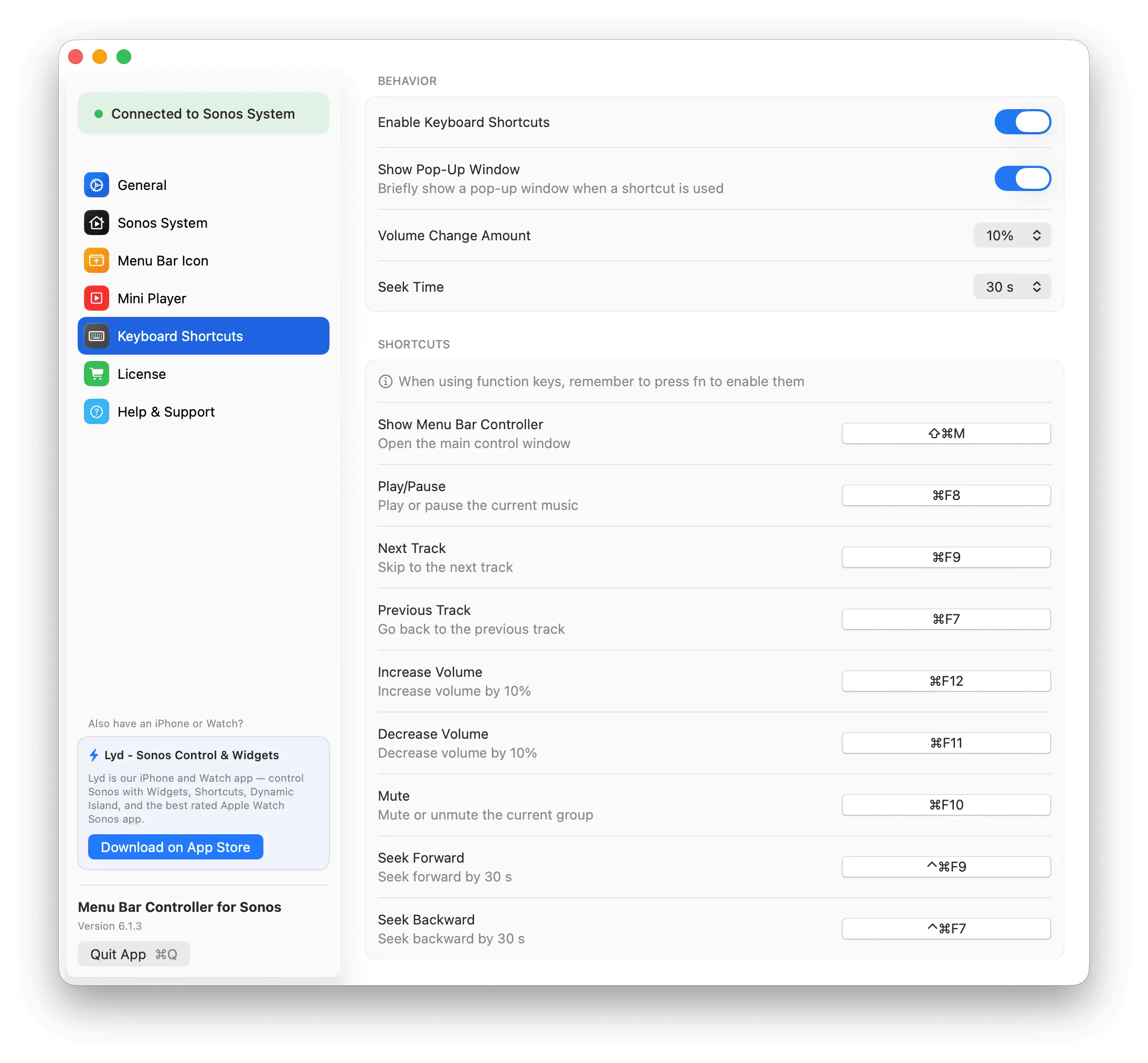
The defaults are well-considered and map closely to standard Mac media key positions:
| Action | Default keyboard shortcut |
|---|---|
| Play / Pause | ⌘F8 |
| Next Track | ⌘F9 |
| Previous Track | ⌘F7 |
| Increase Volume | ⌘F12 |
| Decrease Volume | ⌘F11 |
| Mute / Unmute | ⌘F10 |
| Seek Forward | ^⌘F9 |
| Seek Backward | ^⌘F7 |
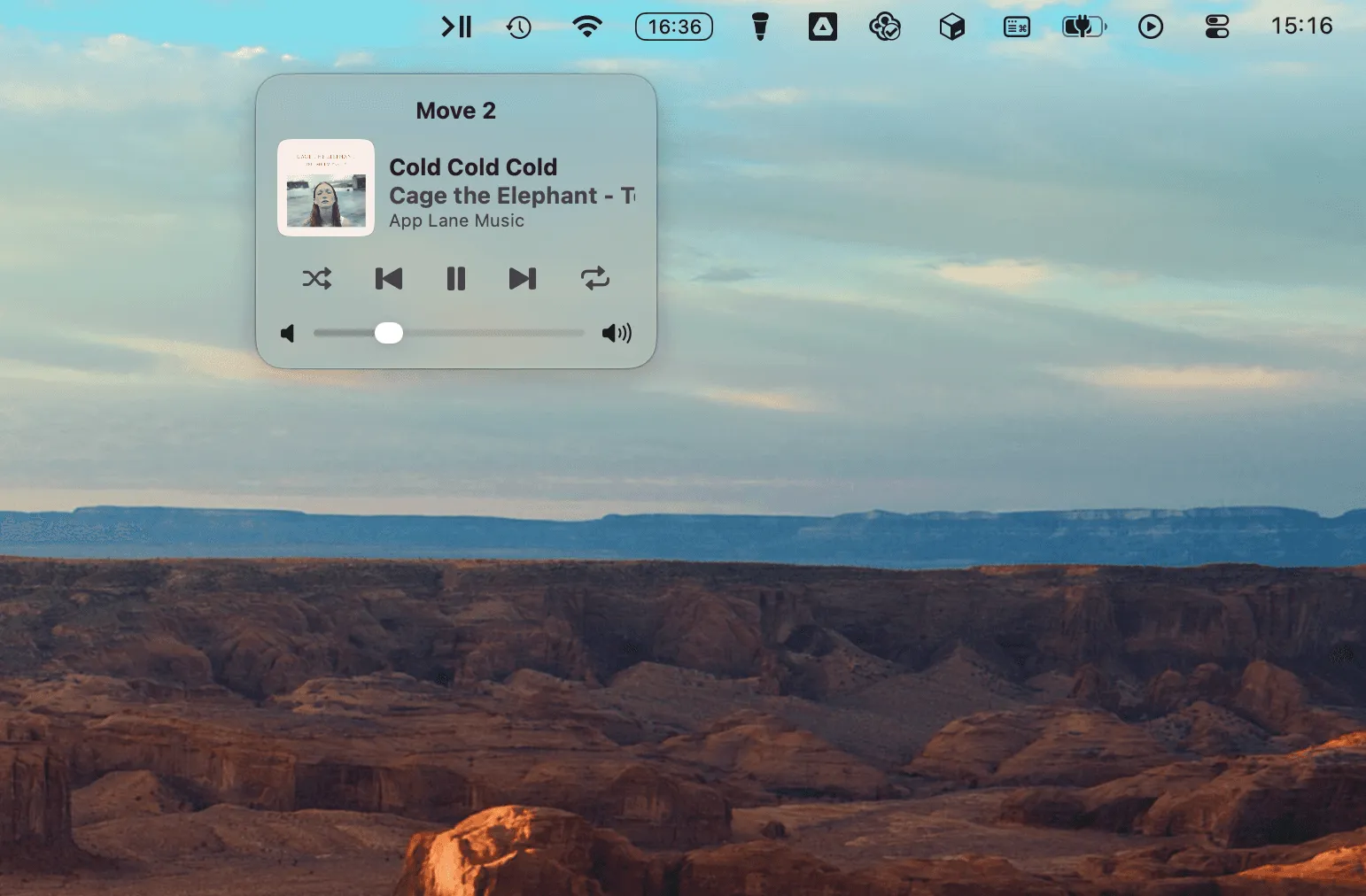
Every shortcut can be remapped to whatever combination works best in your setup. The volume step and seek time increment is also adjustable, which is useful if your listening environment calls for more precise control. When a shortcut fires, MBC can briefly display a confirmation overlay so you always have visual feedback without switching away from what you’re working on.
One practical note: if your Mac is configured to treat the top function row as special keys rather than F-keys, you’ll need to hold fn alongside the default shortcuts.
If you get through the setup and your rooms don’t appear at all, that’s a different fault from a shortcut that won’t fire; it’s discovery, and the causes of an empty speaker list on a Mac are worth ruling out in order before you touch the shortcut assignments.
Beyond Keyboard Shortcuts
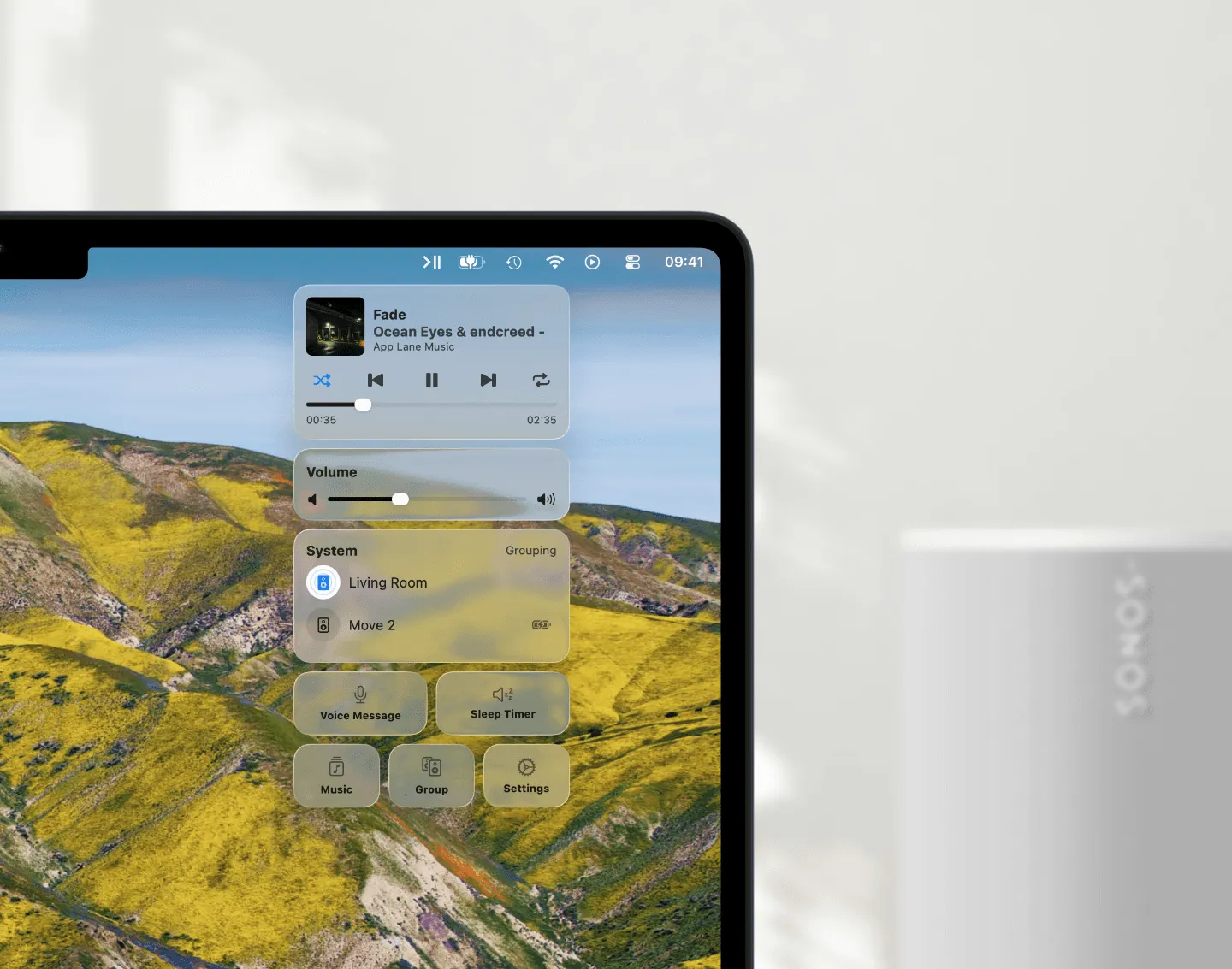
Keyboard control is the focus of this article, but MBC covers considerably more ground than keyboard shortcuts alone. Once installed, it becomes the primary interface for Sonos on your Mac:
- Menu Bar Access: Sonos controls that feel built into your Mac, always just one click away.
- Floating Mini Player: A compact now-playing window that shows the current track and basic controls. It sits on your desktop when you want it and disappears when you don’t, without switching to another app.
- Siri support: MBC responds to Siri commands, so “Hey Siri, pause Sonos” or “Hey Siri, volume up” work hands-free.
- Widgets: The current track and playback state are available as a macOS widget, viewable from the desktop or Notification Center without opening anything.
- Apple Shortcuts and AppleScript: Sonos actions can be triggered from the Shortcuts app, enabling automations: pausing when a meeting starts, adjusting volume on a schedule, or integrating with other tools. Full AppleScript support is available for more complex workflows.
- Intercom: Record an Intercom message from your Mac and broadcast it to any speaker in your home, similar to the Apple HomePod’s intercom feature, but across the whole Sonos system.
- Multiple systems: If you have Sonos systems in more than one location (a home office and a meeting room, or a primary residence and a holiday house) or use a mixed Sonos S1 and Sonos S2 setup, MBC can switch between them.
- Streaming service compatibility: MBC works with whatever is playing through Sonos: Spotify, Apple Music, Tidal, radio stations, or anything else in your Sonos favorites. There’s no service-specific configuration required.
Conclusion
Sonos’s own Mac options leave a clear gap. The native desktop app is retired. The web app has no keyboard support. For anyone who listens to Sonos while working on a Mac and wants to adjust volume or skip a track without breaking their focus, there’s currently no first-party path that works.
MBC was originally built to solve exactly this problem, and has been developed and refined for that purpose since 2018. The keyboard shortcuts are the most direct answer to the gap described in this article, but the broader feature set makes it a capable everyday companion for Sonos on Mac.
Menu Bar Controller for Sonos is available on the Mac App Store with a risk-free 14-day free trial.