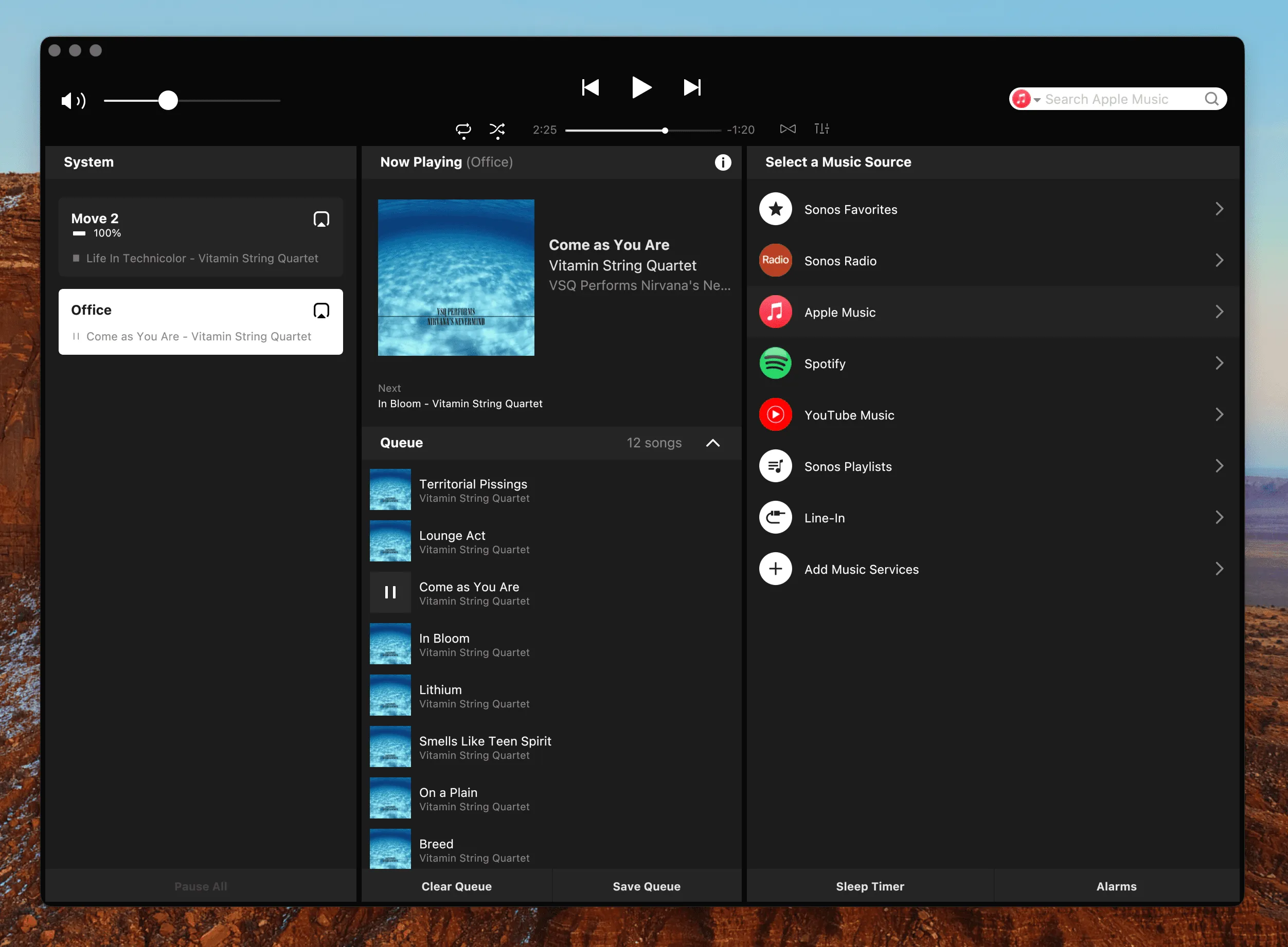
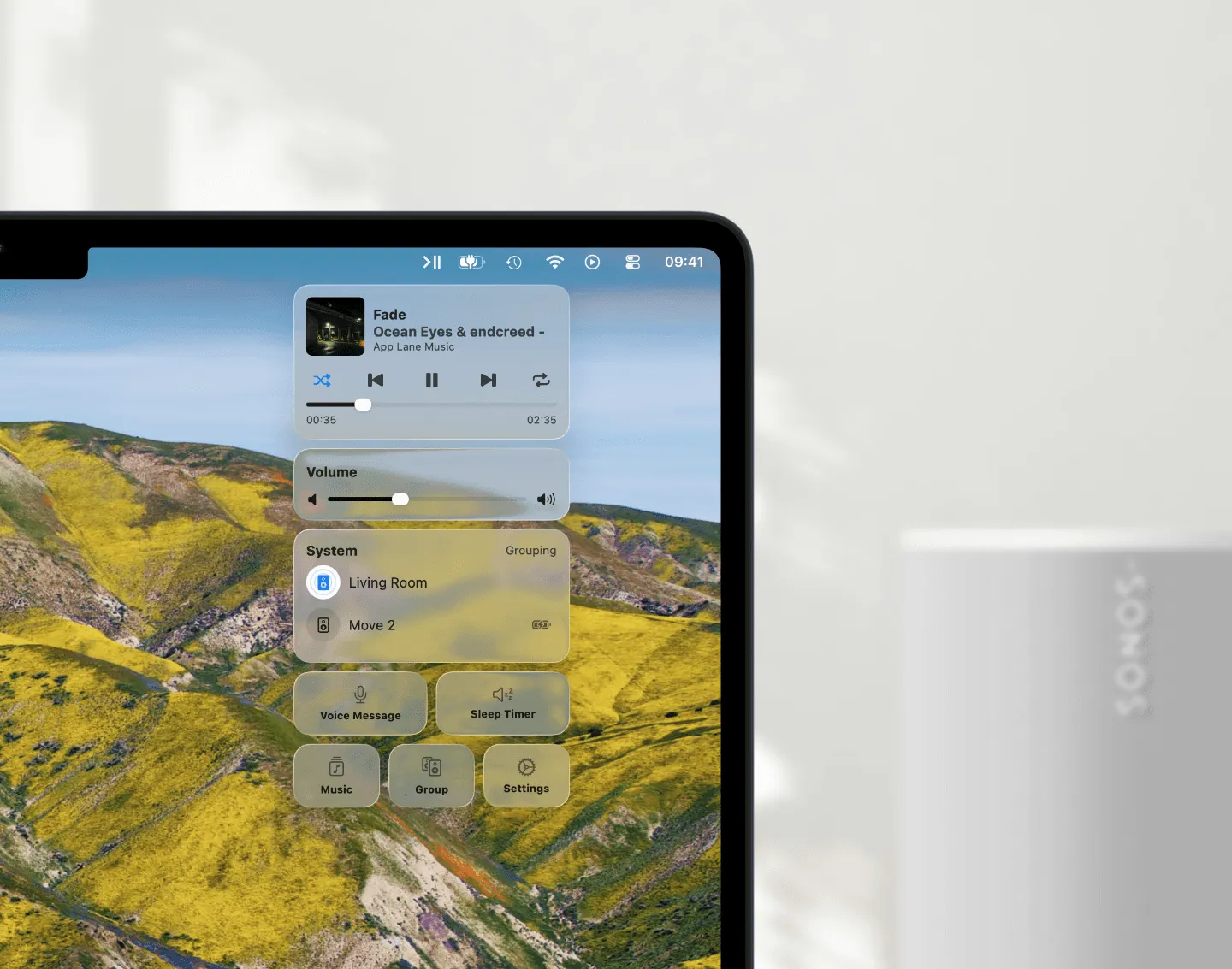
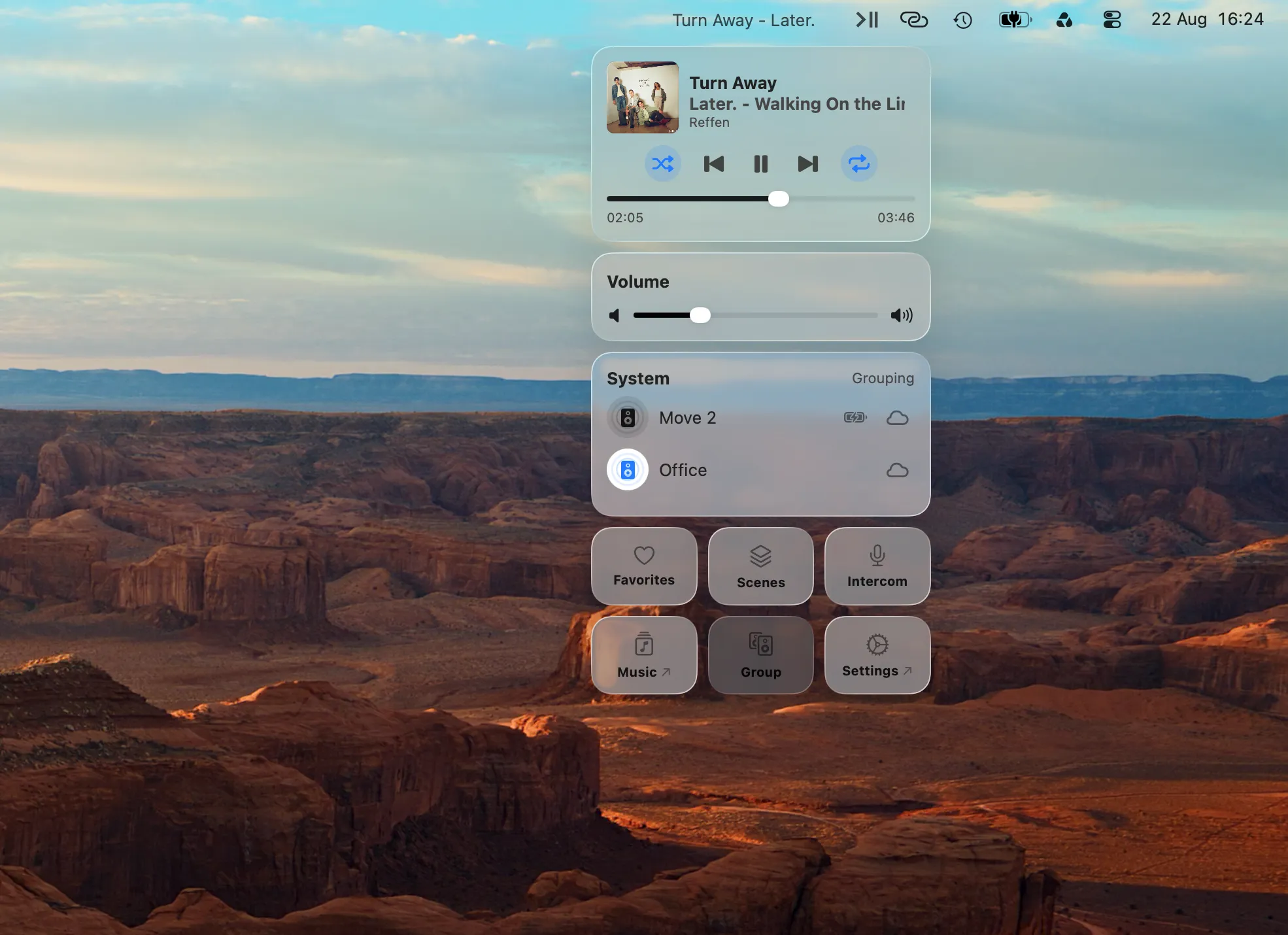
Automate Your Sonos Setup from Your Mac
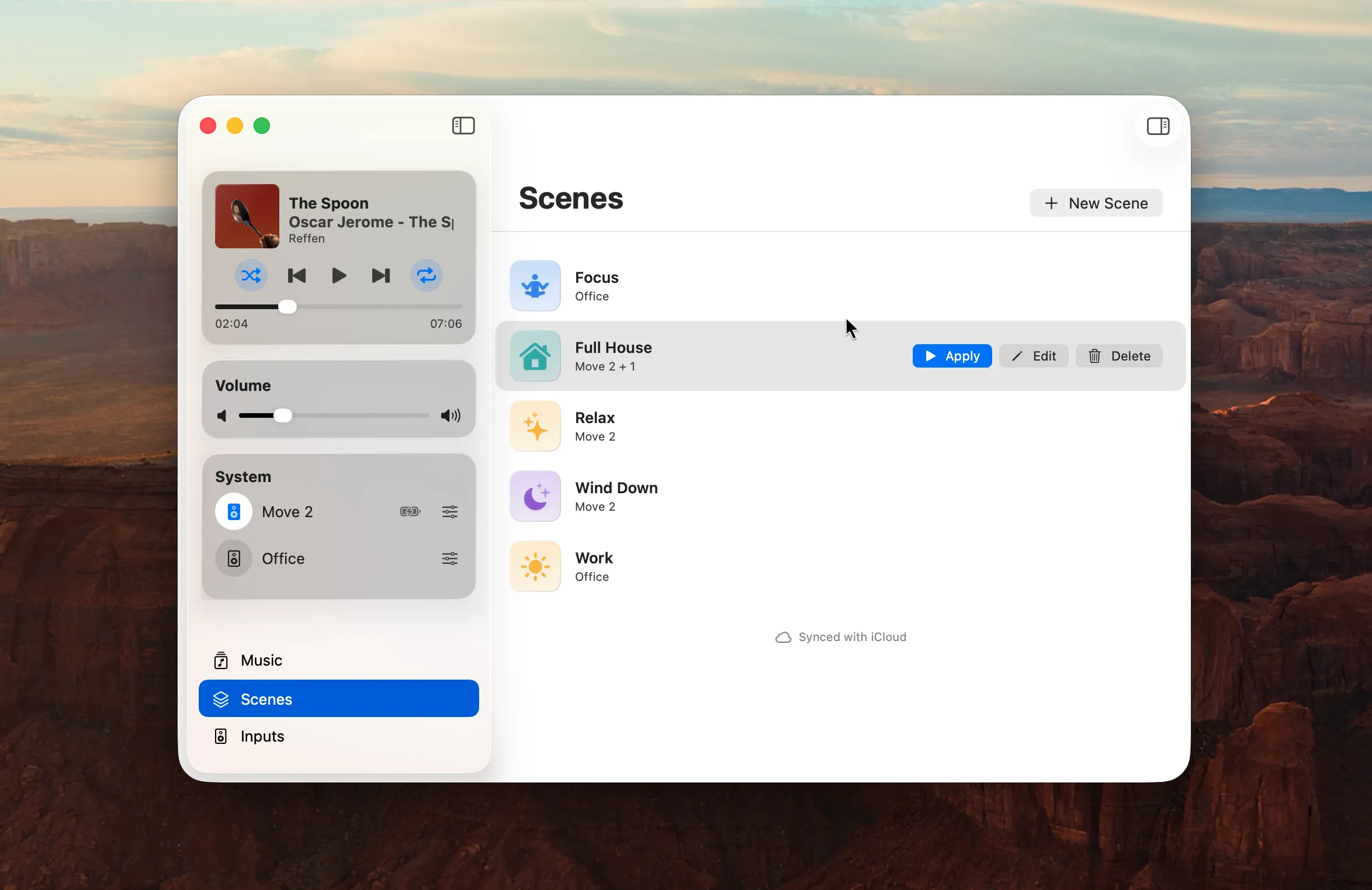
Most Sonos listening is the same handful of setups repeated forever. Group these three rooms, drop the kitchen a bit, start that playlist. Save that arrangement once as a Scene on your Mac, and everything else (a keystroke, a schedule, Siri, a Shortcut) becomes a way to run it.
12 min read
Look at how you actually listen and you’ll find four or five arrangements you keep rebuilding by hand. Dinner: kitchen, dining room and living room grouped, each at its own level, that one playlist. A late film: the soundbar alone, dialog lifted, everything else quiet. Mornings: the kitchen on its own, low, the radio.
None of that is hard. It’s twelve small actions, repeated, several times a day, in an app you had to go find first.
Sonos owners have been asking for a way to save those arrangements since at least 2018, under names like presets, saved groups or scenes, and the official apps still don’t have one. On a Mac the pieces exist, split across two apps, and it pays to keep them straight. A Scene is the setup, saved, and it is built and edited in MBC. Apple’s Shortcuts app is where you decide what fires it. Everything below says which app you are in.
What a Scene Saves
A Scene in Menu Bar Controller for Sonos (MBC) is a snapshot of a working setup:
- Which speakers play, and how they’re grouped — including which one leads the group.
- Each speaker’s volume, individually. The kitchen at 28 while the living room sits at 40.
- EQ per speaker — bass, treble, loudness.
- Home Theater settings on a soundbar — Night Sound and Speech Enhancement.
- What plays: a Sonos Favorite, a Sonos Playlist, the TV input, or Line-In.
- Shuffle and repeat.
Applying it reshapes your system to match: it regroups the speakers, unmutes anything muted, sets every volume, applies the EQ, and starts the source. From whatever state your system happened to be in.
The first item deserves a second look. Which speaker leads a group is not cosmetic: it is the one pulling the stream and feeding the others, and a group that keeps dropping out often has the wrong one in front. Sonos gives you no way to fix a group’s leader, and most integrations give you no say in it at all. A Scene stores it, so the same speaker leads every time the Scene is applied.
Creating one is less work than it sounds, because a new Scene starts as a snapshot of what is playing right now: the active group’s speakers, its leader, and each speaker’s current volume are already filled in. Get the room sounding right first, then save it.
How to save your current setup as a Scene, in MBC
- Group your speakers and set the volumes the way you want them
- In MBC, open the Music Library window (⌘⇧L) and choose Scenes in the sidebar
- Click New Scene; the speakers and volumes are already prefilled from what is playing
- Give it a name and an icon, switch on anything extra you want it to set, and click Create
EQ, Home Theater, the source and the play modes are opt-in per Scene, each behind its own toggle. A Scene that only regroups speakers and leaves the music alone is a perfectly good Scene.
Three Switches That Turn a Scene Into an Automation
Restoring a setup is the obvious half. Three optional switches in the Scene editor are what make a Scene worth triggering automatically:
- Start Playing resumes playback once the group is in place, so a Scene with no source of its own still ends with music on.
- Stop Other Speakers pauses every speaker in your system that isn’t part of this Scene. This is the one that turns “set up the living room” into “switch the house to movie night”.
- Sleep Timer pauses the Scene’s own speakers after a set time, anything from one minute to just under 24 hours, chosen as hours and minutes. It’s scheduled after the regrouping, so it always targets the group the Scene just built.
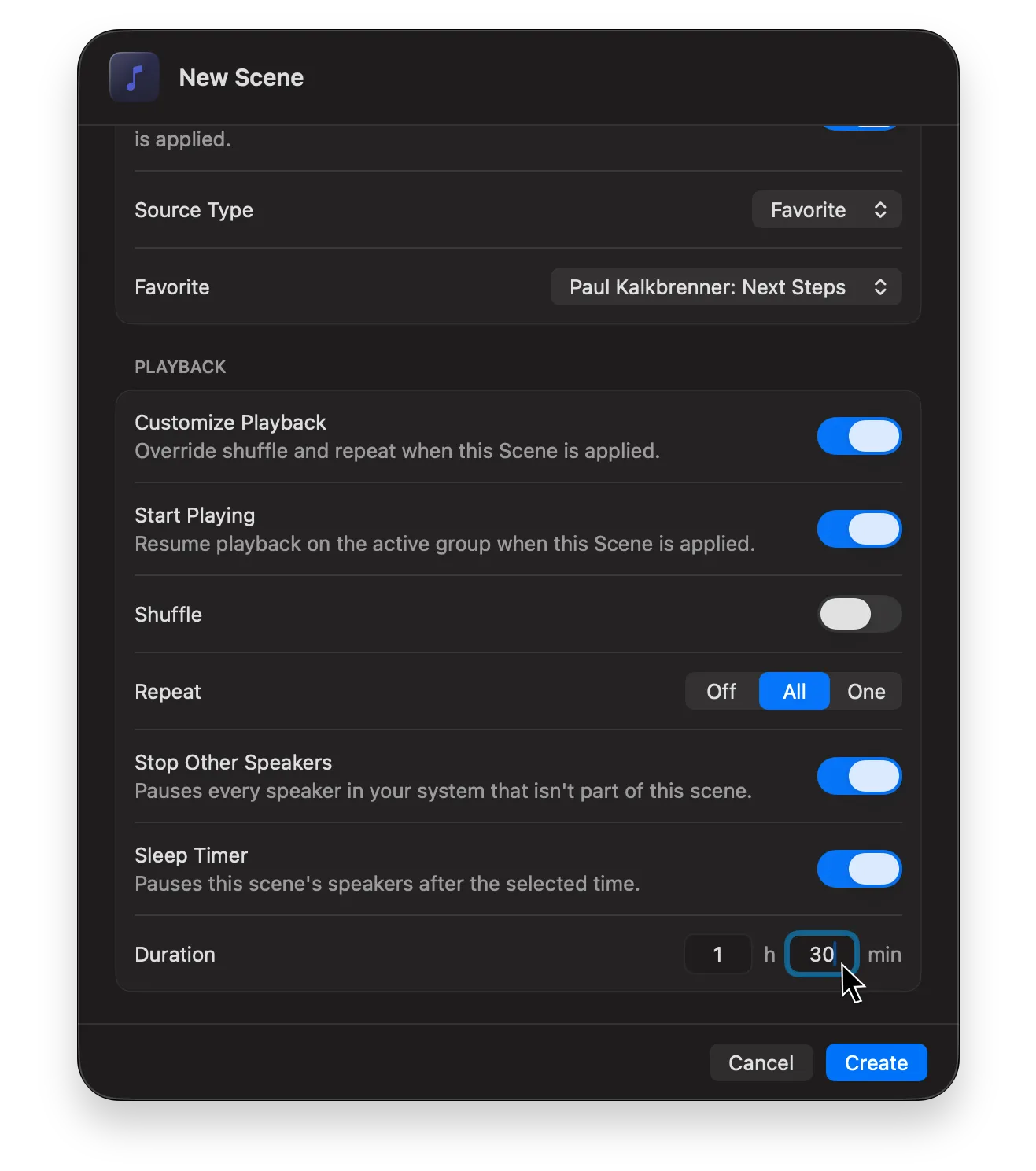
A Scene with all three set is a complete evening in one click: the right rooms grouped and playing, everything else silent, and the whole thing switching itself off ninety minutes later. There’s more on the timer itself in Set a Sonos Sleep Timer from Your Mac.
Sonos Apple Shortcuts, Action by Action
MBC exposes its control surface to the Shortcuts app, so anything macOS can trigger can drive your Sonos system. The actions fall into three groups:
Playback and sound: Play or pause the current music · Play Music (a Favorite or Playlist, optionally shuffled) · Skip Track · Seek · Pause All · Change Volume · Increase Volume · Decrease Volume · Shuffle, Crossfade, Repeat · Home Cinema Settings.
Your system: Group Speakers · Get Groups (every group, or only the ones playing; useful as a condition in a longer shortcut) · Switch to Next System · Toggle Guest Mode.
The two that do more than one thing at once: Play audio from a file or input on your speakers, which sends any audio a shortcut can produce to a room: the Intercom feature, driven by a script. And Apply Scene, which carries a whole saved setup in a single step.
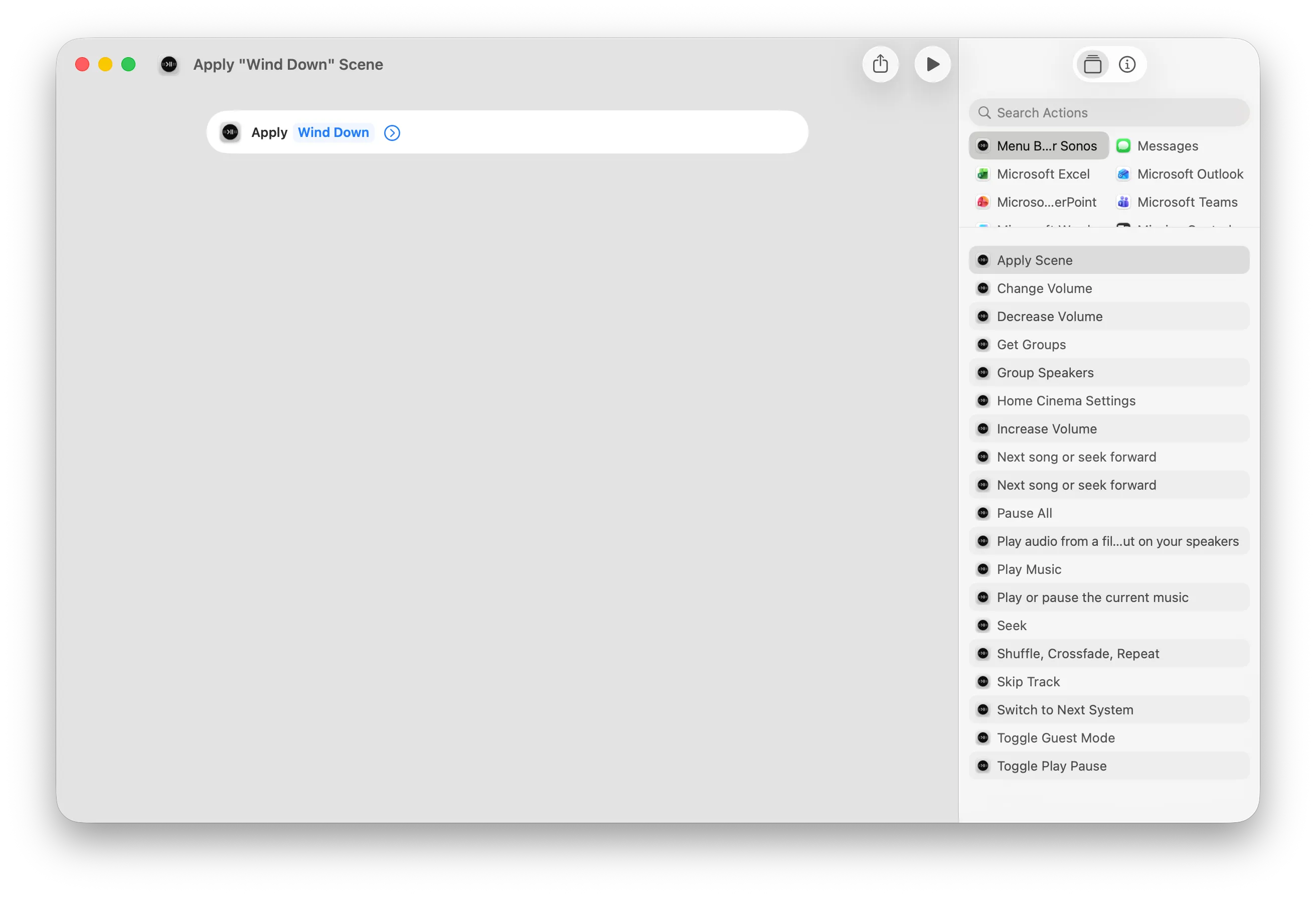
Build the Scene first, then. A shortcut assembled from individual actions has to spell out every step, and it breaks the day you rename a room or want the volumes slightly different. A shortcut that says Apply Scene: Dinner keeps working, and you edit the Scene in MBC when your taste changes.
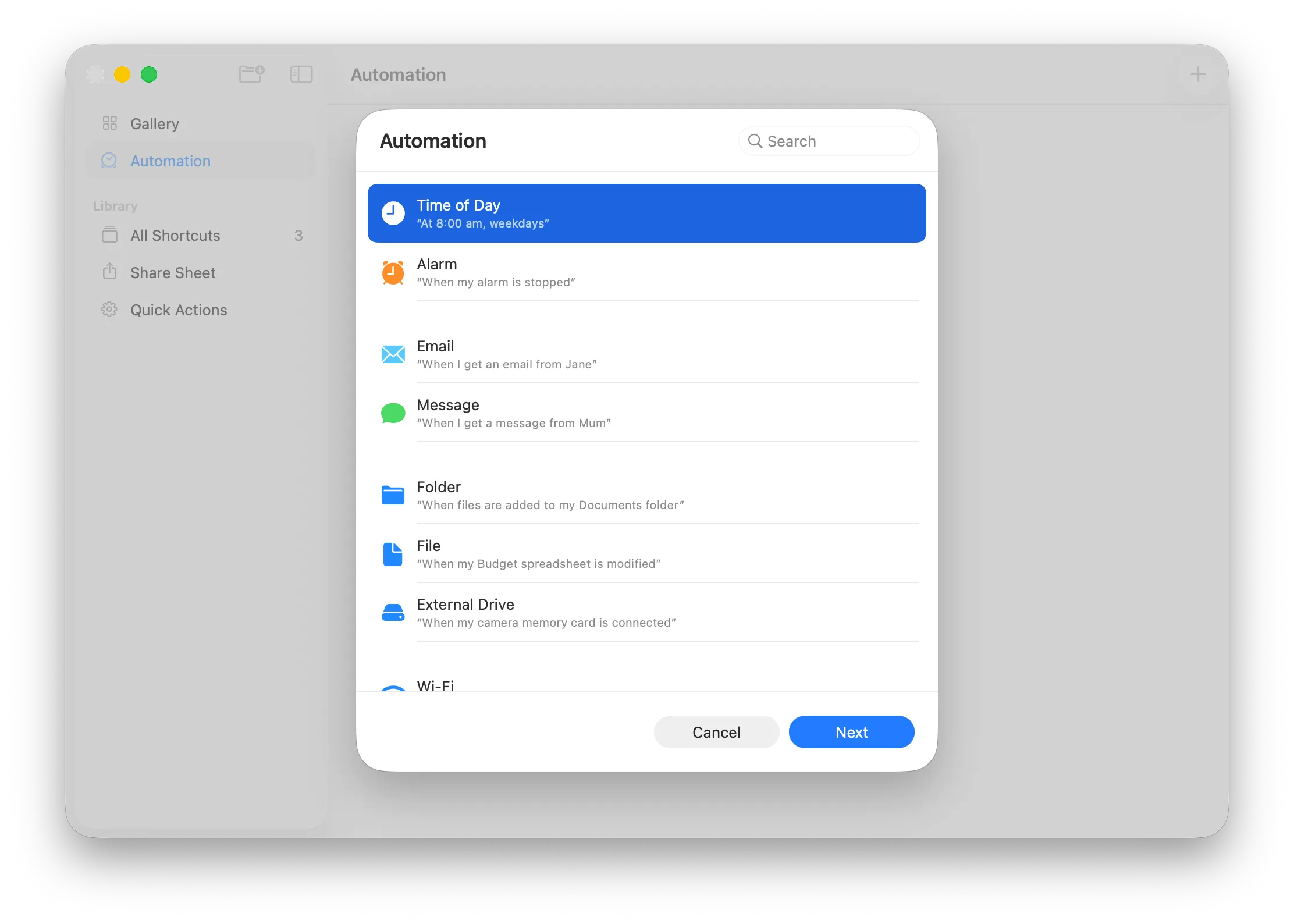
Once the shortcut exists, the Shortcuts app’s Automation tab decides when it runs.
The One People Ask For Most
The most common real Sonos shortcut isn’t a Scene at all. It is two of them: Night Sound on at 9pm, off at 7am. Sonos has no scheduler for it, the request has been open on its forums since 2018. Two Home Cinema Settings actions and two time automations close it, and the same action sets Speech Enhancement in the same step.
Four Recipes
Each of these is one MBC action plus whatever triggers it. The sheet under each one is the Scene itself, exactly as you build it in MBC. Build it that way once, and the automation is a single step.
Weekdays at 7:30
Morning Kitchen
Sonos alarms cannot target a saved group or set each room's own volume, which is why people keep asking for both. A Scene does it, and it pulls the kitchen out of whatever group it ended up in last night before the radio starts.
A menu bar click, or Siri
Dinner Party
The oldest unanswered request in the Sonos forums: rooms grouped, each at its own level, one playlist. Set by hand it takes minutes, and one wrong volume clears the room.
Siri, or a Stream Deck button
Late Movie
Night Sound on, dialog lifted, and nothing playing anywhere else so the film stays in one room. Build the morning Scene that puts the sound back at the same time: a Scene has no undo, and Night Sound left on for a week is a common way to make a Sonos system quietly sound wrong.
"Hey Siri, Wind Down"
Wind Down
Sonos dropped the sleep timer in the 2024 app and put it back after months of complaints. Here it belongs to the Scene itself: rain on the bedroom speaker, and it stops on its own.
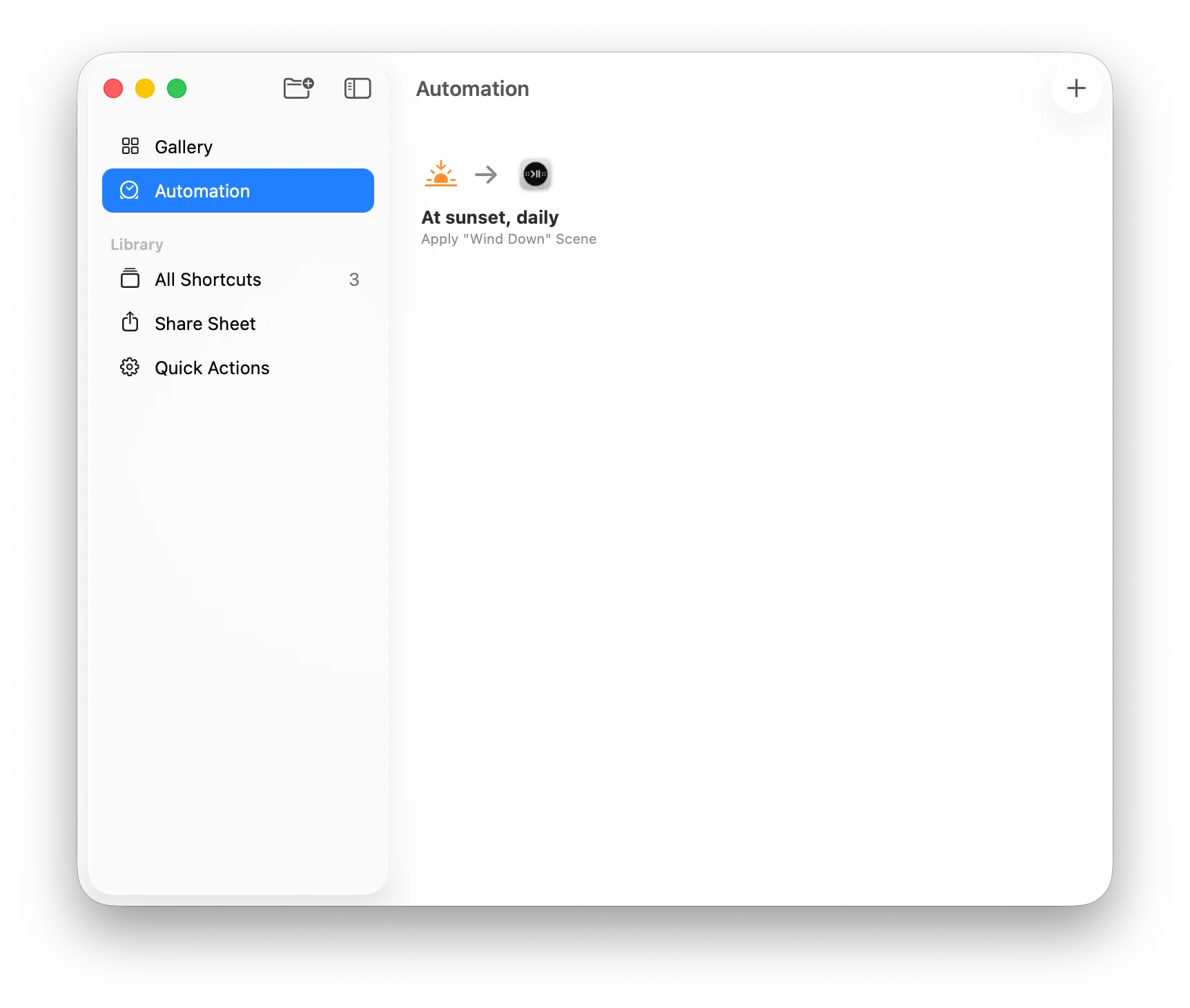
However you fire them, the recipes all land in the same shape. In Apple’s Shortcuts app an automation is a trigger plus a shortcut, and the shortcut is a single Apply Scene action. Everything that makes the Scene specific stays in MBC, where you can change the rooms, the volumes, the source or the timer without ever opening the automation again.
What Can Go Wrong
Four things to know before you build a morning routine on this.
- A Scene belongs to one Sonos system. It stores the system it was saved against and refuses to apply to a different one, rather than doing something surprising to the wrong house.
- Pick the Scene from the picker, don’t type its name. The Shortcuts picker stores the Scene’s identity, so renaming it later is harmless. A Scene referenced by name has to match exactly, and a rename breaks it: deliberately, with an error, instead of applying the nearest match.
- Speakers have to be present. A Scene applies as long as at least half of a group’s speakers are found; below that it stops rather than building a half-group. Anything missing is named in the result.
- There’s no undo. Applying is one click by design, and it regroups your system immediately. That’s the point, but it means a mis-triggered Scene is corrected by applying another one.
AppleScript, for Tools That Don’t Speak Shortcuts
MBC is also scriptable, which matters if your automation lives in Keyboard Maestro, BetterTouchTool, Alfred, Automator, or a shell script that shells out to osascript.
AppleScript examples
-- Play/Pause the currently active group
tell application "Menu Bar Controller for Sonos"
    playPause currentGroup
end tell

-- Skip to the next track in the currently active group
nextSong currentGroup

-- Set volume of the currently active group to 35%
set currentVolume of currentGroup to 35
The dictionary is deliberately small: play/pause, next and previous track, volume up and down, and reading or setting the current group’s volume. You can also read a group’s name, whether it’s playing, and what’s on. Grouping, sources and Scenes are not in it; those live in Shortcuts, and a Shortcut can be run from AppleScript when you need both.
The Same Scenes on Your iPhone, iPad and Apple Watch
A Scene you save on the Mac isn’t stuck there. Scenes sync through your own private iCloud database (on by default, switchable in Settings, and never shared with anyone) so every Mac you use sees the same set.
So does Lyd for Sonos, our iPhone, iPad and Apple Watch app. It reads the same synced Scenes, and it has its own Apply Scene action for Shortcuts and Siri on iOS.
The iPhone also has the triggers a Mac structurally can’t offer. A personal automation can fire when you arrive home, when your alarm goes off, or when you tap an NFC sticker by the front door. The first of those is its own long-running Sonos request, asked and unanswered on the official forums since 2019. Each can apply a Scene you built on the Mac, and the Apple Watch runs them from your wrist without a phone in the room.
Build the setup once, on the machine with the big screen. Then run it from wherever you happen to be standing.
Conclusion
Sonos automation on a Mac works better once you stop scripting individual commands. Save the setup as a Scene (speakers, grouping, volumes, EQ, source, and the switches that stop the other rooms or end the evening) and every trigger macOS offers becomes a way to fire it. One action in Shortcuts, one keystroke, one word to Siri.
Try Menu Bar Controller for Sonos free for 14 days, no signup required. Available on the Mac App Store. Because your Sonos system belongs in your Mac’s menu bar.