Play Your Own Music Library on Sonos from a Mac
Your collection lives on a NAS or an external drive, not in a streaming service. Sonos can play it, with limits its own documentation states less clearly than it should. Here is what actually works, what gets capped, and how to browse it all in MBC's Music Library window on your Mac.
5 min read
If your music collection is a folder of files rather than a streaming subscription, Sonos is oddly quiet about what it can do with it. It can do a lot. It also has hard limits that nobody states plainly, and you tend to discover them the way everyone does: by hitting one.
This guide covers both halves. First, what Sonos itself can and cannot index, in numbers, because that’s the part that decides whether this will work for your collection at all. Then, how to actually live with your library from a Mac.
How Sonos Indexes Your Music Library
Sonos doesn’t copy your music anywhere. You point it at a shared folder on your network (a NAS, a Mac with file sharing on, an external drive attached to your router) and Sonos builds an index of what it finds. When you press play, the speaker streams the file from that share directly. Nothing passes through your Mac, which is also why playback keeps going after you close the lid.
Adding the share is done once, in the official Sonos app, and Sonos documents the steps in Add your music library to Sonos. It has to be done there because registering a share means storing its credentials, which is a job for the app that owns the system setup.
The Limits, in Numbers
These are Sonos platform limits, not app limits, so they apply no matter which controller you use:
| Limit | The number |
|---|---|
| Tracks in the index | ~65,000 |
| Shared folders | Up to 16 |
| Protocol | SMBv2 / SMBv3 only, no SMBv1 |
| Playback quality cap | 24-bit / 48 kHz |
| Formats | MP3, AAC/M4A, WMA, OGG, FLAC, ALAC, AIFF, WAV |
Two of those deserve a sentence more.
The 65,000-track ceiling is the one serious collectors run into. It counts across all your shares together, not per share. A large classical or live-recording collection can pass it, and when it does, Sonos stops indexing rather than telling you loudly.
The quality cap is real, so be skeptical of “bit-perfect” claims. Sonos plays your local files at up to 24-bit/48 kHz. A 24-bit/192 kHz file is not rejected, it’s downsampled. If you keep a hi-res library specifically for its sample rate, Sonos is not the system that will preserve it end to end.
Does Sonos Play FLAC?
Yes. FLAC and ALAC both, along with AIFF and WAV, so a lossless library is fine as a library. The caveat is the one above: lossless is preserved as a format, the sample rate above 48 kHz is not.
Your Changes Won’t Show Up Until You Re-Index
This is the single most common “Sonos is broken” report that isn’t a fault at all. Add an album to the share and Sonos will not see it. The index is a snapshot, and it only changes when it is refreshed. Rip a CD, drop in a download, retag a batch of files: none of it appears until then.
Browsing It All From Your Mac
Sonos’s own answer for the desktop is the web app, in a browser tab. It works, and for a large local library it’s the wrong shape: your collection deserves a real window.
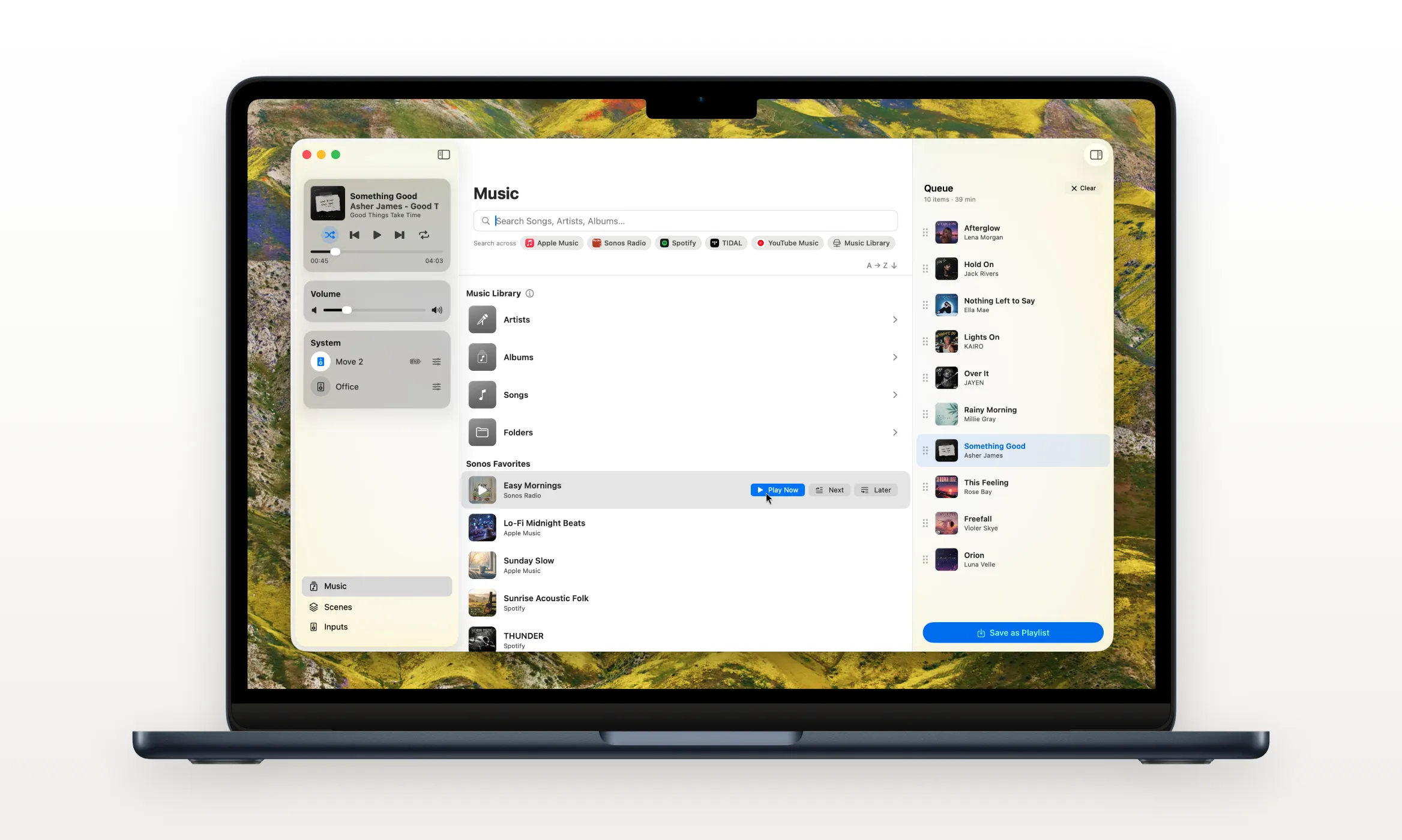
Menu Bar Controller for Sonos (MBC) puts one on your Mac. Its Music Library window shows your indexed library next to your streaming services, so the distinction mostly stops mattering.
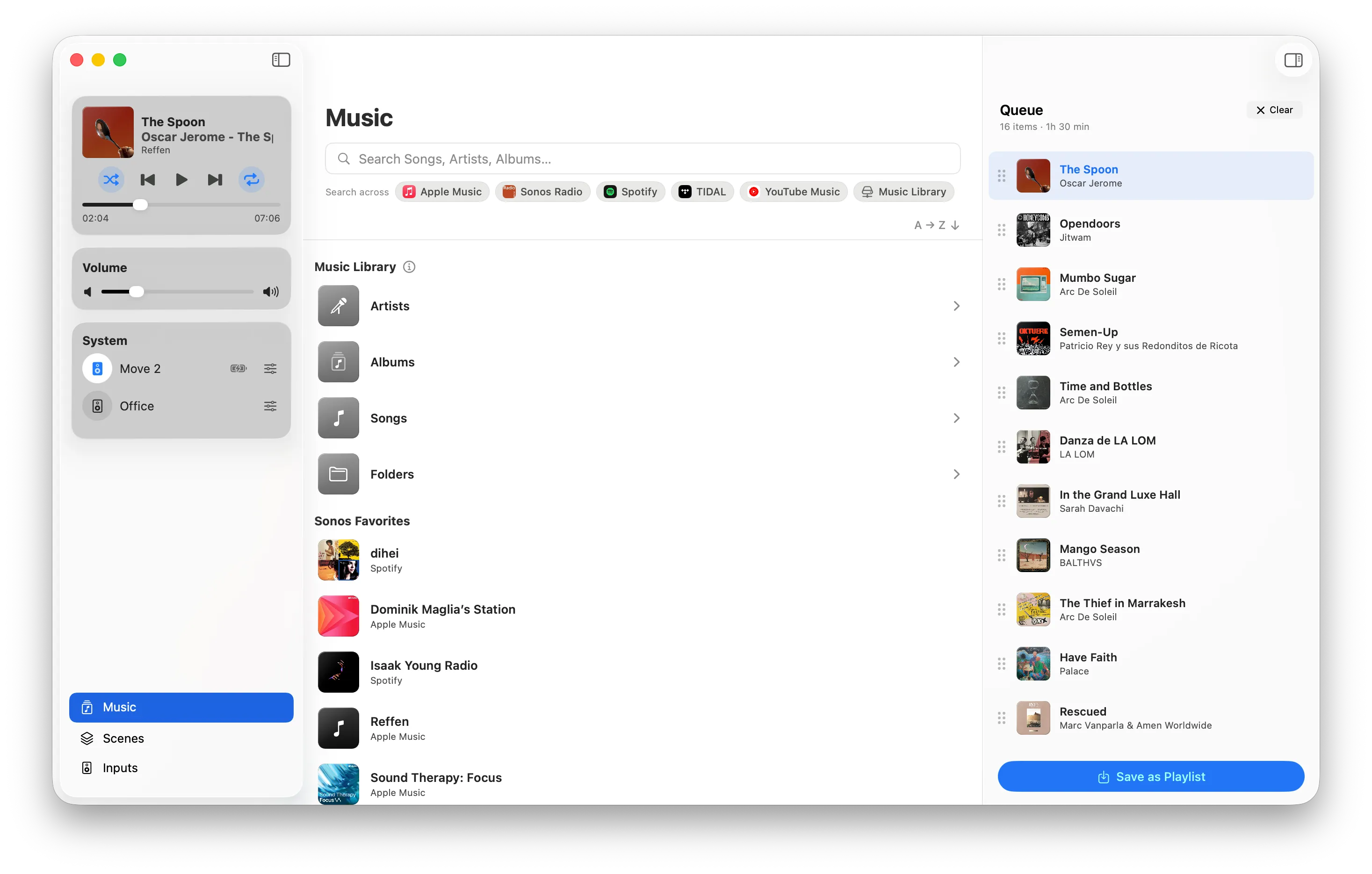
You browse by artist, album artist, album, genre, composer or straight down the folder tree, which matters more than it sounds if your collection is organized by folders and always has been. Search covers the library too. Anything you find plays with Play Now, or queues up with Next or Later.
Refreshing the Index Without Leaving Your Mac
Since the index is a snapshot, refreshing it is a chore you’ll repeat, which is exactly why it shouldn’t require another app. The Music Library window’s info button opens a sheet that lists your shares, tells you whether each one is currently reachable, shows when the index was last refreshed, and refreshes it on the spot.
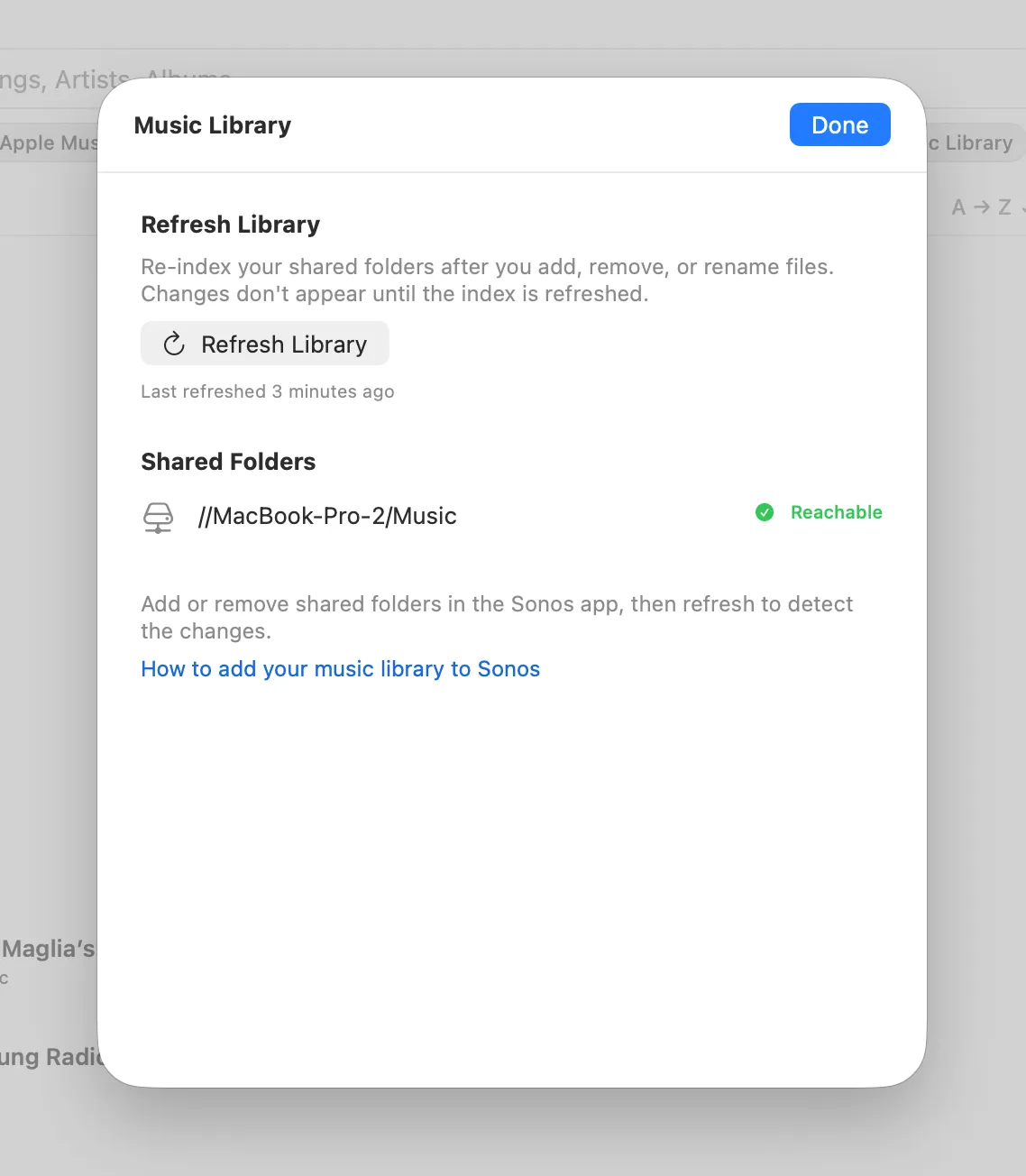
That “reachable” column is the useful part when something’s wrong: a share that Sonos can no longer reach tells you the problem is the NAS or the network, not the index.
Conclusion
Playing your own collection on Sonos works well, as long as you know the shape of the box: SMBv2 or newer, about 65,000 tracks across up to 16 shares, 24-bit/48 kHz at the top end, and an index that only updates when told. Inside those limits, a NAS full of FLAC is a first-class Sonos source.
What has been missing is a decent way to live with it from a Mac. Try Menu Bar Controller for Sonos free for 14 days, no signup required. Available on the Mac App Store. Because your Sonos system belongs in your Mac’s menu bar.