Sonos App Not Working on Mac? Work Through It in This Order
It won't open at all, or it opens and every speaker has vanished. These are two different problems with two different fixes, and one of them takes about ten seconds. Work through them in the order below, which is the order that actually finds the fault.
9 min read
When the Sonos app on your Mac stops working, the forums will tell you to reinstall it. That is almost never the fix, because “not working” covers two unrelated failures and reinstalling only ever addresses one of them.
Either the app won’t open (it bounces, it warns you, nothing happens), which is a macOS compatibility problem and has a known end date. Or the app opens fine and shows no speakers, which is a network or permission problem and is usually one toggle away from being solved.
This guide works through both in diagnostic order: the checks that eliminate the most causes come first, so you stop as soon as something works.
Start Here: Which Failure Is Yours?
| What you see | What it actually is | Where to go |
|---|---|---|
| Warning that it “will not open in a future release” | The app is Intel-only and Rosetta is retiring | It won’t open |
| Stopped launching right after a macOS upgrade | The upgrade left Rosetta uninstalled | It won’t open |
| Opens, but the room list is empty | Local Network permission, in most cases | Permission |
| Speakers vanished overnight, nothing changed | The speakers need a power cycle | After a Sonos update |
| Speakers disappear when you connect to work | A full-tunnel VPN | A VPN on the Mac |
| One app sees them, another doesn’t | A different account, or a different connection path | One app works, another doesn’t |
It Won’t Open at All
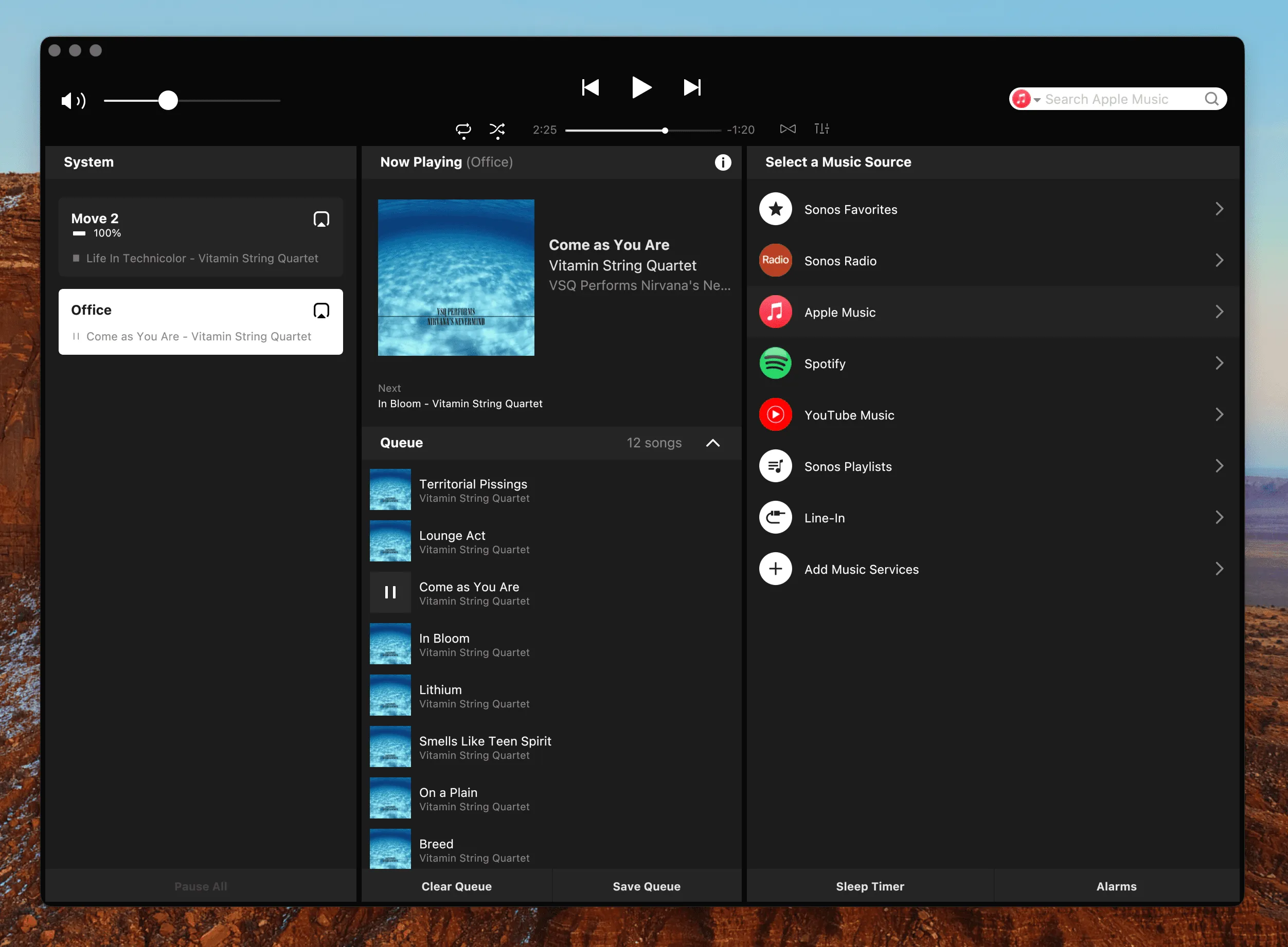
If the app refuses to launch, or macOS warns you that “this version of Sonos will not open in a future release,” you have not broken anything and there is nothing to repair. The Sonos desktop app is an Intel-only app, so on Apple Silicon Macs it runs through Rosetta, and Apple is retiring Rosetta. macOS 27 is the last release with full support, and per Apple’s release notes Rosetta is not automatically restored after upgrading to it, which is why the app can stop launching on upgrade day.
The short-term fix: reinstall Rosetta manually, which Apple documents in Using Intel-based apps on a Mac with Apple silicon. That buys you time, not a future.
This guide is about the failures you can fix, so it won’t retell the whole story here: the full timeline, what Sonos offers instead, and how the options compare are in The Sonos Mac App Is Going Away. If your app opens perfectly well, carry on below.
It Opens, but There Are No Speakers
This is the far more common complaint, and the good news is that the causes are few and testable. Work down the list; each step rules something out, so don’t skip ahead.
1. Local Network Permission, the Most Common Cause by Far
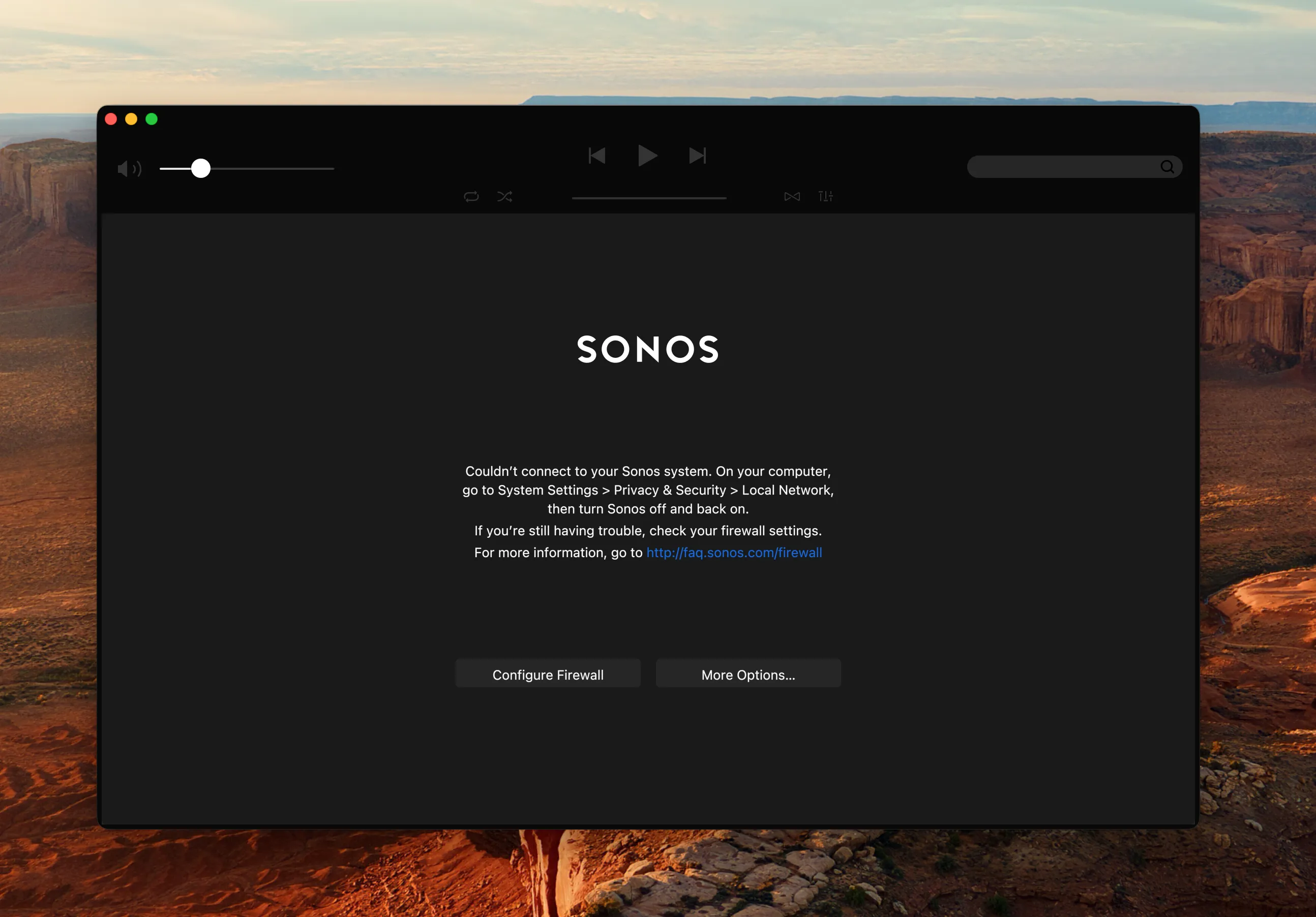
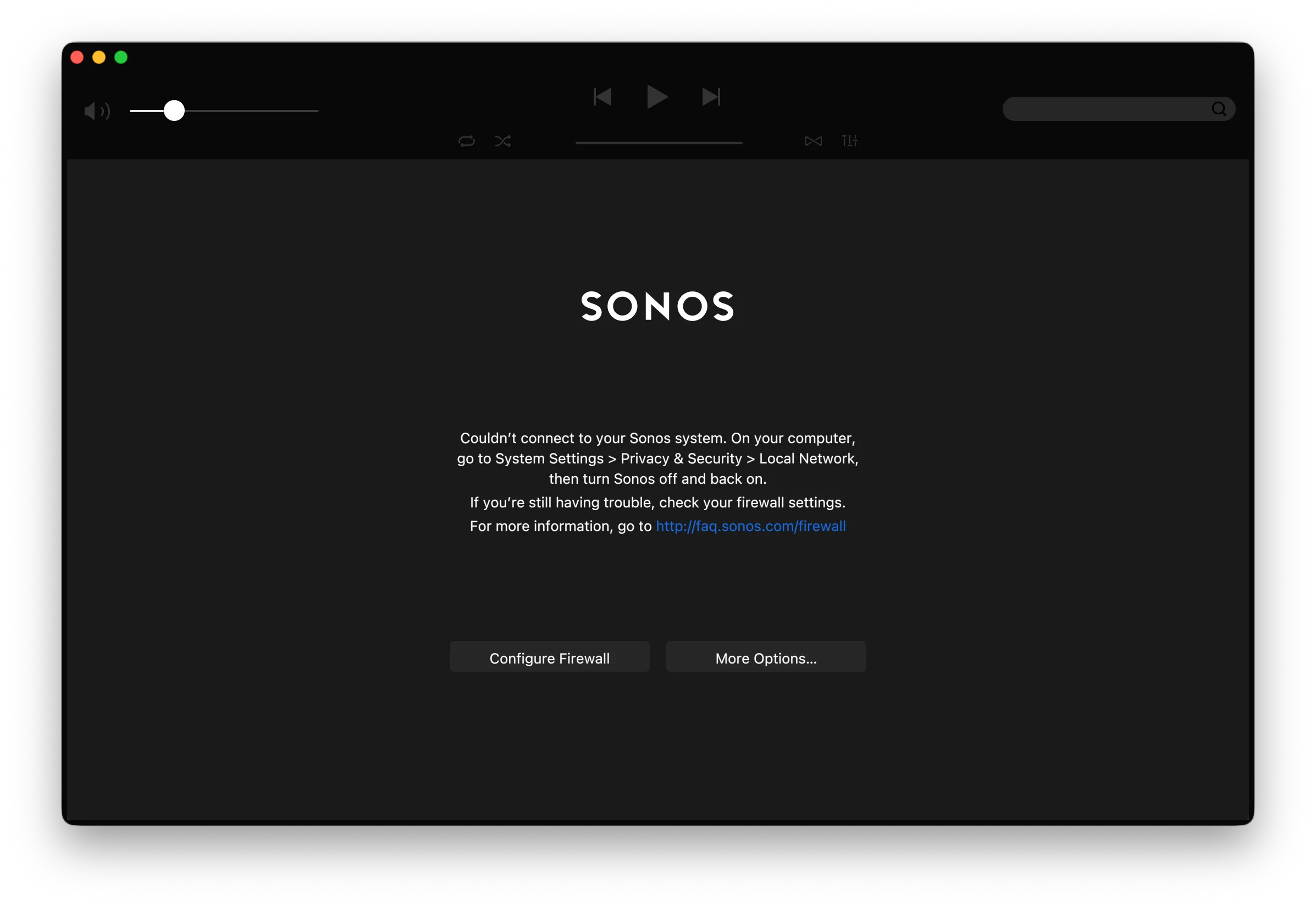
Since macOS 15, an app cannot see anything on your local network until you explicitly allow it. Sonos control is entirely a local-network business at the discovery stage, so a denied permission doesn’t degrade the app, it blinds it completely. The old desktop app at least names the cause, in a dialog that suspects your firewall in the same breath; other controllers just show an empty room list and leave you guessing.
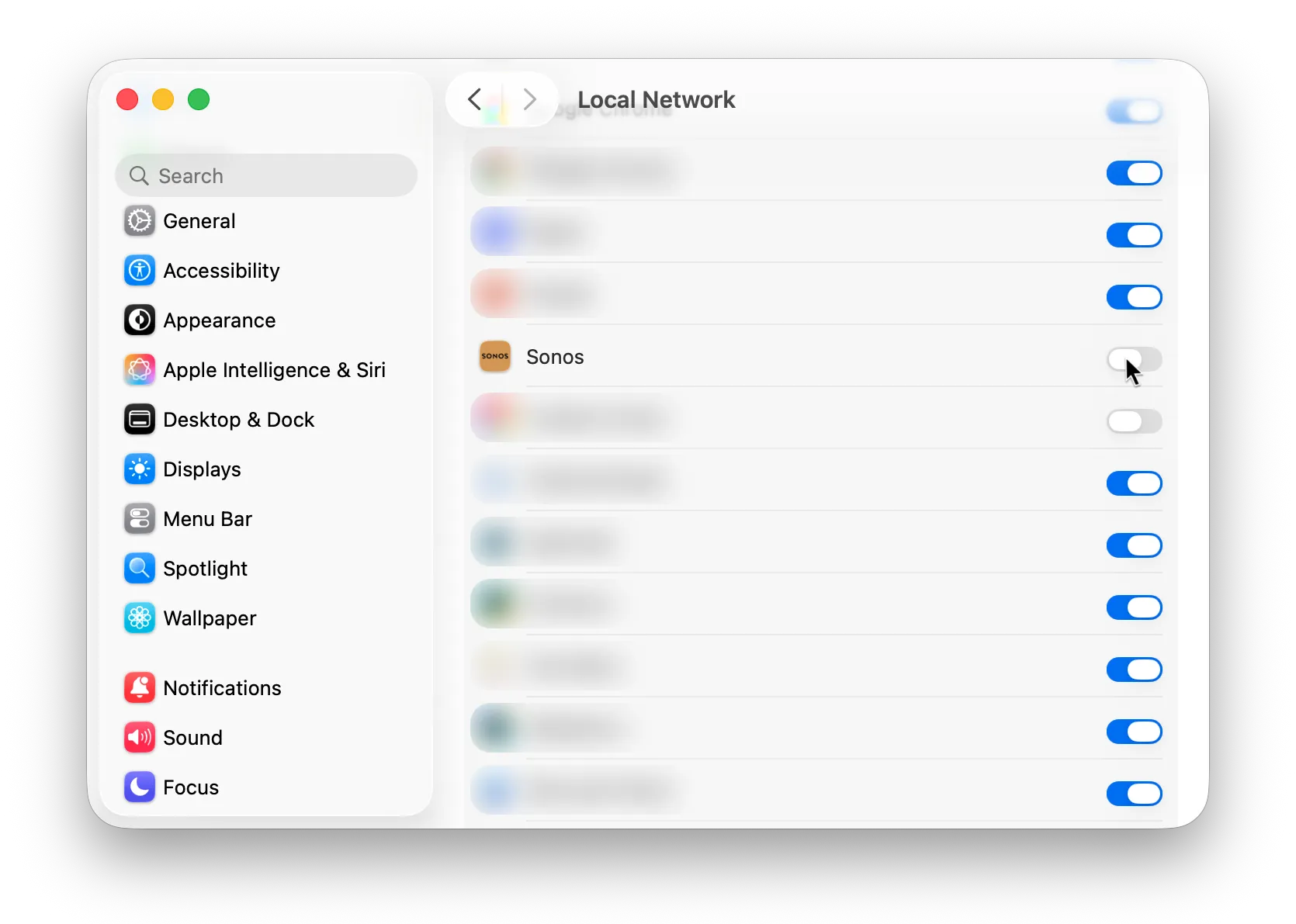
Open System Settings → Privacy & Security → Local Network and make sure the Sonos app’s toggle is on. Then quit the app completely and relaunch it; the permission is only picked up at startup.
2. Is Your Mac Actually on the Same Network?
“Same Wi-Fi” and “same network” are not the same claim. A few setups separate them without ever telling you:
- A guest network. Guest SSIDs isolate clients from each other by design. Your Mac has internet, your speakers have internet, and they cannot see one another.
- A separate IoT or smart-home SSID. Many routers now ship one by default, and Sonos speakers are exactly the kind of device people put on it.
- A VLAN split, if someone has segmented the network deliberately.
- A mesh or repeater that placed the speakers on a different subnet rather than extending the same one.
Move the Mac onto the same network as the speakers and try again. If your router offers a setting called client isolation or AP isolation, that is the one to turn off.
3. How Sonos Discovery Works, and Why It’s Fragile
This explains most of the failures on this page. Your controller doesn’t know where your speakers are. It shouts into the network (a multicast SSDP M-SEARCH broadcast, the standard “is anybody there?” of home devices) and the speakers answer with their addresses. Only then does the app talk to each speaker directly, on port 1400.
Two useful conclusions follow. First, discovery depends on multicast, and multicast is the first thing guest networks, client isolation, some VPN clients and a few enterprise access points throw away. Second, a failure here looks identical to “my speakers are broken,” even though every speaker is fine and playing happily to anything on the right network.
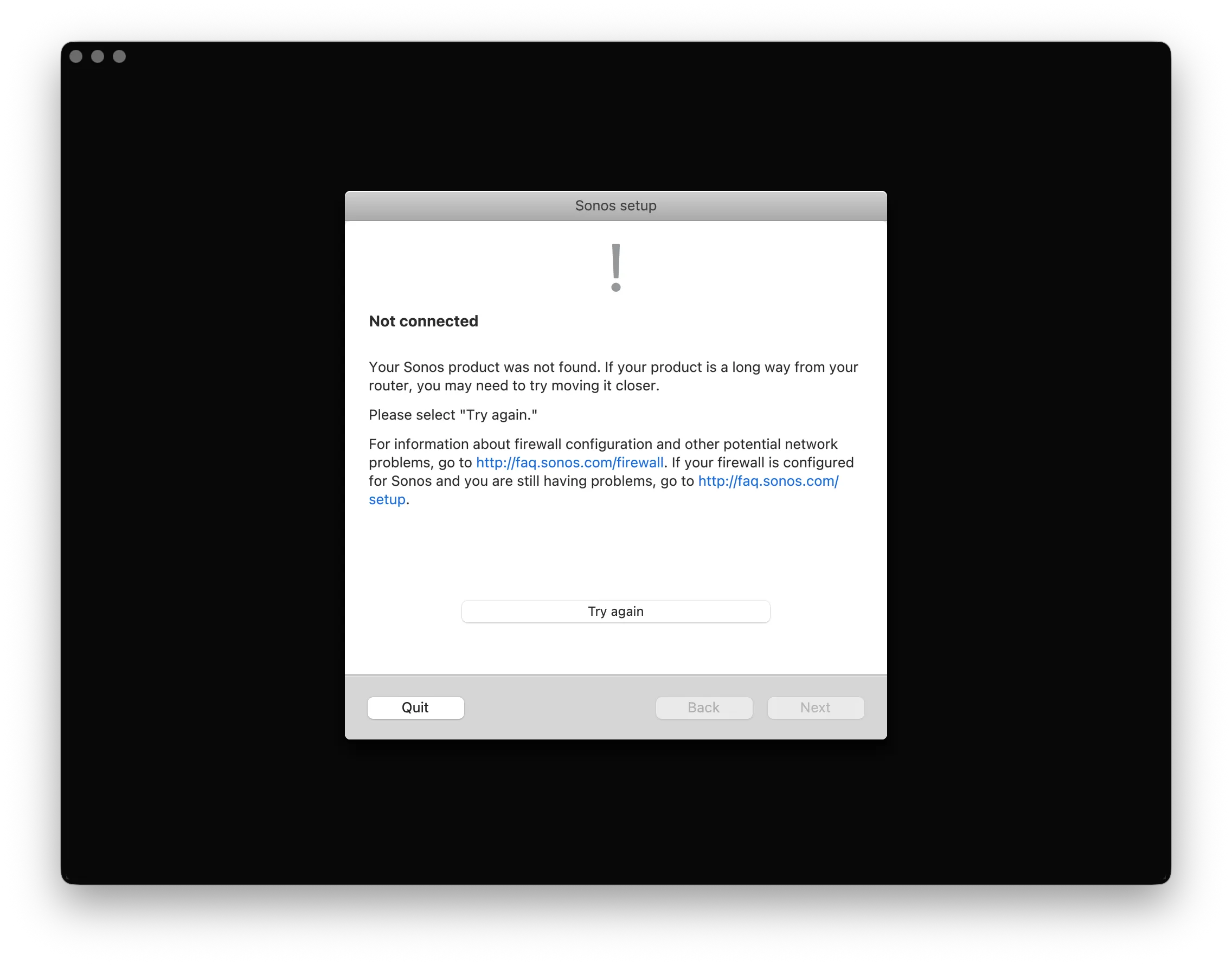
The app’s own setup assistant hits the same wall. It sits on Connecting, then reports that your Sonos product was not found and suggests moving it closer to the router. That is sound advice for a speaker at the edge of Wi-Fi range, and no help at all when the speaker answered and your Mac was never allowed to hear it.
4. A VPN on the Mac
If the speakers vanish at the exact moment your VPN connects (a daily occurrence on managed work Macs), the VPN is doing its job. A full-tunnel configuration routes everything through the tunnel, so as far as discovery is concerned your Mac has left the building.
Disconnect the VPN, or enable split tunneling if your client allows it. On a company-managed Mac, that is often not your decision to make. The alternative is a controller that doesn’t rely on local discovery at all: an app signed in with your Sonos account can send commands through the Sonos cloud, which travels through the tunnel like any other internet traffic. Control Sonos Remotely from Your Mac covers that path in full.
5. After a Sonos System Update: Power-Cycle the Speaker
If the speakers were there yesterday and are gone today, and nothing on your Mac changed, suspect the speakers. Sonos system updates occasionally leave a player in a state where it stops answering discovery.
Unplug the affected speaker for about 20 seconds, plug it back in, and give it a minute to rejoin. Do this one speaker at a time rather than pulling the whole system; the ones that still work are your evidence.
6. The Test That Settles It: Try Your iPhone
This one test splits the problem in half, so run it before you spend any more time on the Mac.
Open the Sonos app on your iPhone, on the same Wi-Fi. If the speakers are missing there too, the problem is on the Sonos or network side and nothing you do on the Mac will help. Go back to steps 2, 3 and 5. If the iPhone sees everything and the Mac sees nothing, the problem is specific to your Mac: step 1 or step 4 is where the answer will be.
When One App Sees Your Speakers and Another Doesn’t
A special case worth its own section, because it looks like a bug and almost never is. If the official app finds your system but a second controller doesn’t, check these in order:
- The same Sonos account. A controller signed in to a different account sees a different system, or none at all. This is easy to do accidentally if you have ever had two accounts.
- Cloud versus local. An app signed in with an account can reach your system through the Sonos cloud even when local discovery is broken. So a controller that still works while another doesn’t isn’t evidence that your network is fine; it may just not need the network the same way.
Still Nothing?
If you have worked through all six steps and the room list is still empty, the remaining possibilities are narrow: a router that drops multicast even on the main network, a firewall or security tool on the Mac blocking local traffic, or a genuine speaker fault. At that point the fastest route is a description of what you’ve already ruled out; that’s what makes it diagnosable. Our support page has the escalation path, and the checks above are exactly what we’d otherwise ask you first.
A Controller That Depends on Less
Most of this page exists because the official Sonos app has to find your speakers on the local network before it can do anything at all. That’s one design choice, and it’s the one that breaks.
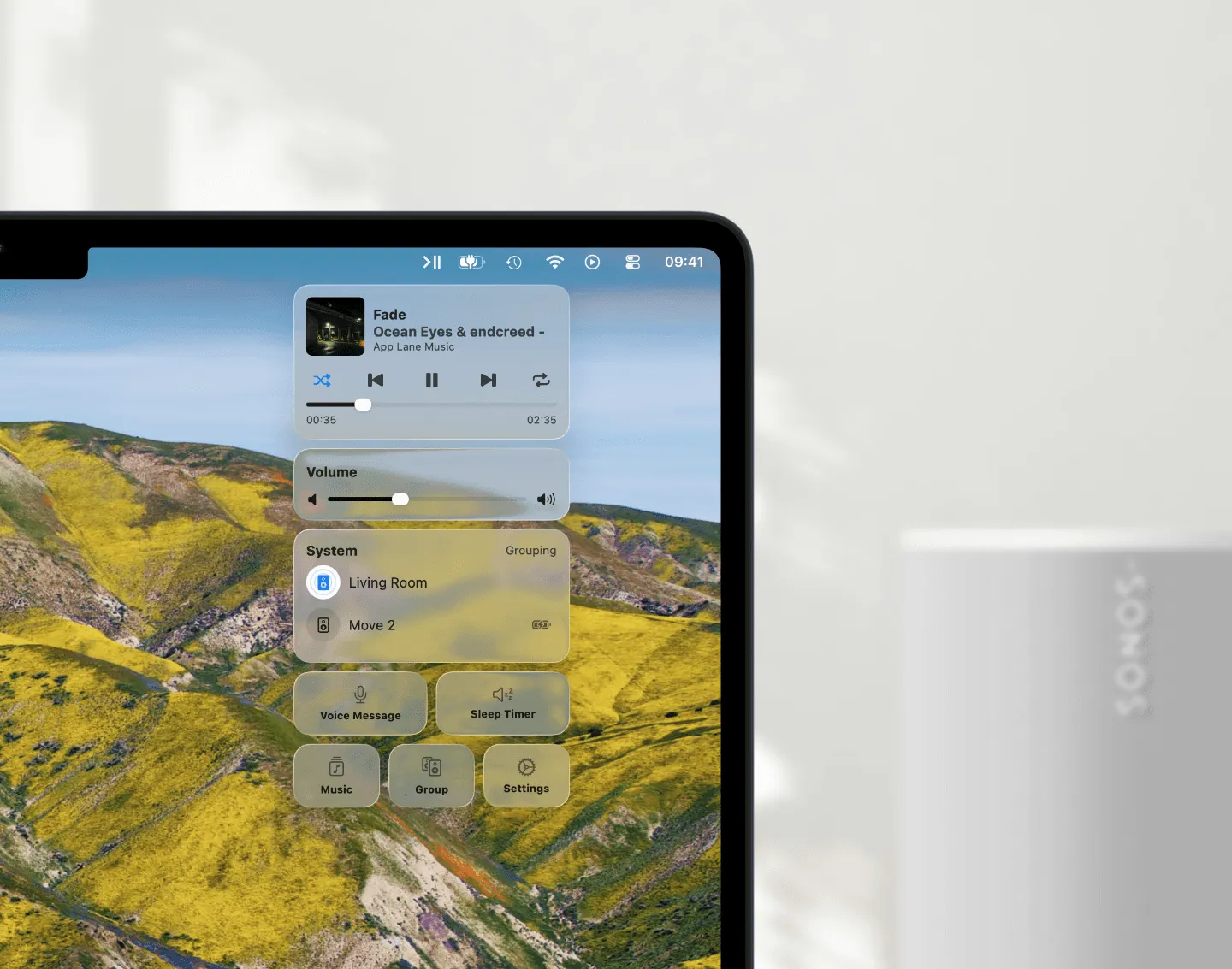
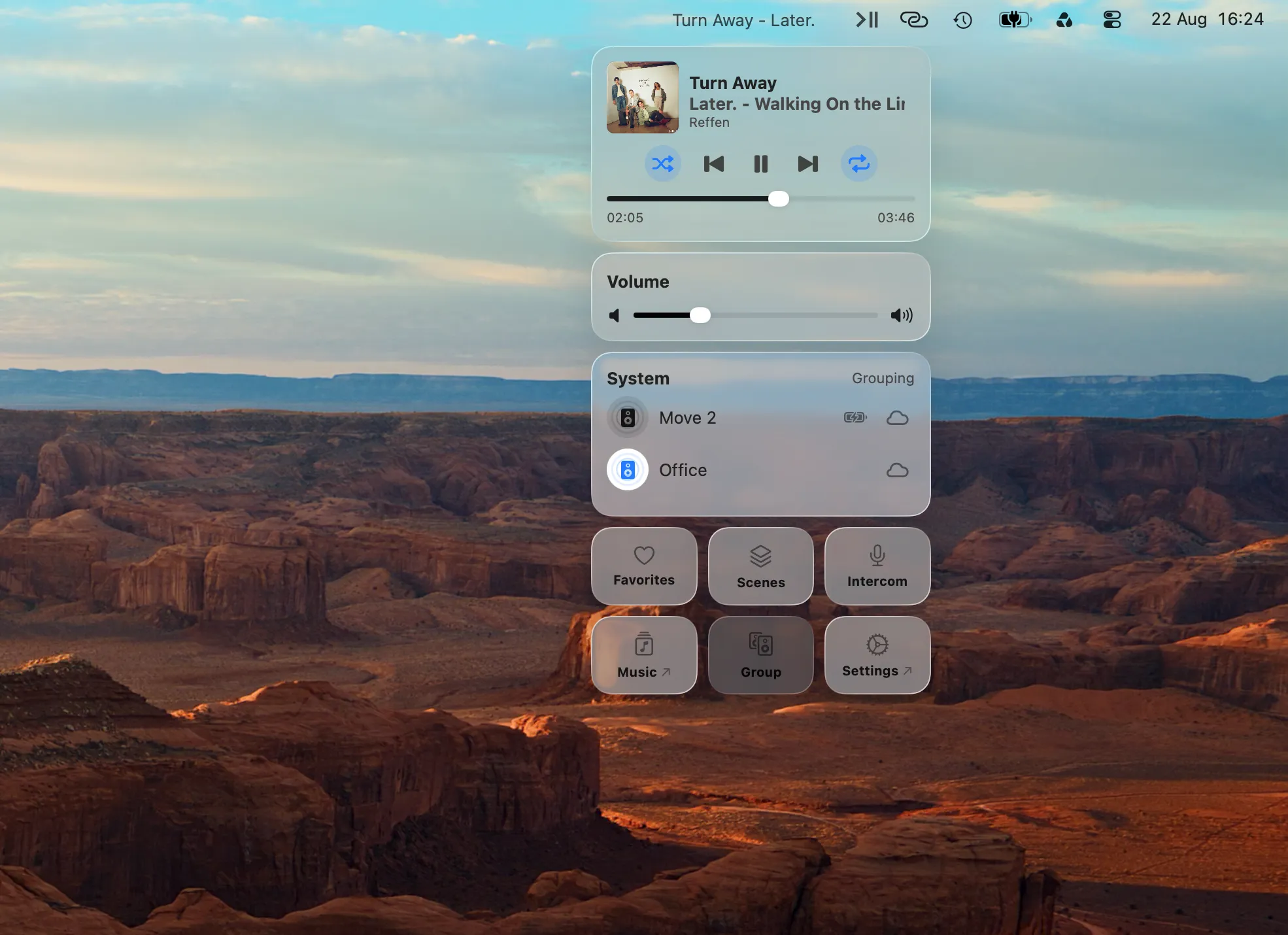
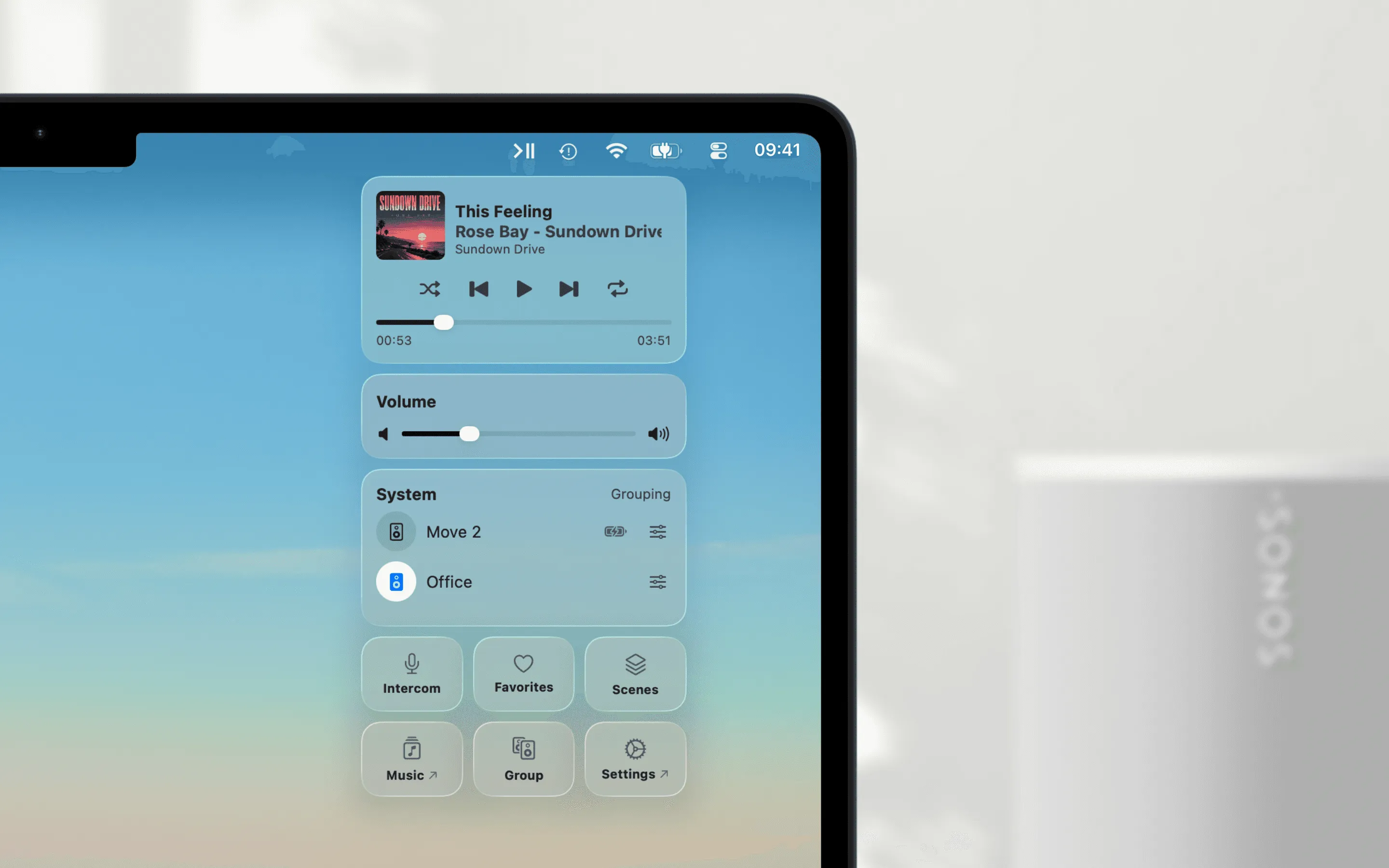
Menu Bar Controller for Sonos (MBC) is a native Mac app I build as an independent developer. Signed in with your Sonos account, it sends its commands through the Sonos cloud instead of hunting for speakers on the local network.
The practical consequence is the VPN one. Connect the corporate tunnel and your speakers are still there, still controllable, because a command to the Sonos cloud is ordinary internet traffic and goes through the tunnel like everything else. This is the single thing people write to me about most: the work VPN comes up at nine in the morning and, for the first time, the music doesn’t stop being reachable. The same property covers a guest network and a router that eats multicast: none of them can take away speakers that were never being found locally in the first place.
MBC still uses the local network where that’s better, for faster response and for features like per-speaker EQ that only work on the LAN, but it doesn’t fall over when the LAN isn’t cooperating. And because it’s a universal app, it runs natively on Apple Silicon and Intel, so the Rosetta deadline at the top of this page doesn’t apply to it.
- Download MBC from the Mac App Store.
- Sign in with your Sonos account and allow Local Network access when macOS asks. MBC uses the same permission every Sonos controller does.
- Your system appears in the menu bar: playback, volume, grouping, and your music, without leaving the window you’re in.
When macOS asks for keychain access on first launch, that’s MBC storing your Sonos login securely. Enter your Mac password and choose “Always Allow.” For everything MBC adds beyond control, see How to Control Sonos on a Mac.
Conclusion
“Sonos app not working on Mac” splits cleanly in two. If it won’t open, that’s the Rosetta retirement, and the only real answer is a native app. If it opens and finds nothing, it is a permission or a network boundary. Start with Local Network permission, use the iPhone test to halve the problem, and work down from there.
If you’d rather not do this again next time the network changes: try Menu Bar Controller for Sonos free for 14 days, no signup required. Available on the Mac App Store. Because your Sonos system belongs in your Mac’s menu bar.