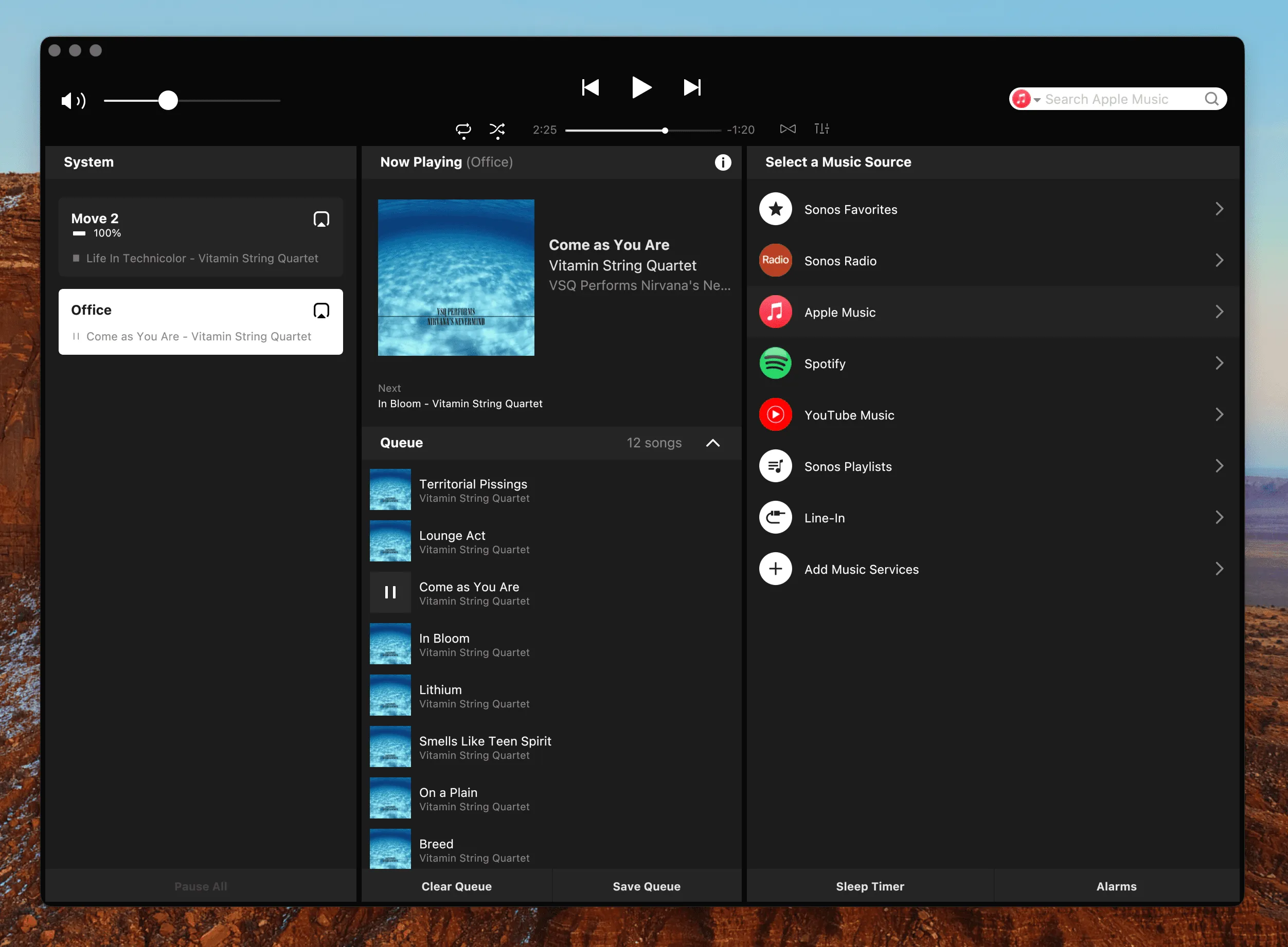
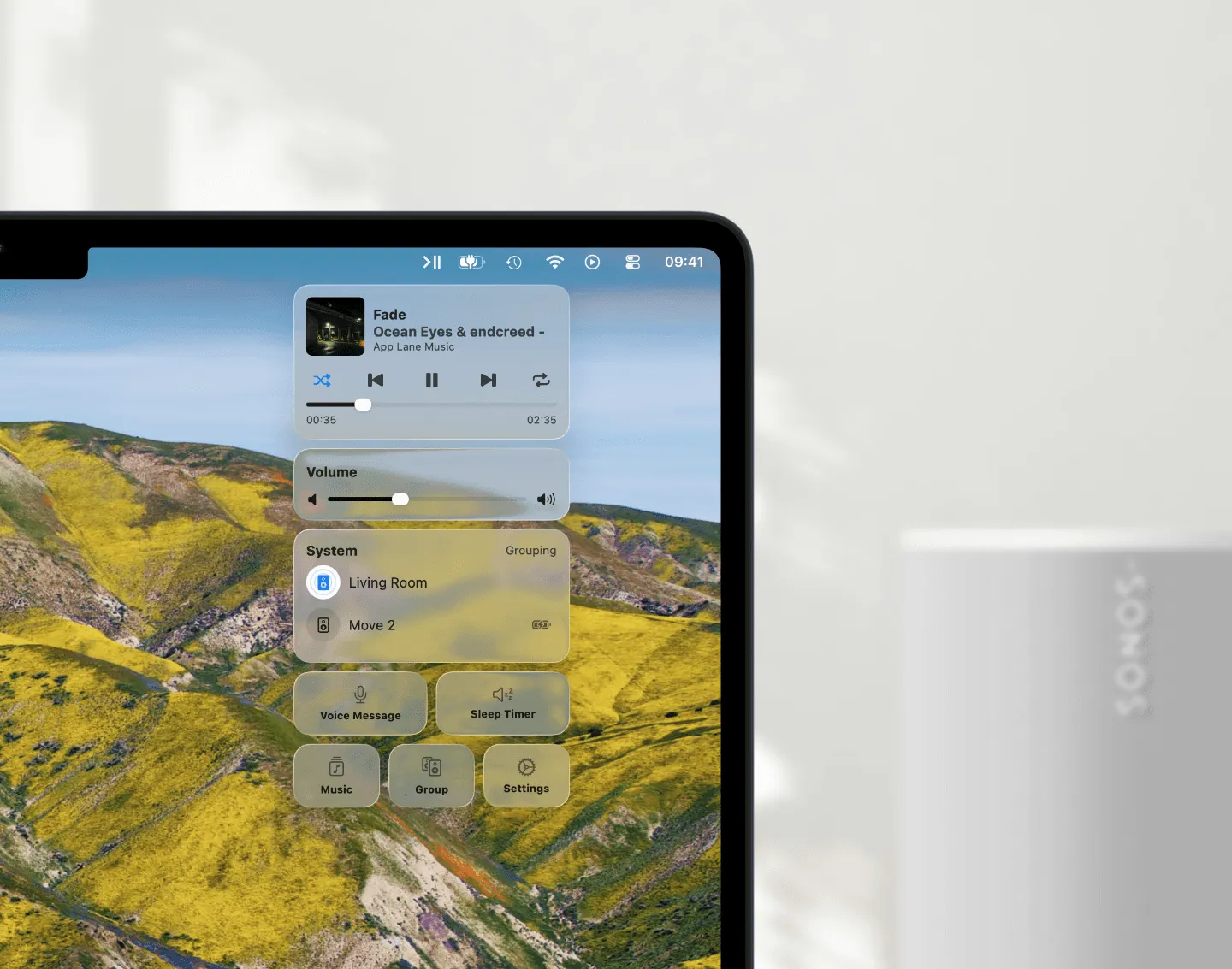
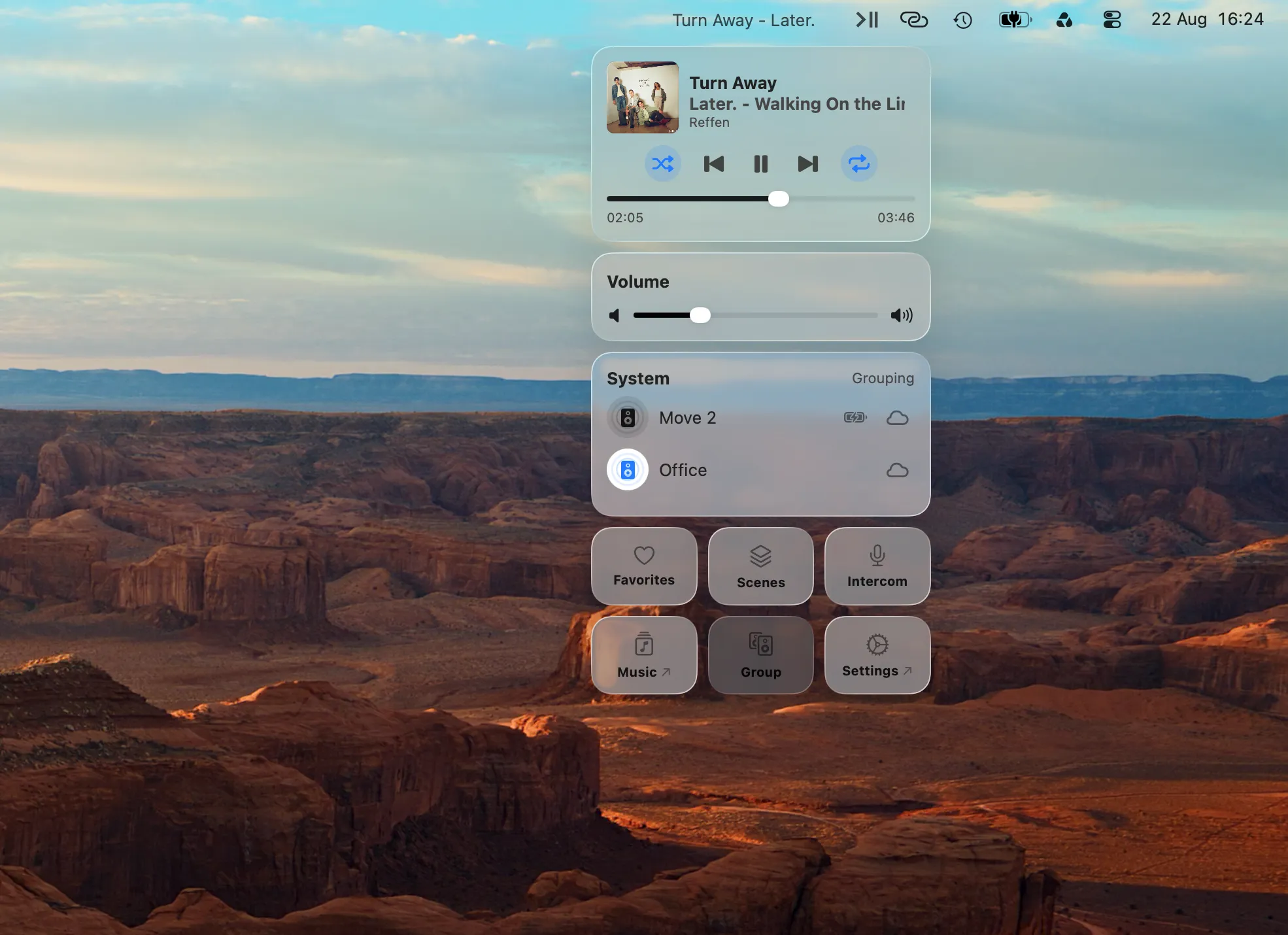
Fall Asleep to Music and Let Sonos Stop On Its Own
Setting a sleep timer takes seconds. The interesting half is what happens after you close the lid, because the timer is not running on your Mac. Here is how to set one for any room or group, how to give a Scene its own, and where it actually runs.
5 min read
You put on something quiet, you get comfortable, and then you have to get up again to stop it. That is the entire problem a sleep timer solves, and it is why it stays one of the steadier things people search for around this system.
Sonos’s own apps have a sleep timer. This guide is about setting one from your Mac instead (no phone on the nightstand, no browser tab) and about one detail that nobody documents: where a pending timer actually runs.
How to Set a Sonos Sleep Timer From Your Mac
In Menu Bar Controller for Sonos (MBC) the Sleep Timer is a page in Settings, and it works on the group you currently have selected.
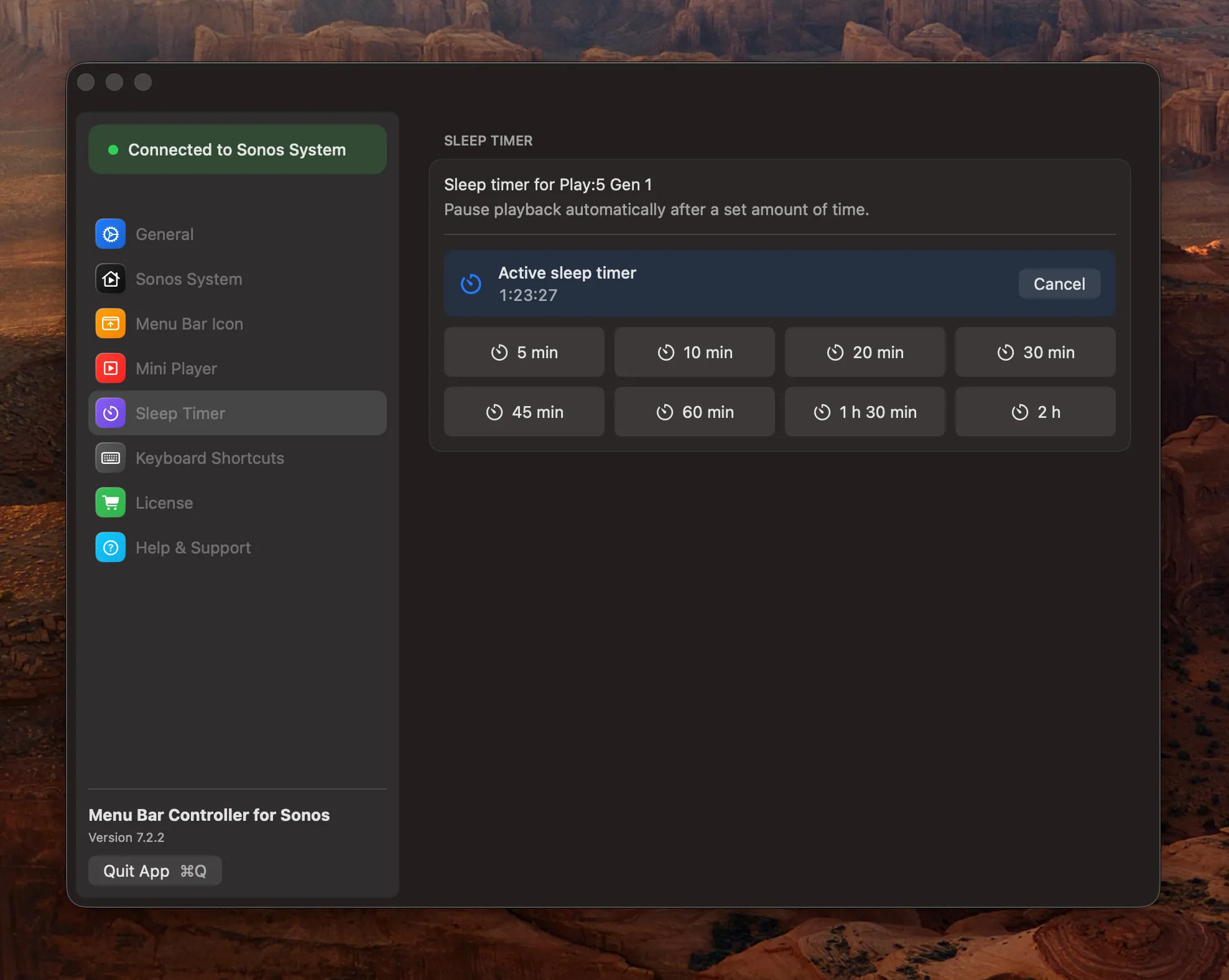
Set a sleep timer
- Select the room or group you want to fall asleep to, so it is the active group in MBC.
- Open MBC's settings and go to the Sleep Timer page.
- Click a duration. The page names the group above the buttons, so there is never a question about which speakers are going to stop.
There are eight durations: 5, 10, 20, 30, 45 and 60 minutes, 1 h 30 min, and 2 hours. No free-form field, because in practice a sleep timer is a thing you set with one click in the dark.
The timer belongs to a group, not to a single speaker. If the bedroom is grouped with the bathroom, both stop together; if you run two groups, each can carry its own timer. Group the speakers first and set the timer afterwards; the timer is scheduled against the group as it exists at that moment.
Seeing a Pending Timer, and Canceling It
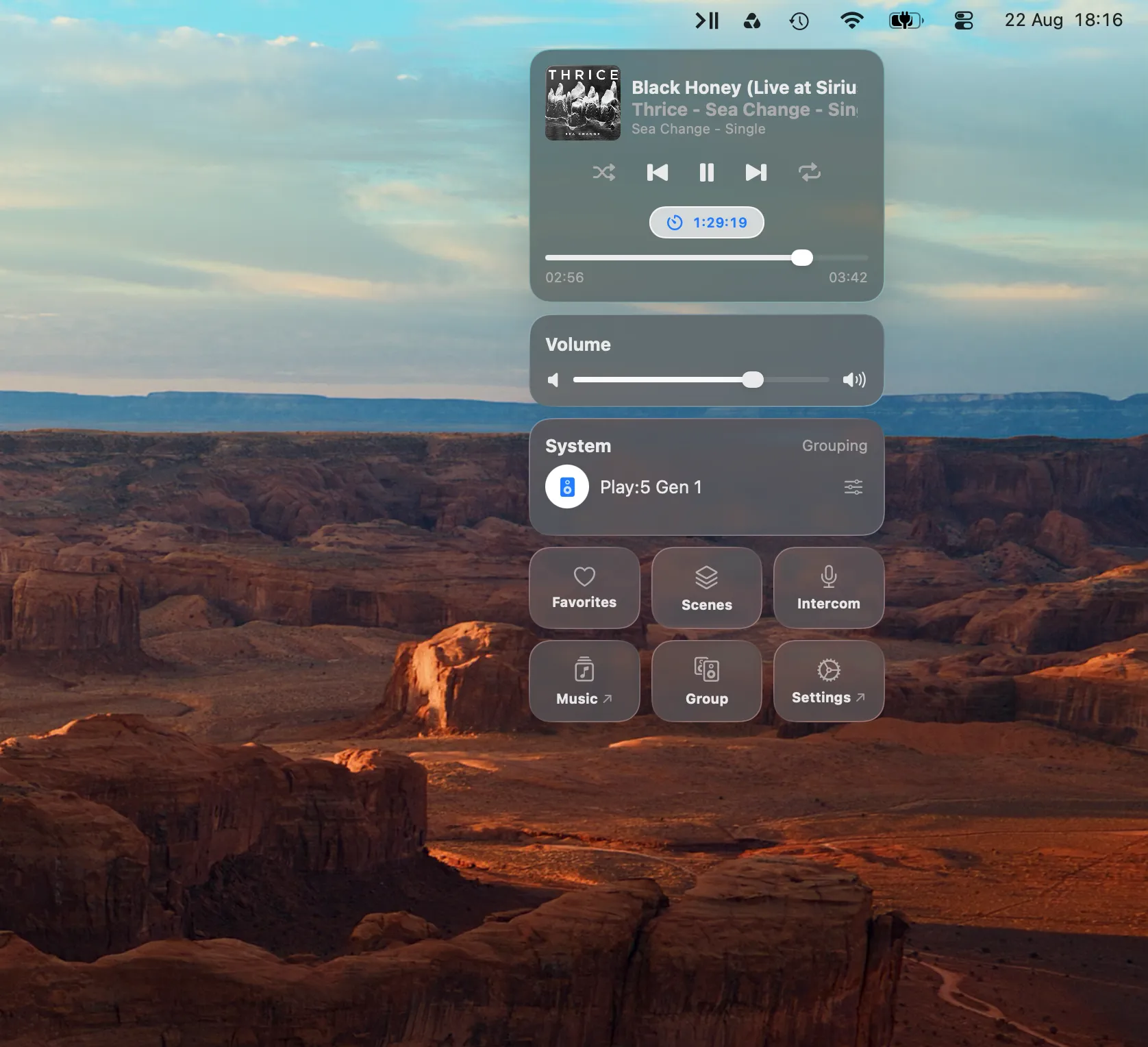
A timer you can’t see is a timer you stop trusting. While one is pending, MBC shows a live countdown in the menu bar popup, right under the playback controls. Clicking it opens the Sleep Timer page, where the active timer sits above the durations with the remaining time and a Cancel button.
The countdown also survives a restart. MBC writes the fire time to disk, so quitting the app and opening it again brings the countdown back instead of losing track of it. Entries whose time has already passed disappear on their own.
The “Good Night” Pattern: Give a Scene Its Own Timer
Setting a duration by hand is fine once. If the same thing happens every night (the same rooms grouped, the same quiet playlist, the same hour), that is a job for Scenes.
A Scene stores which speakers are grouped, what plays, and how it plays. In the Scene editor’s play modes there is a Sleep Timer toggle, and its duration is free-form rather than one of the eight presets: any value from one minute up to 23 h 59 min. Applying the Scene schedules the pause for every group the Scene sets up, and it is scheduled after the regrouping, so it lands on the groups the Scene just built rather than the ones that were there before.
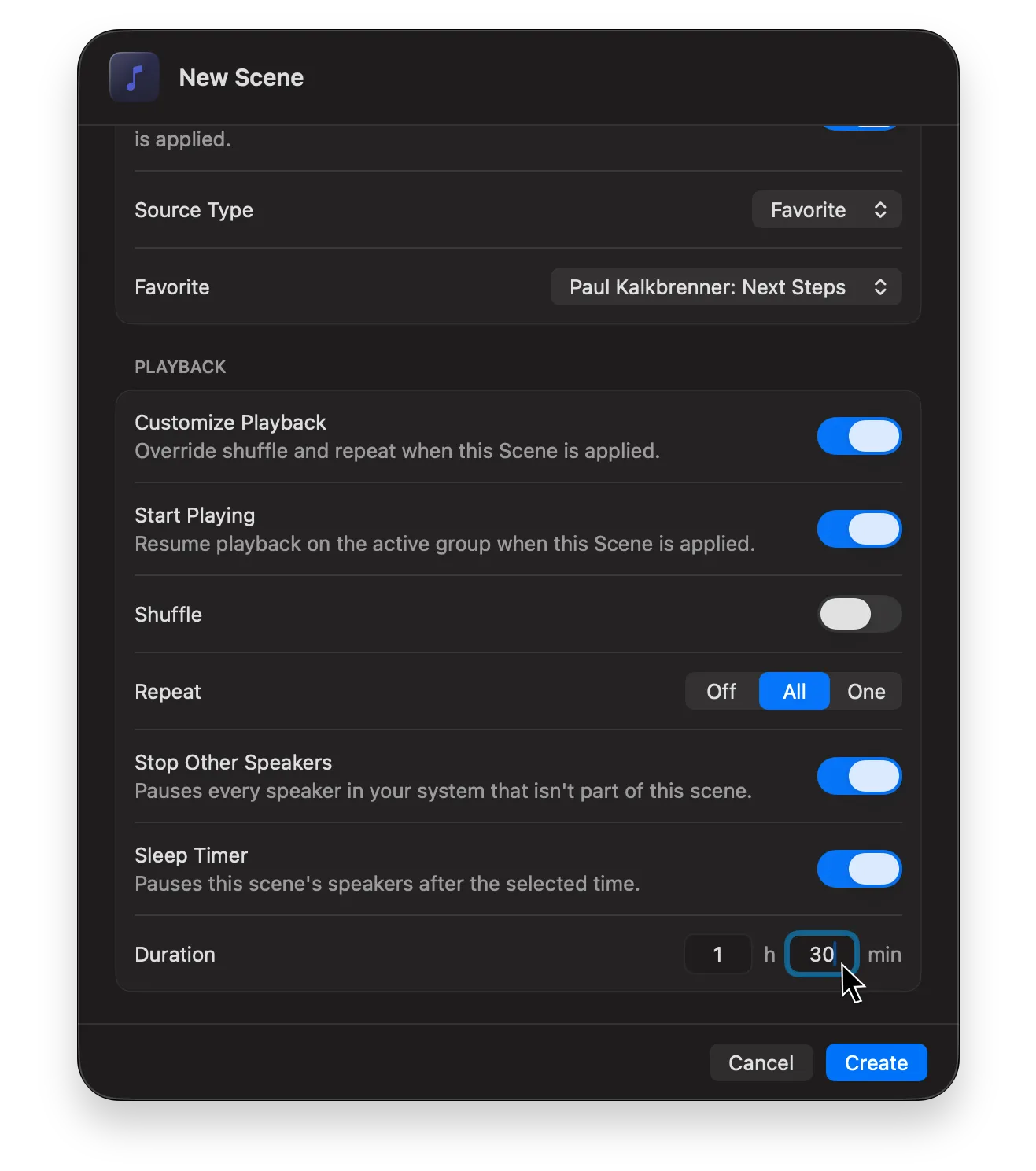
A second toggle in the same list pairs with it. Stop Other Speakers pauses every group in your system that is not part of the Scene. The Sleep Timer decides when the Scene’s own speakers stop; Stop Other Speakers decides that nothing else is still playing when it starts. For a Good Night Scene that is the difference between quieting the bedroom and quieting the house.
So a “Good Night” Scene is one click: bedroom and bathroom grouped, the quiet playlist on, volume low, stop in 45 minutes. Scenes can also be applied from Apple Shortcuts with the Apply Scene action, which is how the same click becomes a schedule or a hotkey.
Where the Timer Actually Runs
This is the part worth knowing, because it decides what you can expect from the feature.
The Sonos cloud API that MBC talks to has commands for play, pause, volume and grouping. It has no sleep timer. So MBC’s Sleep Timer is not a Sonos timer at all; it is a pause scheduled for a moment in the future, and something has to be awake at that moment to send it.
That something is not your Mac. When you pick a duration, MBC sends three things to a small server of ours: the speaker group, the time, and a Sonos access token. The server holds them in memory until the timer fires, sends the pause, and discards them. Nothing is written to a database. It is set out the same way in our privacy policy: a pending Sleep Timer is the one moment a token of yours rests on our server at all.
Four things follow from that, and they are the practical answers:
| Question | Answer |
|---|---|
| Can I quit MBC? | Yes. The timer is not running on your Mac. |
| Can I close the lid or take the Mac with me? | Yes, same reason. |
| Does my Sonos system need to be online? | Yes, at the moment the timer fires. |
| Will it show up in the Sonos app? | No. It is our timer, so cancel it in MBC. |
It is the same cloud path that keeps MBC working when your Mac is behind a VPN or away from home. See Control Sonos Remotely from Your Mac.
Conclusion
Eight durations, a countdown you can see, a Cancel button, and a per-Scene version for the nights that always look the same. The mechanism is a scheduled pause held by a small server rather than a timer inside Sonos, which is why closing your Mac doesn’t cancel it and why the official app doesn’t know about it.
Try Menu Bar Controller for Sonos free for 14 days, no signup required. Available on the Mac App Store. Because your Sonos system belongs in your Mac’s menu bar.