Why the Sonos App Sometimes Opens to the Wrong Room, and How to Fix It
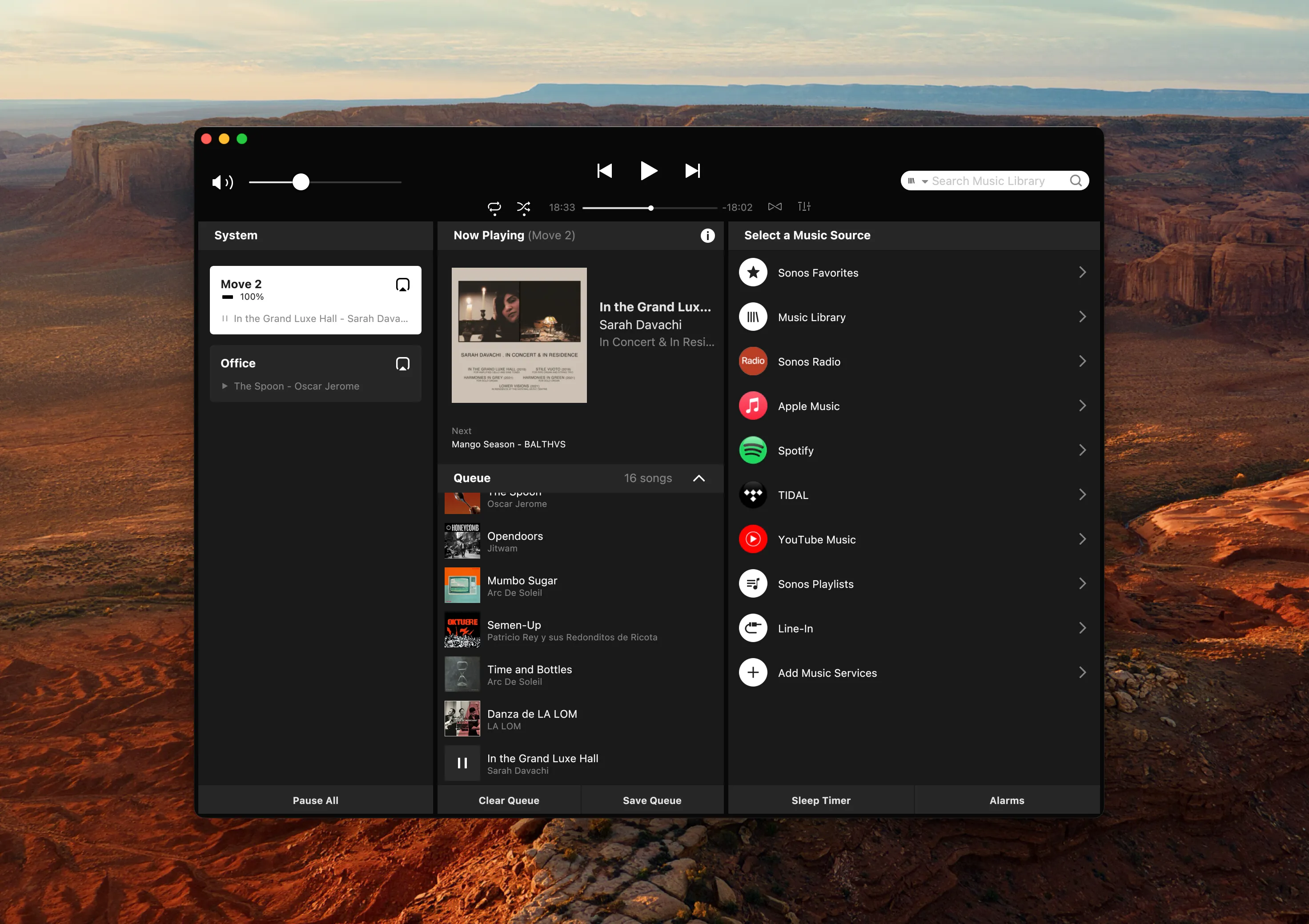
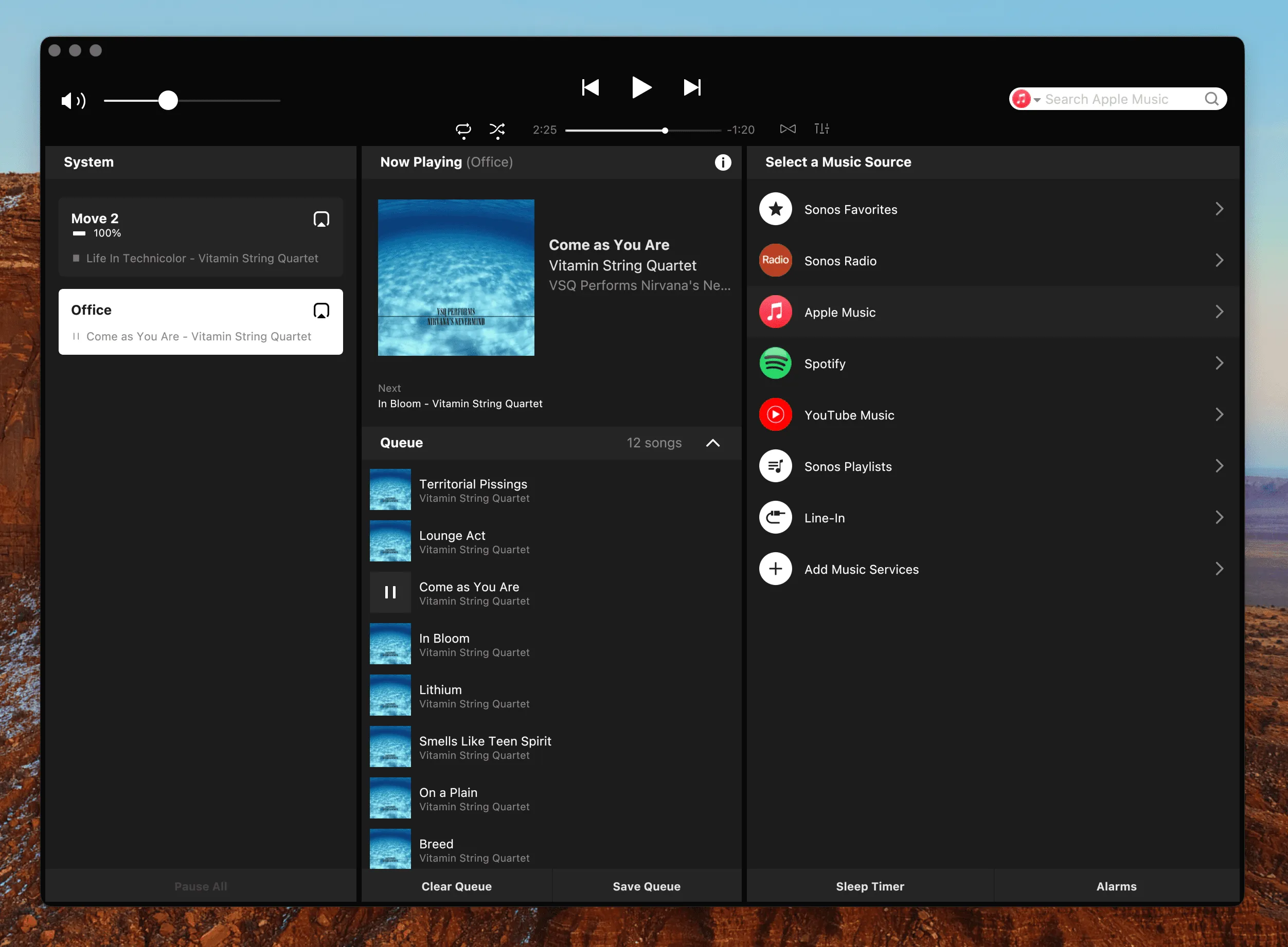
You start music in the kitchen, open the app to turn it down, and it is showing the bedroom. Nothing you press does what you expect until you have switched rooms first. Here is why the problem is harder than it looks, what Sonos has said about it on the record, and how MBC's Auto-select Playing Room setting handles it on a Mac.
7 min read
Music is playing in the kitchen. You open the Sonos app to turn it down and the app is showing the bedroom, because that is where you were last night. Pause does nothing you can hear. So you go into the room list, pick the kitchen, find the volume control again, and finally do the one thing you opened the app for.
Four interactions instead of one. It is the smallest possible complaint about a Sonos system, and one of the most durable. It is also not your setup being wrong: there is nothing to misconfigure here, because the app never asked you which room it should start on.
Sonos Says This One Is Still Unsolved
In Sonos’s “July Office Hours” AMA on r/sonos, two separate users described this exact flow: start playback somewhere, open the app, wrong room is active, extra taps before anything happens. Cam Scott, a principal product manager at Sonos, answered the question about which room the app opens to like this:
“I don’t believe we’ve gotten this right yet, so the mission continues… in my 9 years at Sonos so far we have gone back-and-forth on which approach is the most optimal.”
Room selection looks like a one-line default and is not one. If the team that owns it has changed its mind repeatedly, that is a fair sign the problem has no single right answer.
Why There Is No Obvious Right Answer
Every plausible default is correct most of the time and infuriating the rest of the time.
Open to the last room you used. Predictable, and the reason the app so often greets you with a room that has been silent since yesterday. It optimizes for the app’s memory rather than for what is happening in your house.
Open to whatever is playing. Right almost every time you open the app because something is playing. Then you sit down at your desk to start music in the office, and the app has jumped to the living room where somebody else’s playlist is running, so your first tap changes their music instead of starting yours.
Open to one fixed room you choose. Reliable and blunt. It is the best answer for a person with one main speaker and the worst answer for a house with six.
Notice that these are not three levels of quality. They are three different guesses about why you opened the app, and no app can read that intent from the outside. Which is why the useful version is not a single rule but a small ordered set of them, with a deliberate refusal to guess at the end.
The Rule That Holds Up
The version that survives contact with a real household reads like this:
- If the room you are already pointed at is playing, stay there. You almost certainly opened the app to do something to that music. Moving under your hands would be worse than being wrong.
- Otherwise, if exactly one room in the house is playing, switch to it. This is the kitchen case, and it is the one that costs people taps every single day.
- Otherwise, do nothing. If two rooms are playing, there is no way to know which one you mean, and picking one at random is worse than leaving the choice to you.
Rule three is the one that gets left out of most attempts, and it is the one that keeps the whole thing from feeling erratic.
Auto-select Playing Room, on a Mac
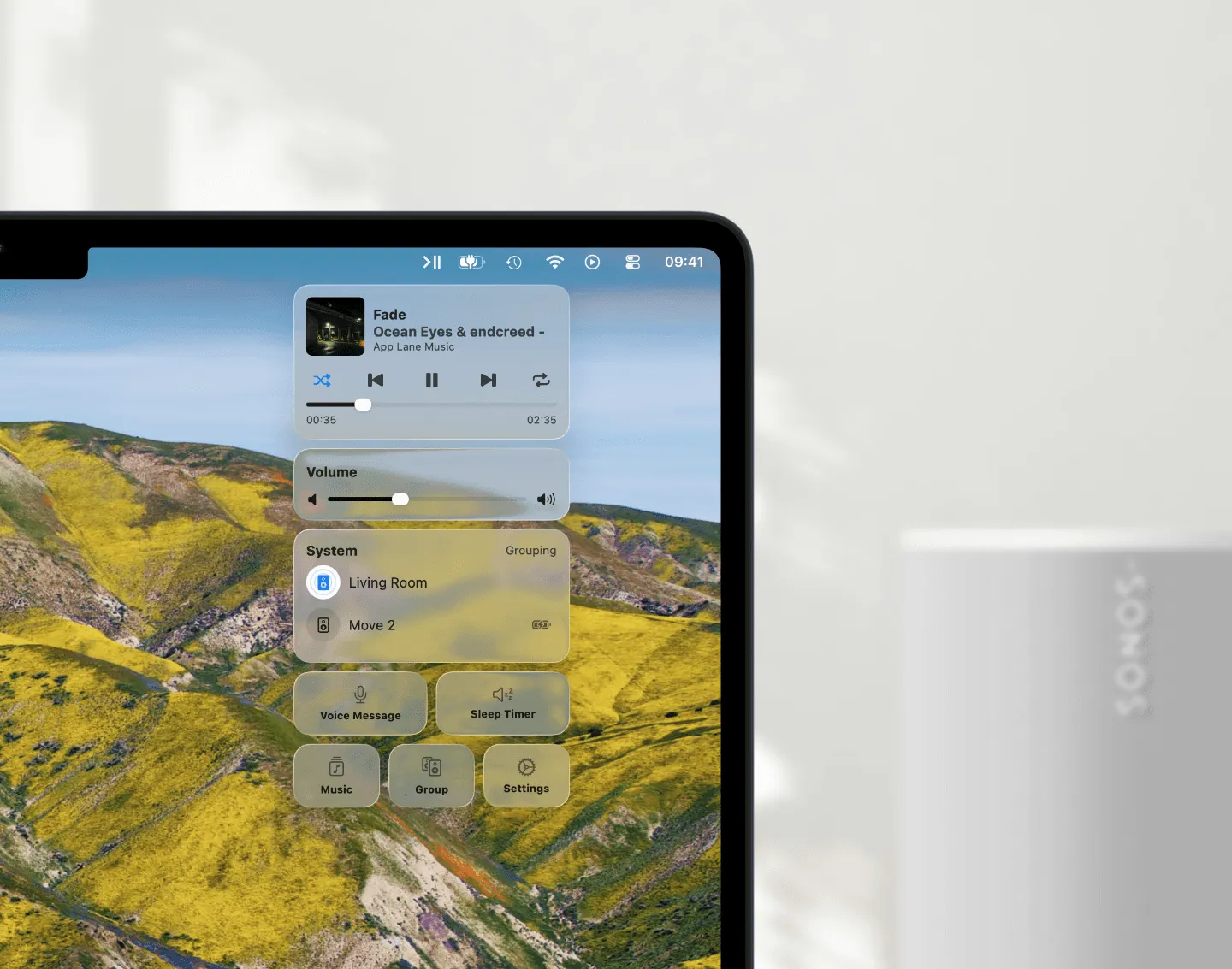
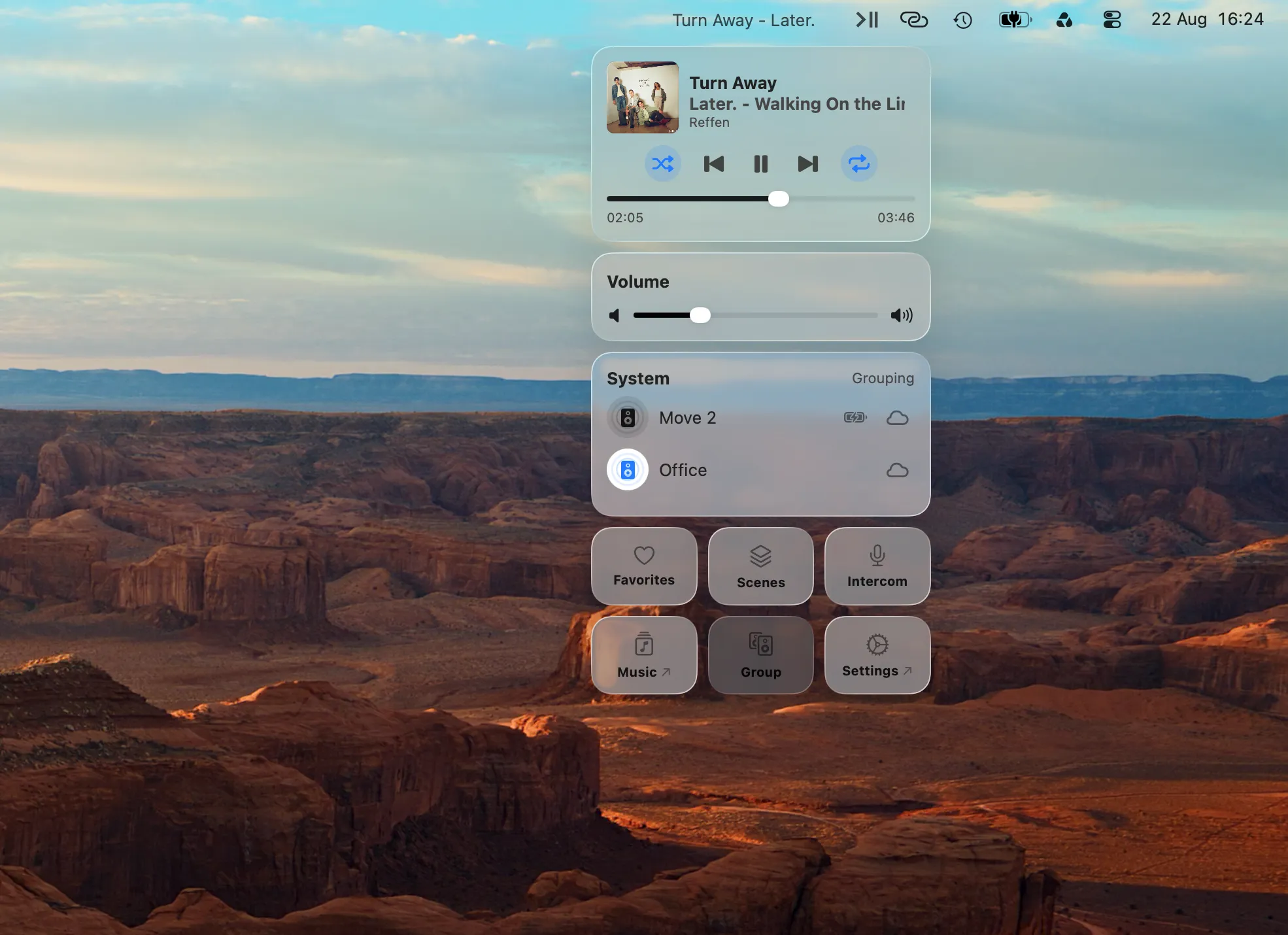
Menu Bar Controller for Sonos (MBC) is a native Mac app for exactly this kind of daily control, and it ships those three rules as a named setting rather than an invisible behavior. You will find it at Settings → General → Behavior → Auto-select Playing Room, described in the app as “Automatically control whichever room is currently playing”.
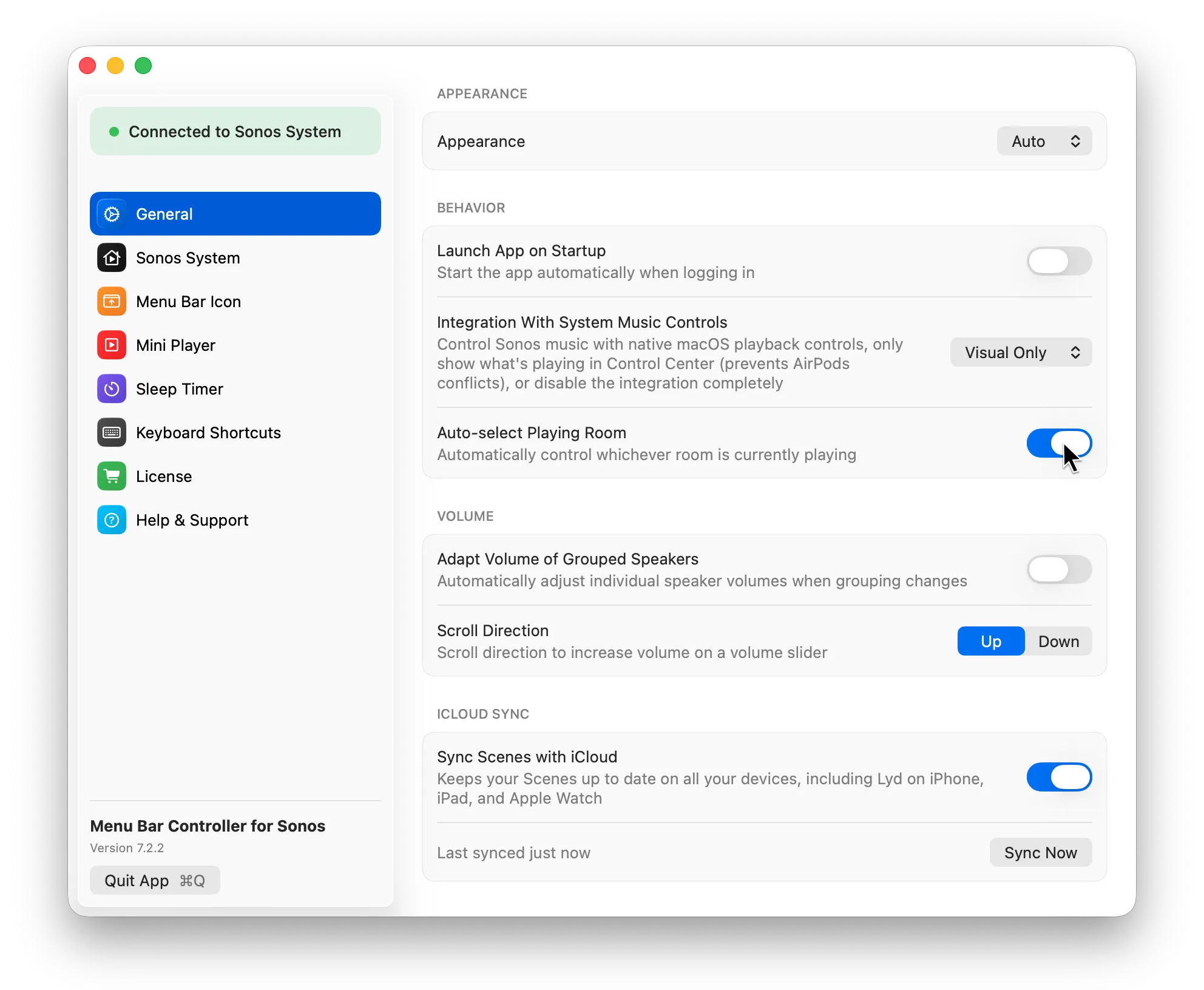
It is on by default, so if you have MBC installed you already have this. It is a checkbox, not a wizard.
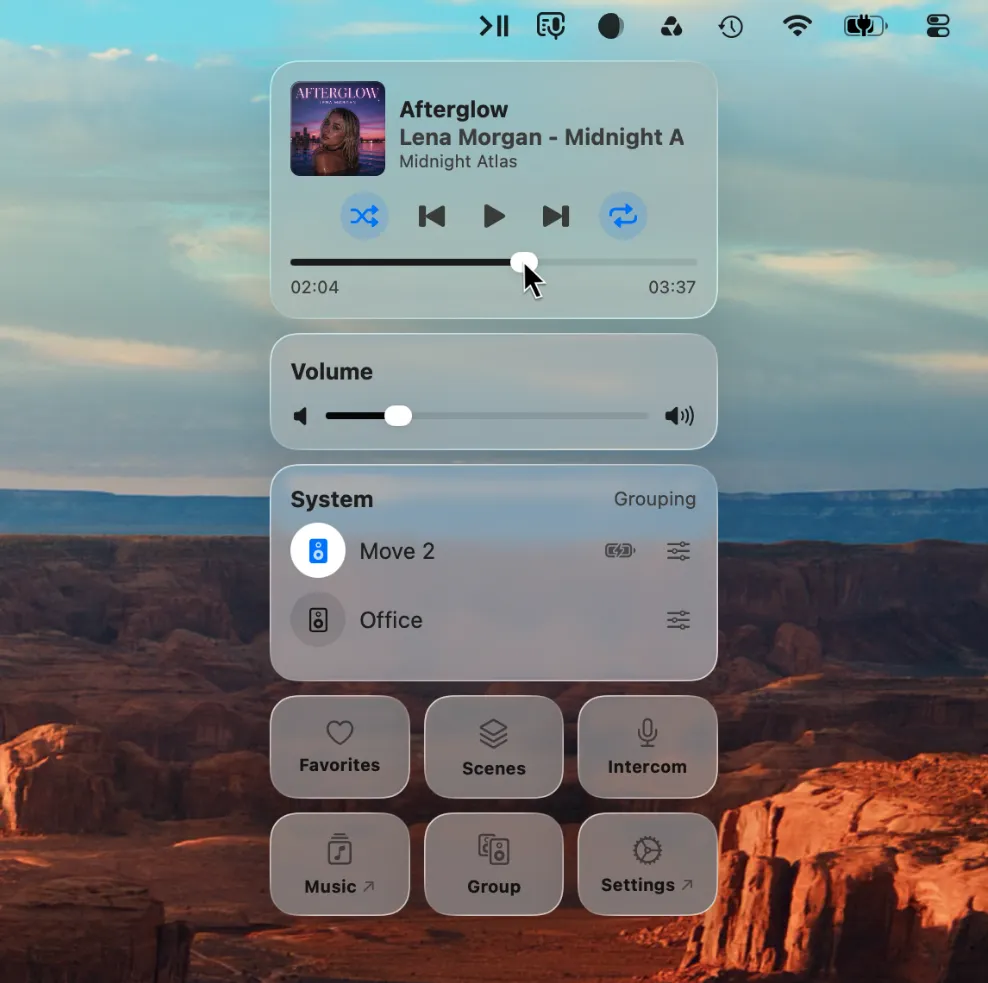
Where the Check Actually Happens
The setting is not only about launching the app. MBC re-checks which room you should be on:
- when you open the menu bar popup;
- before it acts on a macOS playback control, so the media keys on your keyboard and the Now Playing controls in Control Center hit the room that is actually playing;
- when the Mini Player window opens;
- when the volume popup appears from a keyboard shortcut.
That second one is the quiet win. Pressing the play/pause key on a Mac keyboard and having it land on the room with music in it is the entire feature, and you stop noticing it within a week.
What It Deliberately Does Not Do
Being precise here matters more than sounding impressive.
There is no “always open to room X” pin. MBC has no setting that permanently anchors the app to one room, and this guide is not going to imply that it does. If you want that behavior today, the closest thing is to turn Auto-select Playing Room off, at which point MBC stays on whichever room you last selected and never moves on its own. That selection is remembered across quits and restarts.
It will not choose between two playing rooms. If the kitchen and the living room are both going, MBC stays where it is and lets you pick. This is intentional. An app that shuffles between two active rooms depending on which one answered the network first is worse than an app that sits still.
It never moves a room that is playing out from under you. If your currently selected room has music on it, the setting does nothing at all, whatever else is happening elsewhere in the house.
When Nothing Is Playing Yet
Auto-select handles the case where music is already going. The other half of the problem is starting music in a specific room without hunting for it first, and that is what Scenes are for.
A Scene stores a room or a group, a source and a volume, and applying one from the menu bar sets all of that up in a single click. Applying a Scene also leaves MBC selected on that Scene’s main room, so “Kitchen Radio” both starts the music and puts you in the right place to adjust it. It is the closest thing to a per-context default room, and unlike a fixed pin it can be a different room for a different moment.
When to Turn It Off
There is a real case for switching this setting off, and it is not an edge case.
If you work at one desk and control one speaker, and other people in the house play music in other rooms all day, then “the room that is playing” is usually somebody else’s room. Turning Auto-select Playing Room off pins MBC to your last choice and keeps it there. The toggle is in the same place; it takes one click, and nothing else in the app changes.
Not to Be Confused With No Rooms at All
One thing to separate out: if your Mac shows an empty room list, or your speakers vanish and come back, that is not a room-selection problem. That is discovery, and it has completely different causes, mostly macOS Local Network permission and multicast.
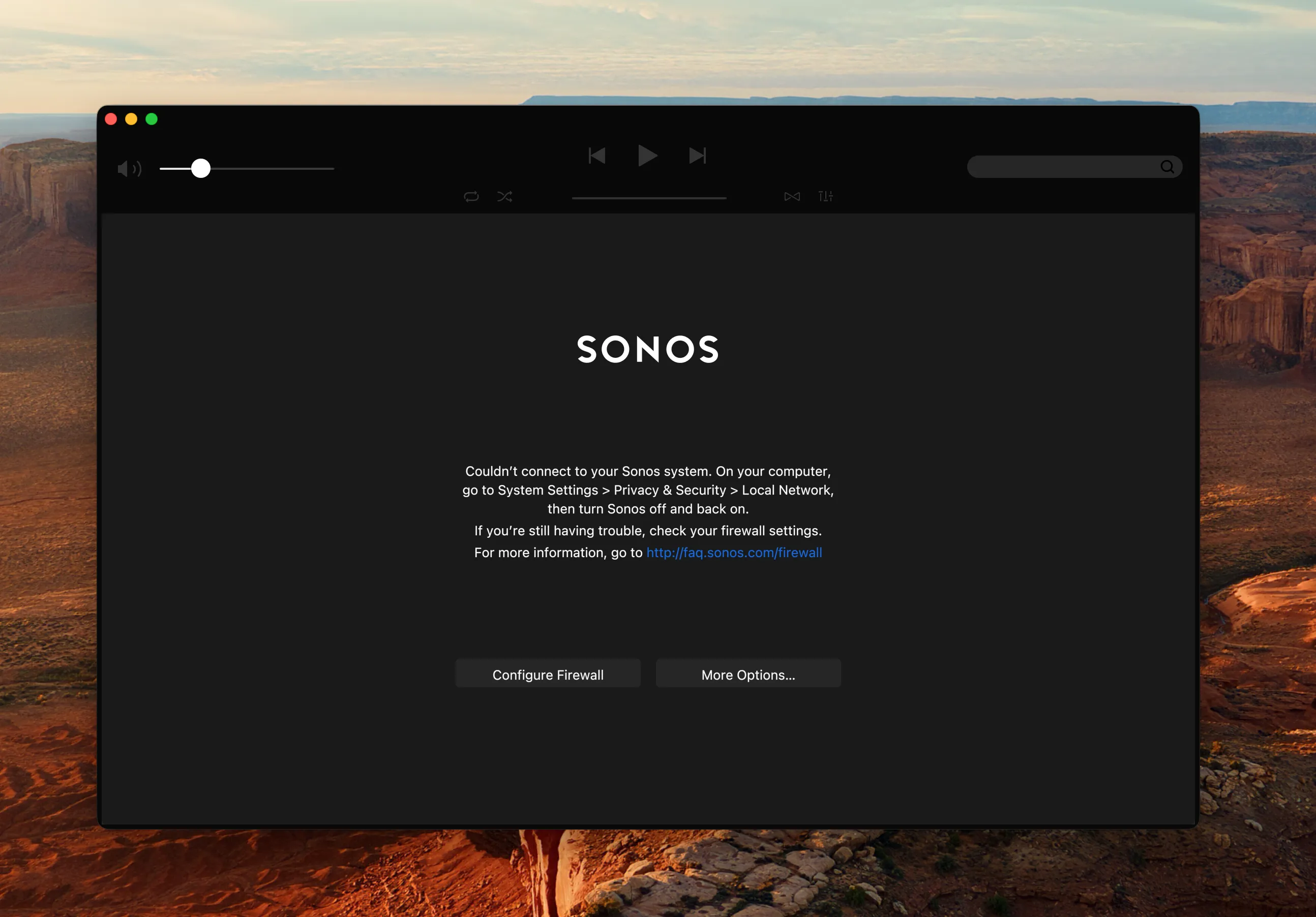
Sonos App Not Working on Mac?
It won't open, or it opens and your speakers are gone. Work through the causes in the order that actually finds the problem, from the one-toggle fix to the network split nobody thinks to check.
Read the GuideConclusion
Opening to the wrong room is a tiny problem you pay for several times a day, which is precisely the kind of problem a desktop app should absorb. Sonos’s own principal PM says they have not settled it in nine years, and the reason is real: there is no single correct default, only a sensible order of rules and the discipline to stop guessing when the house is genuinely ambiguous.
That is what Auto-select Playing Room does, it is on out of the box, and it is one checkbox away from off if your household works the other way around. Try Menu Bar Controller for Sonos free for 14 days, no signup required. Available on the Mac App Store. Because your Sonos system belongs in your Mac’s menu bar.