Sonos S1 on Your Mac, and Living With Two Systems
Your S1 speakers work exactly as well as they did in 2019. What they lost was software attention, and on a Mac that shows more than anywhere else. Here is what the S1/S2 split actually locked in place, what you can still change, and how to control an S1 system, an S2 system, or both from your Mac's menu bar.
9 min read
There is a particular kind of Sonos owner who has learned to read release notes defensively. You bought early, the speakers still sound the way they did the day you unboxed them, and every announcement since 2020 has quietly been about somebody else’s hardware.
That is the S1 situation. It is not a fault, and nothing is broken. It is a software boundary Sonos drew once and has kept, and the place it pinches hardest is the desktop, because the desktop is where Sonos has been least interested for years, S1 or not.
This guide covers the boundary itself: what the split fixed in place, what you can still change, and how to actually control an S1 system from a Mac, including alongside an S2 system in the same house.
What Sonos Actually Split in 2020
In 2020 Sonos divided its software into two lines. S2 got the new features and everything since. S1 became the maintenance line for products that, in Sonos’s account, no longer had the memory and processing headroom to keep up.
If your household contained a mix, Sonos offered a choice rather than a migration. Stay on S1 with everything, or move the capable speakers to S2 and leave the older ones behind as a second, separate system. Most split households you meet today are the result of taking that second option, which is why so many people own two Sonos systems without ever deciding to.
Sonos publishes the list, and it is short and old. Ten products never made it to S2:
| Stayed on S1 |
|---|
| ZonePlayer 80, 90, 100, 120 and S5 |
| Bridge |
| CR200 controller |
| Connect (Gen 1) |
| Connect:Amp (Gen 1) |
| Play:5 (Gen 1) |
Everything Sonos released after those runs S2. If you’re unsure which side a particular speaker is on, check it in Sonos’s own app rather than in an old forum thread. The app knows, and the thread may well be about a different generation of the same name.
What Sonos still ships for S1 is the Sonos S1 Controller, a separate download that lives alongside the current app rather than inside it. There is a desktop build, and it is old: its minimum requirement is macOS 10.11, released in 2015.
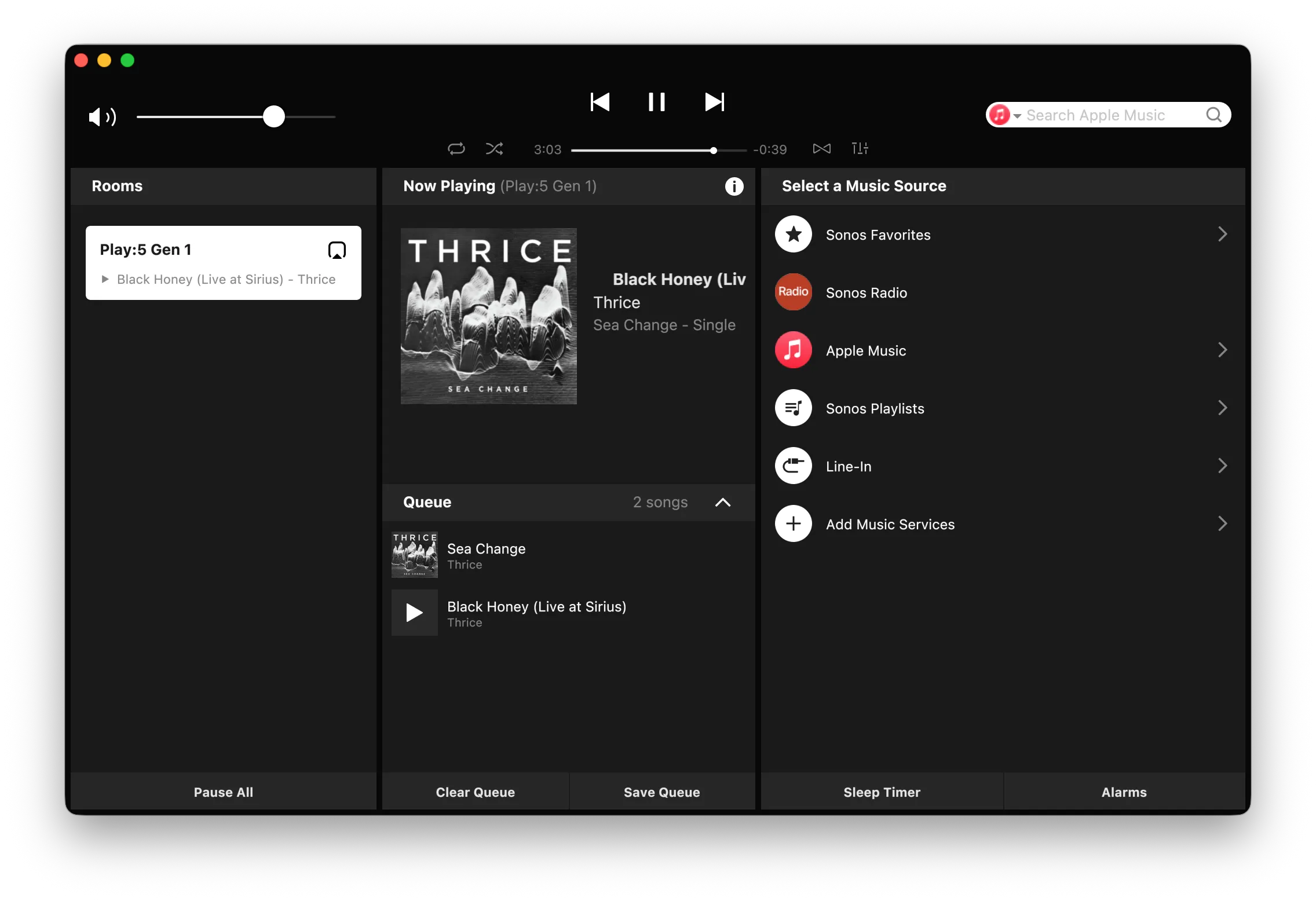
And it is on the same clock as the app it outlived. The S1 Controller ships as an Intel-only binary, so on Apple Silicon it runs through Rosetta, and macOS now says so on every launch.
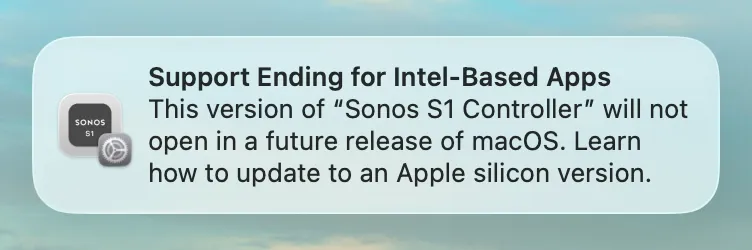
That is the part most S1 coverage misses. The current Sonos app and the browser-based web app are S2 products, so an S1 owner cannot switch to them; and the one desktop app Sonos does offer them stops launching on the same schedule as the one that was already discontinued.
That is a narrower version of a problem every Mac owner has now. The wider story (what replaced the Sonos desktop app and where the web app falls short) applies to S2 owners just as much.
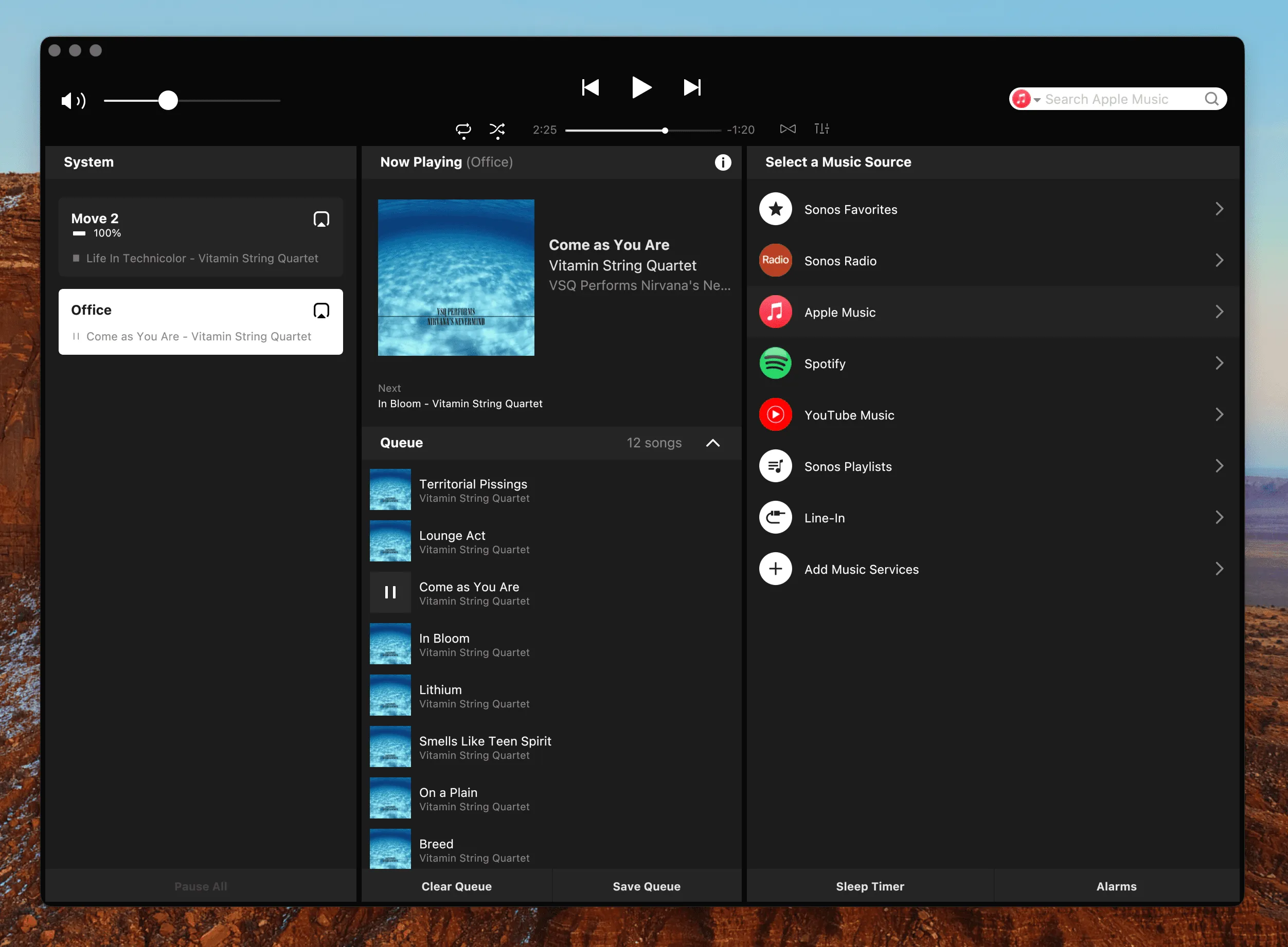
The Sonos Mac App Is Going Away
macOS now warns that the Sonos Mac app "will not open in a future release." What that means, when it actually breaks, and why your Mac can end up with a better Sonos app than the one it's losing.
Read the GuideThe Rules That Don’t Bend
Before any controller enters the picture, it’s worth being precise about what “running S1 and S2 together” can and cannot mean, because a lot of hope gets invested in the wrong half.
| The Question | The Answer |
|---|---|
| Can one speaker be on both? | No. A speaker runs S1 or S2, never both |
| Can an S1 room and an S2 room play in sync? | No. A group only ever contains speakers from one system |
| Can both systems appear in one app? | Yes, if both are registered to the same Sonos account |
| Can one app control both at once? | No. You control one system at a time and switch between them |
Grouping is the hard one, and it’s structural rather than a missing feature. In the Sonos API a group is created inside a system and holds players from that system, so there is no request anyone could send that puts a Play:5 on S1 into the same group as an Era on S2. No controller can offer it, ours included. If your kitchen is on one system and your living room on the other, they are two independent playbacks that happen to be in the same building.
Favorites and Sonos Playlists are per-system too. They are fetched for the system you’re currently on, so your S1 favorites and your S2 favorites are genuinely two lists. Adding a station on one side does not make it appear on the other.
The same Sonos account is the requirement that actually matters. A controller signs in to one account and can then see the systems that account owns. Register the two systems to two different accounts and no app will show you both, because from the account’s point of view the other one doesn’t exist.
A Sonos S1 Controller for Mac
Here is the part that surprises people: from a controller’s perspective, an S1 system is not a special case. It is a Sonos system on your account, with rooms and groups and volume, and it answers the same way any other one does.
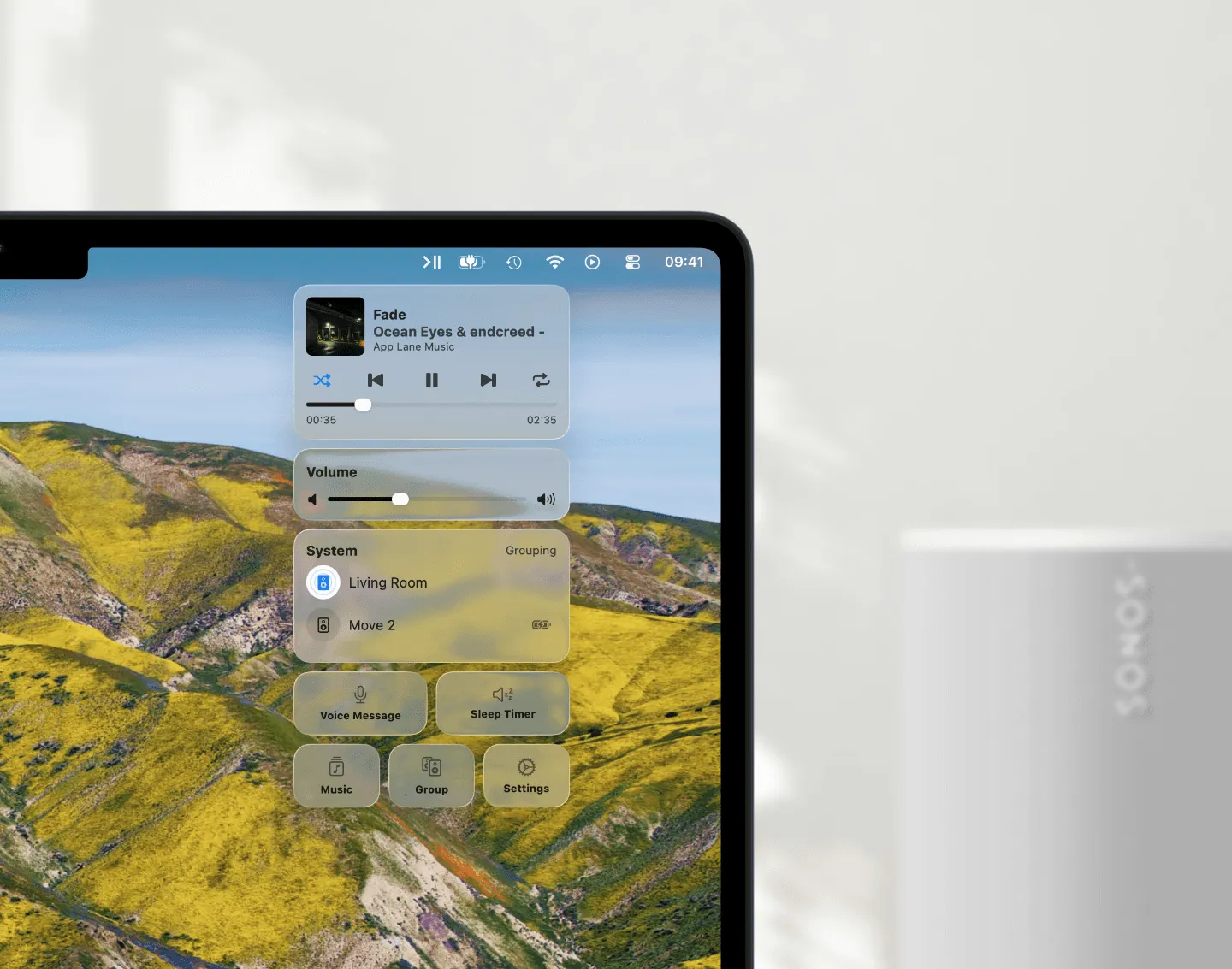
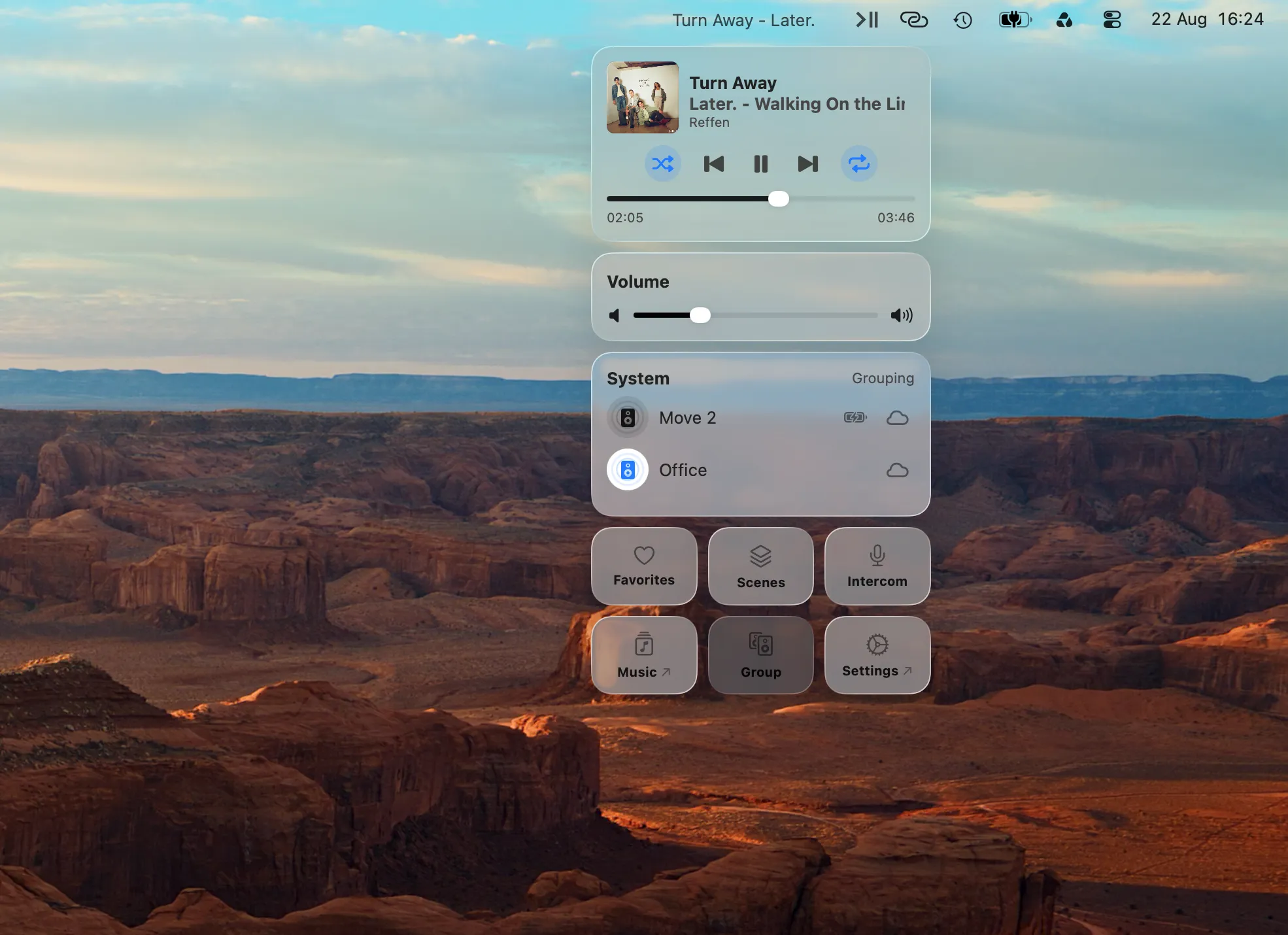
Menu Bar Controller for Sonos (MBC) signs in to your Sonos account and lists every system that account can see. An S1 system shows up in that list next to your S2 system, and both are controlled from your Mac’s menu bar: playback, volume, grouping within each system, room-by-room levels.
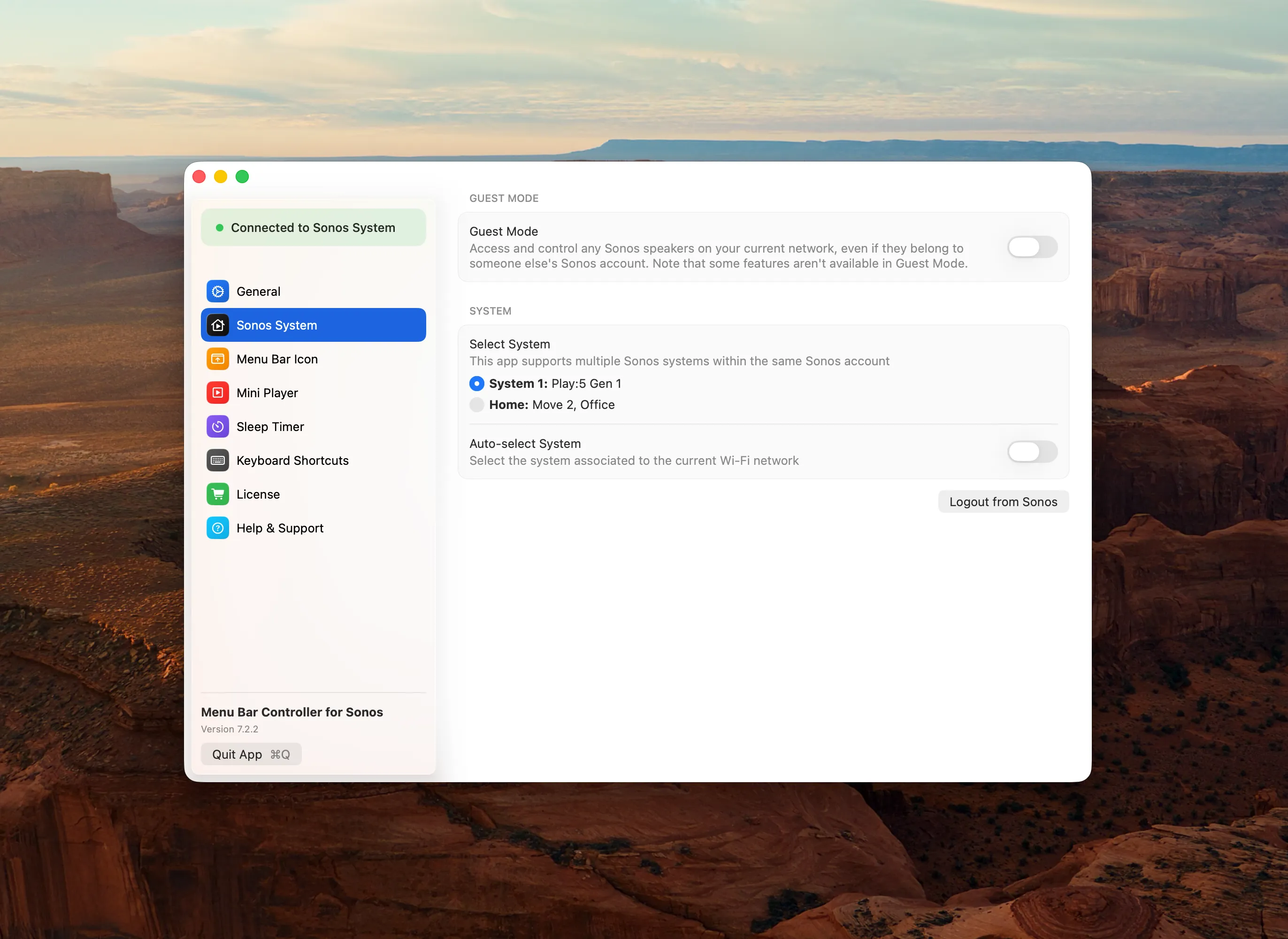
You pick which one you’re on in Settings → Sonos System. The list shows each system by name, followed by its speakers, which is usually how you recognize which is which; the S1 one is the list with the older room names in it. Choosing another system doesn’t sign you out and back in; the rooms simply reload and the menu bar is now driving the other half of the house.
If an S1 system doesn’t appear at all, it is almost always the account question above rather than the software generation. If it appears but its speakers don’t respond, that’s a network problem rather than an S1 problem, and Sonos App Not Working on Mac? walks through it.
Switching Systems Without Thinking About It
Two systems in one house is one pattern. Two systems in two places (home and an office, a house and an apartment) is the other, and there the switching is the whole annoyance.
MBC has a setting for it: Auto-select System, right under the system list. What it does in practice is check which system’s speakers actually answer on the network you’re on at that moment, and select that one. It is described as picking the system for your current Wi-Fi network, and the effect is the same, but the mechanism is nicer than reading a network name: it works out where you are by asking the speakers.
Three things worth knowing about it:
- If no system answers (you’re away from both) it falls back to the one you used last, rather than leaving you with an empty list.
- Picking a system by hand turns Auto-select off. A manual choice is treated as a decision, not as a hint.
- It re-checks at most once an hour when you open the app, so it is not constantly probing your network in the background.
There is also a Switch to Next System action in Apple Shortcuts, which cycles to the next system on your account. It exists for exactly the multi-location case, and it’s the cheapest way to put system-switching on a keyboard shortcut or into a larger automation.
Guest Mode, for a System That Isn’t Yours
The last case the account rule leaves open: a Sonos system you don’t have an account for. Someone else’s house, a rental, an office system that IT registered. Or, for a split household, an S1 system that ended up on a family member’s account years ago and would be a nuisance to move.
Guest Mode answers that one. Turned on in Settings, MBC stops using your account for the moment and finds the speakers on the network you’re currently connected to: no login, no invitation, nothing to add to your account. Since discovery happens on the local network, the generation doesn’t matter: S1 speakers announce themselves the same way S2 ones do.
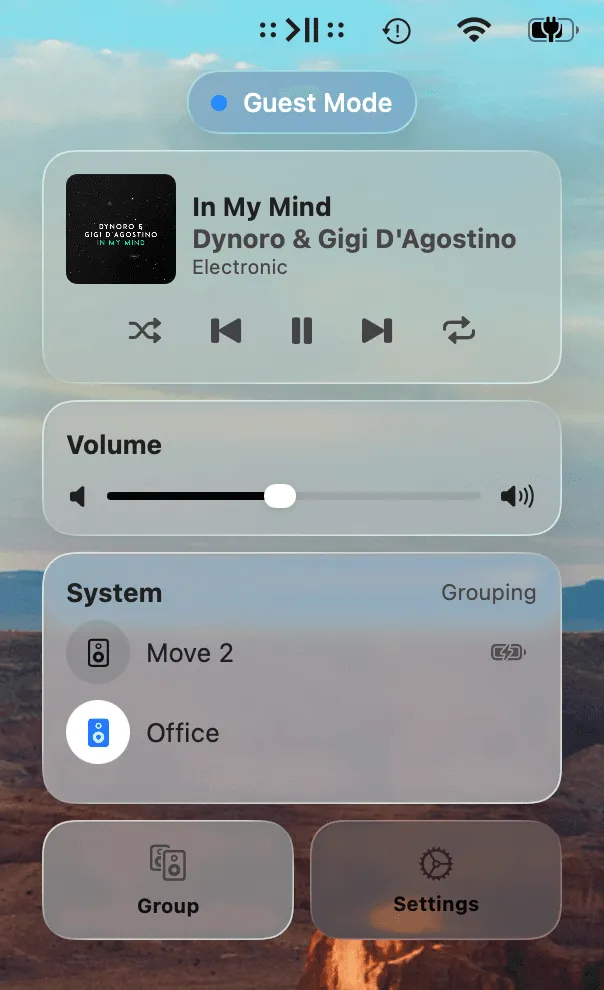
It comes with a real trade. In Guest Mode you get playback control, volume per room and per speaker, and grouping. You don’t get Sonos Favorites, Sonos Playlists, streaming search, Scenes, the Music Library, or Intercom. All of those are account features, and there is no account in play. MBC hides those buttons rather than letting you press them into a wall.
Guest Mode also works only on the network the speakers are on, so it is not a way to reach a system remotely; that’s Control Sonos Remotely from Your Mac, and it needs your account.
Conclusion
The split is not going to be undone, and no app is going to group an S1 room with an S2 one. What is fixable is everything around it: two systems on one account, one menu bar, a switch that takes a click and doesn’t ask you to sign in again, and something sensible to do when the speakers in front of you belong to somebody else.
S1 owners have spent five years being told their hardware is the problem. It isn’t; the software attention went elsewhere. Try Menu Bar Controller for Sonos free for 14 days, no signup required. Available on the Mac App Store. Because your Sonos system belongs in your Mac’s menu bar, whichever generation it happens to run.